
SSH basics
Security basics
A short checklist that keeps an SSH server and your phone safe.
On the server
Use keys, not passwords. Once your key works, turn off password login. See SSH keys explained for how to set this up.
Linux
-
Edit the SSH config. Open
/etc/ssh/sshd_configand set:PasswordAuthentication no KbdInteractiveAuthentication no PermitRootLogin noIf you log in as root with a key, use
prohibit-passwordinstead ofno. Some systems have files in/etc/ssh/sshd_config.d/that override these settings - check them. -
Test the config.
sudo sshd -t -
Restart the SSH server.
Ubuntu/Debian:
sudo systemctl restart sshFedora/Arch:
sudo systemctl restart sshd
macOS
-
Edit the SSH config. Open
/etc/ssh/sshd_configand set:PasswordAuthentication no KbdInteractiveAuthentication no PermitRootLogin noIf you log in as root with a key, use
prohibit-passwordinstead ofno. -
Test the config.
sudo sshd -t -
Restart the SSH server.
sudo launchctl kickstart -k system/com.openssh.sshd
Windows
-
Edit the SSH config. Open
C:\ProgramData\ssh\sshd_configand set:PasswordAuthentication no KbdInteractiveAuthentication no -
Test the config.
sshd -t -
Restart the SSH server. In an admin PowerShell:
Restart-Service sshd
Log in as a normal user and use sudo, not root. Keep the system updated with your package manager or system update tool.
Do not expose SSH to the internet unless you need to. Prefer a VPN like Tailscale or WireGuard. If it must be public, use a firewall and fail2ban to block repeated failed logins. On Ubuntu or Debian:
sudo ufw allow OpenSSH
sudo ufw enable
sudo apt install fail2ban
Changing the port only reduces log noise. It is not real protection.
Always check the host key on first connect. Never accept “Host key changed” unless you know why. See Host keys.
In Termphin
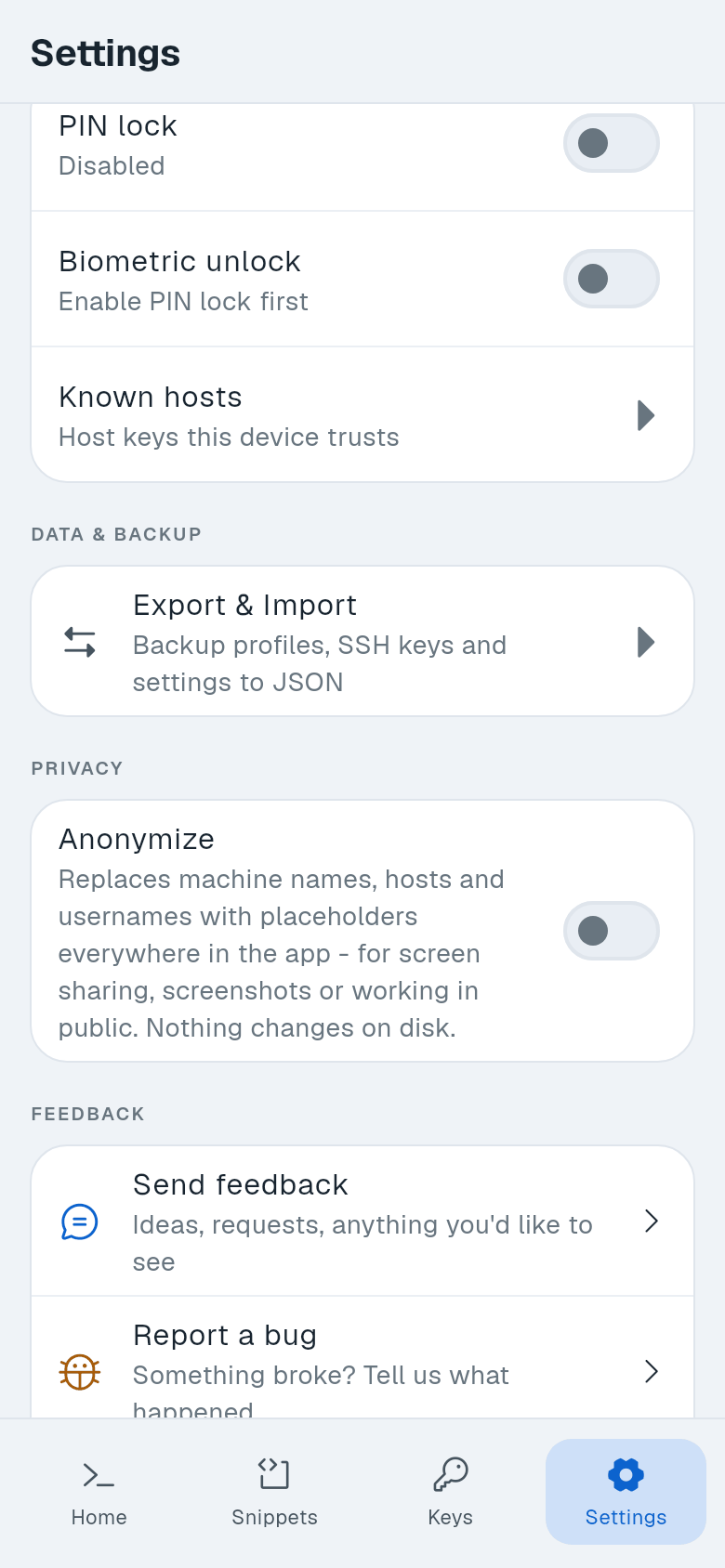
- Turn on the PIN lock and biometric unlock. See App lock.
- Protect backups with a passphrase. See Backup and restore.
- Use one key per device.
- Your private keys, passwords and host key pins are stored encrypted on the device and never uploaded.
- Anonymize hides hosts and usernames for screenshots. See Privacy.
- The Termphin agent runs as your user, opens no network port, needs no root, and its checksum is verified before upload. See The Termphin agent.
If you lose your phone
- Remove the phone’s public key. Delete its line from
~/.ssh/authorized_keyson every server. - Change saved passwords. Change any passwords that were saved in Termphin.