
Settings and data
Backup and restore
Export machines, keys, snippets and settings to a file, and bring them back on this or another device.
Export a backup
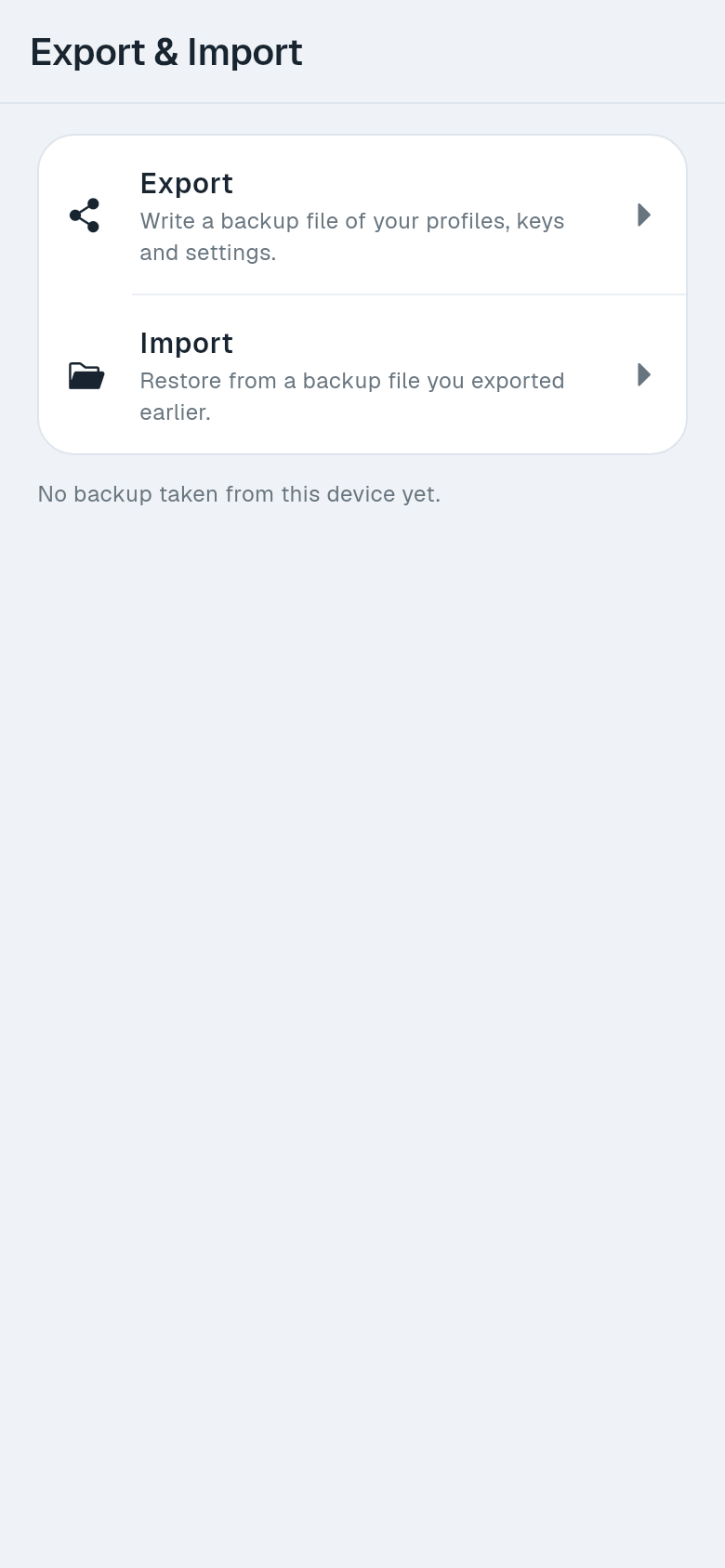
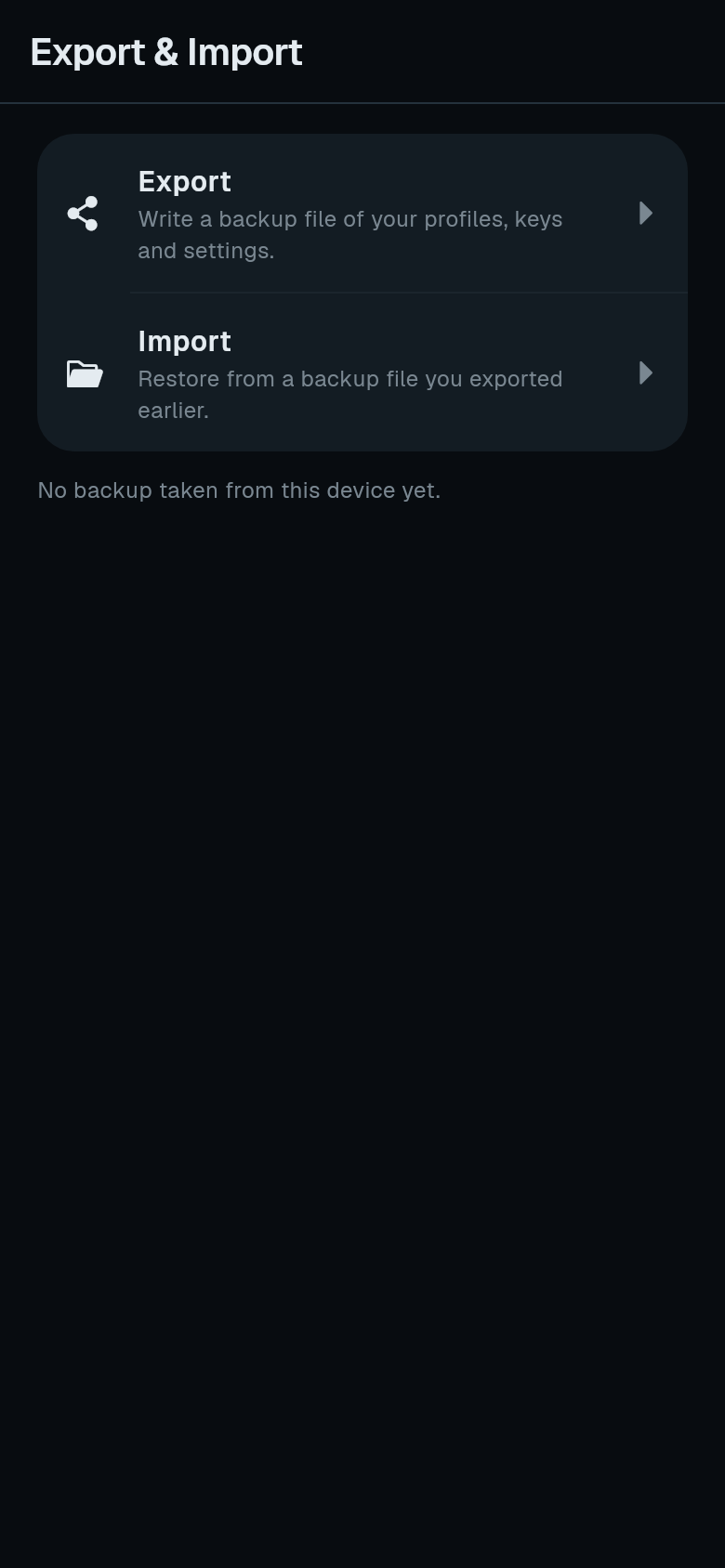
Open Settings > Data & Backup > Export & Import. The screen shows two choices. Export writes a backup file of your profiles, keys and settings. Import restores from a backup file you exported earlier.
-
Open Export. Tap Export on the Export & Import screen.
-
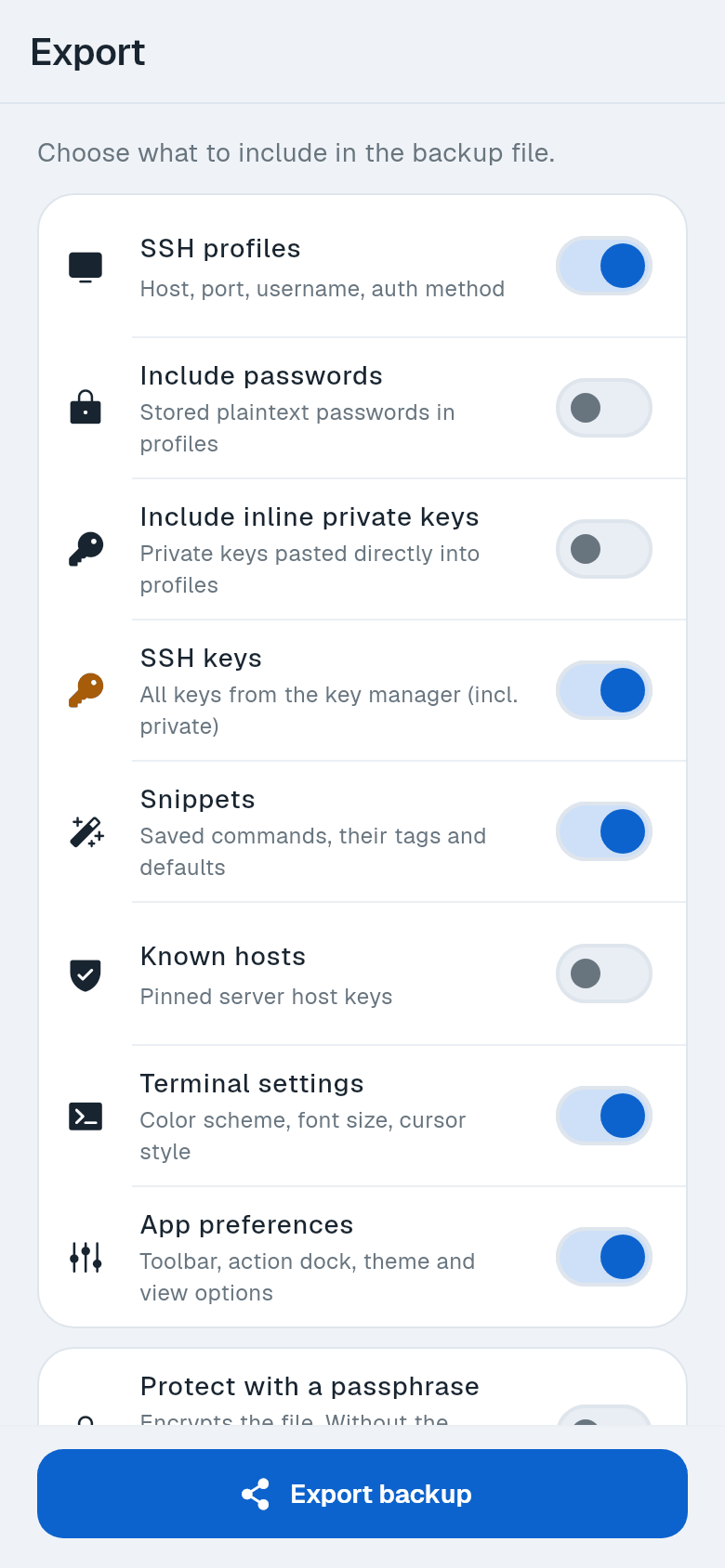
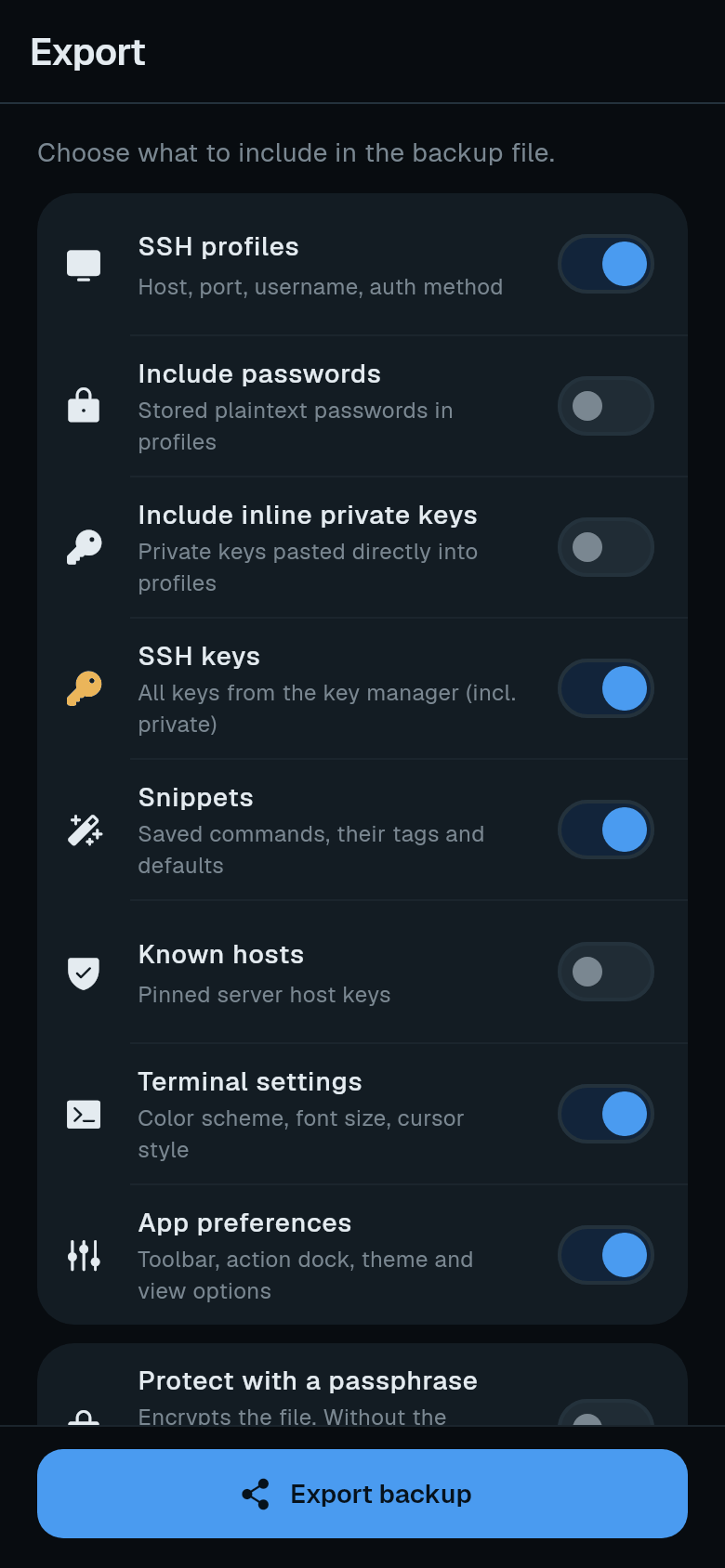
Choose what to include. Switch on the sections you want in the file.
-
Protect the file. Turn on Protect with a passphrase and type the passphrase twice. It must have at least 8 characters. The app rejects a passphrase that is too short or does not match the repeat.
-
Write the backup. Tap Export backup and save or share the file.
The Export & Import screen shows when the last backup was taken from this device. If there is none yet, it says: “No backup taken from this device yet.”
What is in the file
Each section of the backup has its own switch on the export screen:
- SSH profiles - host, port, username, auth method
- Include passwords - stored plaintext passwords in profiles
- Include inline private keys - private keys pasted directly into profiles
- SSH keys - all keys from the key manager, including private ones
- Snippets - saved commands and their defaults
- Known hosts - pinned server host keys
- Terminal settings - color scheme, font size, cursor style
- App preferences - toolbar, action dock, theme and view options
Groups always travel along with their profiles. There is no separate switch for them.
Import a backup
-
Open Import. On the Export & Import screen, tap Import.
-
Select the file. Tap Select backup file and pick a backup file. If the file is encrypted, Termphin shows the This backup is encrypted prompt. Enter the passphrase it was exported with and tap Unlock. A wrong passphrase is rejected.
-
Review the contents. The preview lists what is in the file by section: SSH profiles, SSH keys, Snippets, Known hosts. Use All or None to select or clear everything. Tap Choose individually to see single entries and tick the ones you want. Hide entries collapses the list. Entries that are already on this device are marked Already here.
-
Handle existing entries. The preview counts how many entries in the file are already on this device. The default is Keep mine, which leaves the local entry alone and skips the entry in the file. Choose Overwrite to replace the local entry with the one from the file.
-
Start the import. Confirm the import. The result tells you how many entries were added, replaced and skipped. If nothing changed, it says: “Nothing changed - everything in the file was already here.”
If the backup carries passwords or private keys, Termphin warns that they will be stored on this device.
After the import, the result names profiles that are left without their SSH key or jump host.
Termphin checks the file before importing. Files that are not Termphin backups are refused. Backups written by a newer version of Termphin are refused too. The app asks you to update and try again.
Keeping the backup safe
Set a passphrase whenever the backup contains secrets. The file is then encrypted with AES-256-GCM, with a key derived from the passphrase. Without the passphrase there is no way to restore it, so keep it somewhere safe. Delete backup files you no longer need.