
Machines
Port forwarding
Open a database, web dashboard or any service through an SSH tunnel - saved on a machine or just for one session.
Direction
Port forwarding carries another connection through SSH. First choose where the listening port opens: On this device or On the SSH server.
On this device is a local forward. A port opens on your device and traffic is tunneled to a service reachable from the SSH server. Example: Postgres on the server. Set Local Port to 5432, Target Host to localhost, Target Port to 5432. A database app on your device then connects to localhost:5432. For a web dashboard, set Local Port to 8080, Target Host to localhost, Target Port to 80, and open http://localhost:8080 in your device’s browser.
On the SSH server is a remote forward. A port opens on the server and incoming traffic is forwarded to a service on your device. Example: expose a local web server. Set Server Port to 8080, Target Host to localhost, Target Port to 3000. Traffic to the server’s port 8080 reaches the web server on your device.
Saved rules
Saved rules are part of a machine. They start with every connection to that machine.
-
Open the machine’s edit screen. Scroll to the Port forwarding section and tap Add Rule. See Managing machines for how to get there.
-
Choose the direction. The form asks “Where should the listening port be opened?”. Pick On this device or On the SSH server.
-
Fill in the details. Enter a Name, the listening port (Local Port or Server Port), Target Host, and Target Port. The hint under Target Host reads “Address visible from the SSH server” - often
localhost. -
Check the Route. The Route preview shows the path before you save.
-
Save the rule. The rule now starts with every connection.
One-off tunnels
A one-off tunnel belongs to the current session only.
-
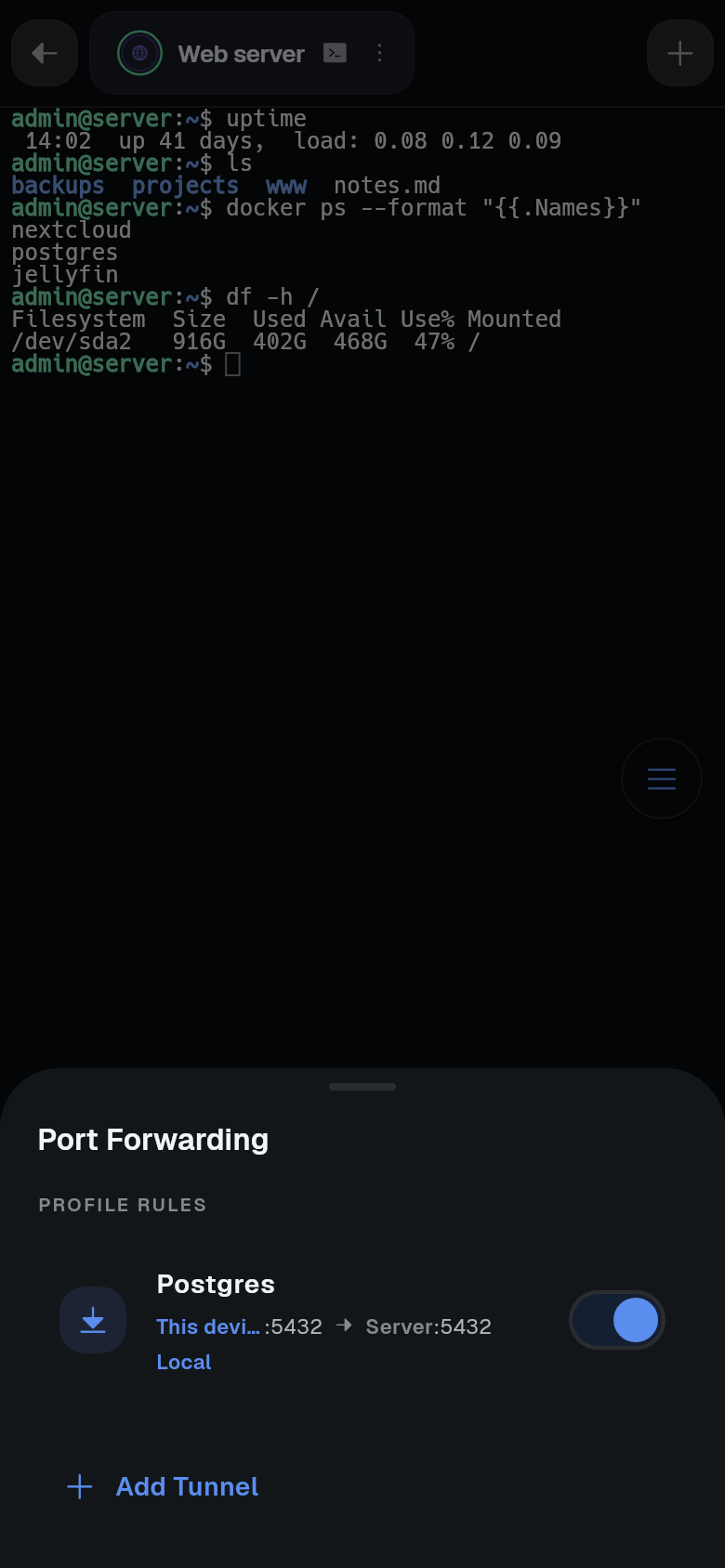
Open Manage Tunnels. In a session, open the tab menu and choose Manage Tunnels. If the Action dock shows a tunnels tile, you can tap that instead. See The terminal for the session screen and Action dock for the dock.
-
Add a tunnel. Tap Add Tunnel.
-
Choose the direction and fill in the details. The fields are the same as for a saved rule.
-
Save the tunnel. The tunnel runs for this session only.
Notes
- In Manage Tunnels, each rule has a switch. Switching it off stops the tunnel but keeps the rule.
- The trash button deletes a rule. Only ad-hoc tunnels have it. Profile rules are edited on the machine.
- A rule can show Starting… or Error while it runs.
- Ports below 1024 on the server need root. For remote forwards, pick a higher Server Port.