
Help
Permissions
The three system permissions Termphin can ask for, what each one does and how to grant it.
Unrestricted battery use
This permission lets the system keep Termphin running in the background. Without it, the system may freeze the app when you switch away, and plain SSH sessions drop.
While sessions are connected, Termphin shows an ongoing notification (“1 session connected”) that keeps it running.
To grant it:
-
Open Settings. Tap Settings in the bottom bar.
-
Find Connection. Scroll to the Connection section.
-
Tap the row for Unrestricted battery use. The row shows Allow or Allowed. Tapping opens the system screen.
-
Allow the permission. The system screen varies by device. Turn on the option that lets Termphin run in the background.
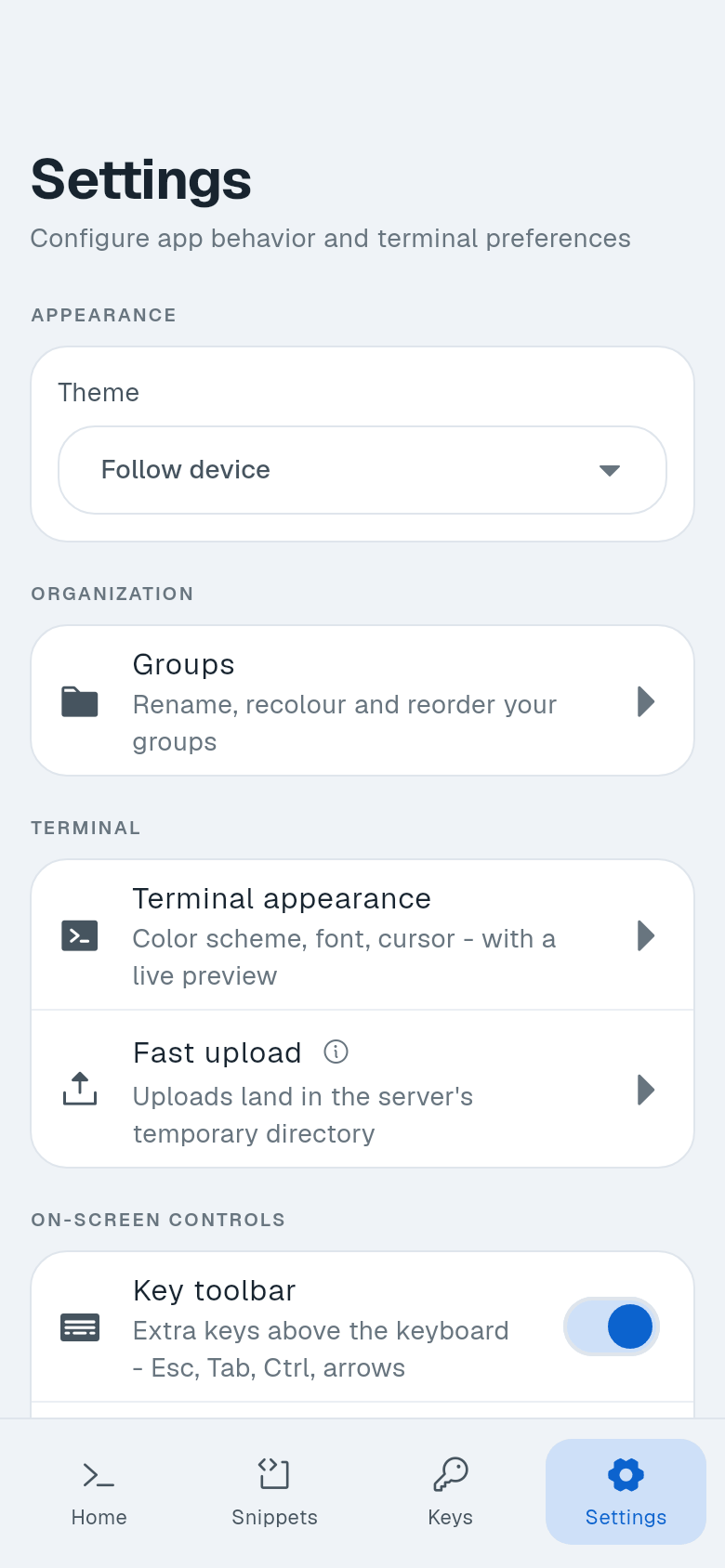
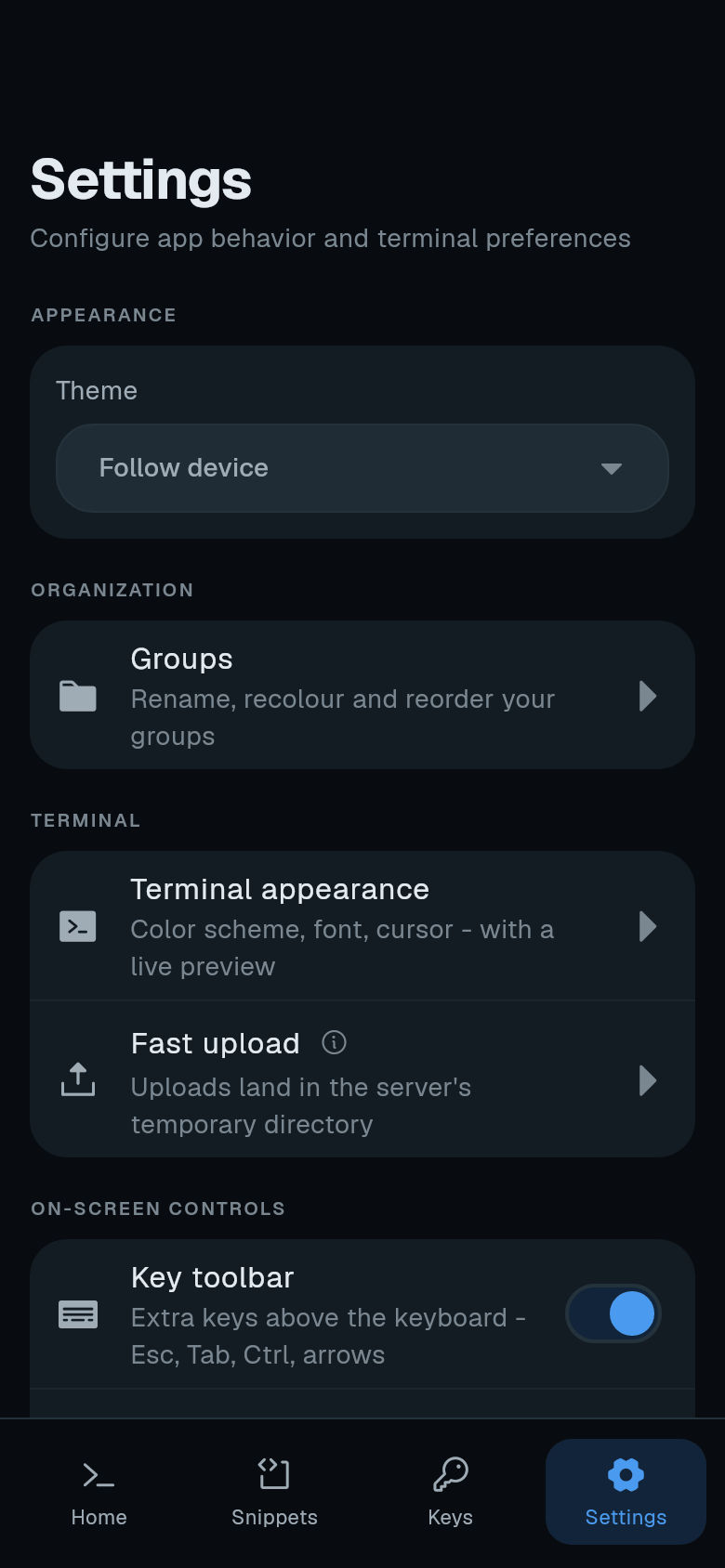
The row re-reads the state when you come back. You can also set this during onboarding in “A few things to set up”.
Notifications
Notifications are needed for the background-session and download notifications. If you declined the first system prompt, you can grant it later.
To grant it:
-
Open Settings. Tap Settings in the bottom bar.
-
Find Connection. Scroll to the Connection section.
-
Tap the row for Notifications. The row shows Allow or Allowed. Tapping opens the app’s notification settings.
-
Allow notifications. Turn on notifications for Termphin.
Local network access
This permission is needed to reach machines on the network you are connected to. Without it, connections to local addresses time out.
Local addresses include private ranges like 192.168.x.x, 10.x.x.x, and 172.16-31.x.x. VPN addresses such as Tailscale (100.64.0.0/10) are not local and need no permission.
If a connection to a local address is blocked, the error card says “This machine is on the network you’re connected to, which Termphin doesn’t have permission to reach yet.” with Allow local network. Once allowed, it connects again at once.
To grant it:
-
Open Settings. Tap Settings in the bottom bar.
-
Find Connection. Scroll to the Connection section.
-
Tap the row for Local network access. The row shows Allow or Allowed. Tapping opens the system screen.
-
Allow local network access. Turn on the option.
This permission is only shown on phones that require it.