
Help
Troubleshooting
What each connection error means and how to fix it.
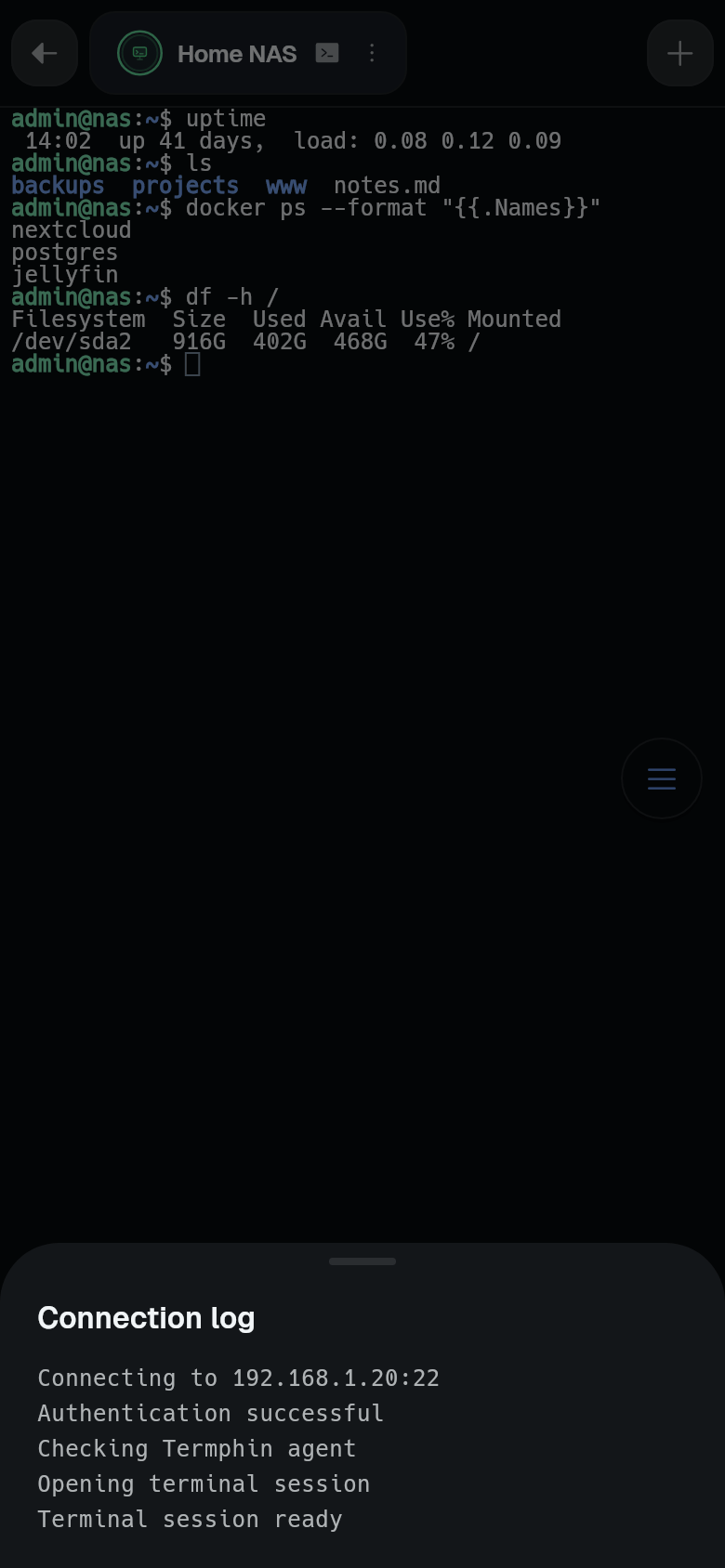
Open the Connection log from the tab menu first. It shows the exact error and the last messages.
The server did not answer. Check the address and port.
- Check the address and port in the profile.
- Make sure the machine is on and the SSH server is running. See Turn on SSH on a computer.
- Check the firewall. Both devices must be on the same network, or the VPN must be connected.
- Try the address from another device.
The server stopped answering.
The network dropped mid-connection. Termphin retries on its own. Wait for it to reconnect. If it stays disconnected, check your network and reconnect. See Reconnecting.
Wrong username or password.
- Check the username and password.
- On Windows, use the local account name.
- Root login with a password may be disabled on the server.
The server did not accept this key. Check the username, and that the key is authorised on the server.
- Add the public key to authorized_keys on the server.
- Check the username matches the account the key is installed for.
- Check the permissions on
~/.ssh(700) andauthorized_keys(600). On Windows, an account in the Administrators group readsC:\ProgramData\ssh\administrators_authorized_keysinstead. - See SSH keys explained.
Wrong passphrase for this key. / This key could not be read. / This profile’s key is gone from the key manager.
- Enter the right passphrase on the machine.
- If the key could not be read, re-import it.
- If the key is gone, pick another key in the profile.
This server’s key has changed. Remove the old one in Settings → Known hosts if that was expected.
- In Settings > Security > Known hosts, tap Forget on the old entry, if you know why the key changed.
- Reconnect and accept the new host key.
- See Host keys.
You did not accept the server’s key. Nothing was sent.
- Reconnect and accept the server’s host key when asked.
- If the key keeps changing, see Host keys.
This machine is on the network you’re connected to, which Termphin doesn’t have permission to reach yet.
- Tap Allow local network when asked.
- If that does not help, allow local network access in the system settings. See Permissions.
Nothing answered at this address. It is on the network you’re connected to, so either the machine is off or Termphin does not have permission to reach it.
- Check the machine is on and the SSH server is running.
- Tap Open settings and allow local network access for Termphin.
- Go back and tap Retry.
The jump host connection failed. / This profile’s jump host is not set up right.
- Check the jump host machine connects on its own.
- If the profile uses a key, make sure it is authorised on the jump host.
- See Jump hosts.
Sessions drop when I leave the app
- Turn on Unrestricted battery use for Termphin in the system settings.
- Keep the Termphin agent on. See The Termphin agent and Reconnecting.
The agent is not used
- Check that Termphin agent is on in Settings > Connection.
- The server must be Linux/macOS (x86_64 or arm64) or Windows (x86_64).
- The home folder must be writable.
- See The Termphin agent.
Still stuck
- In Settings > Feedback, tap Report a bug, or open an issue at https://github.com/Termphin/termphin/issues.
- Include the Connection log in your report.