
Settings and data
Terminal appearance
Colour scheme, font, cursor and the other terminal settings, with a live preview.
Open Terminal appearance in Settings to customise the look of your terminal.
-
Open Settings. Tap Settings in the bottom bar.
-
Open Terminal appearance. Under Terminal, tap Terminal appearance.
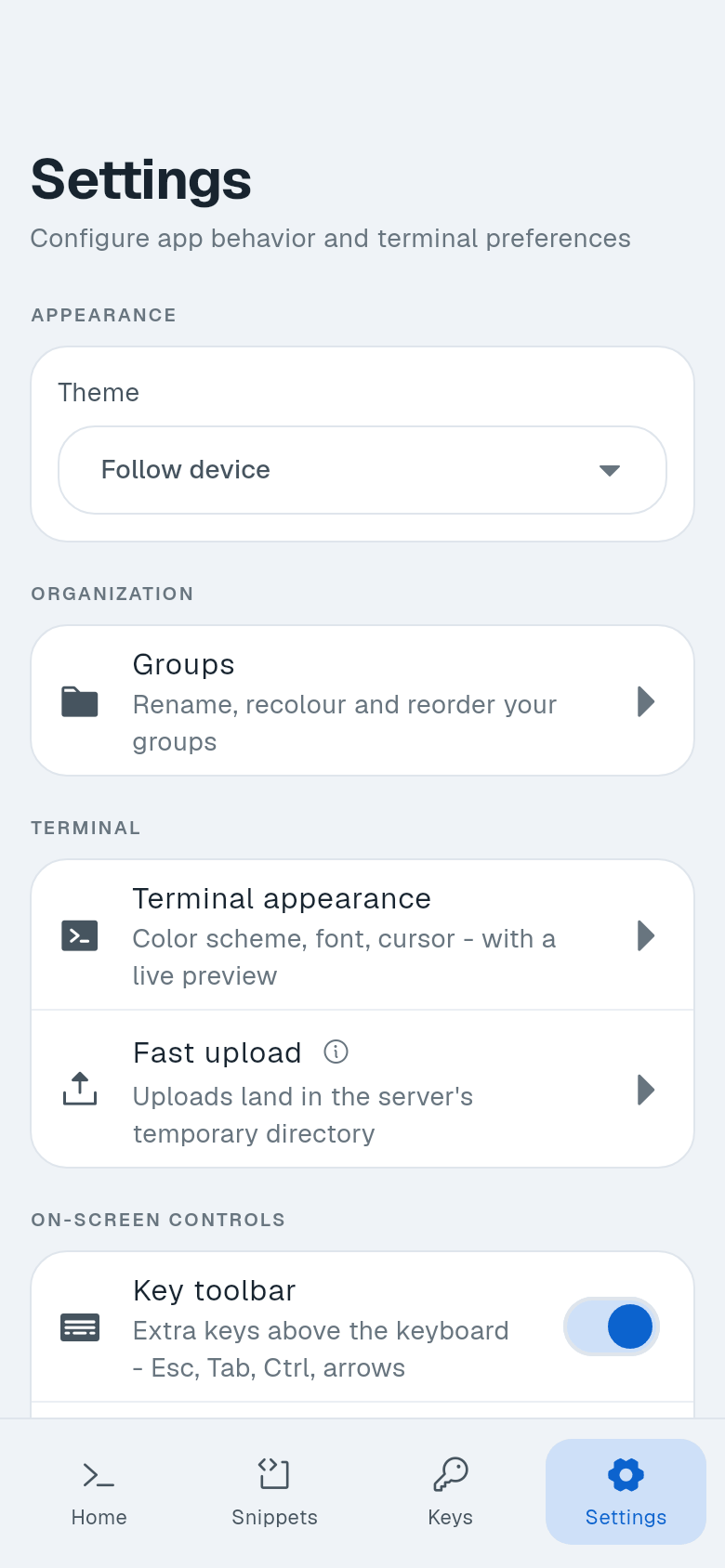
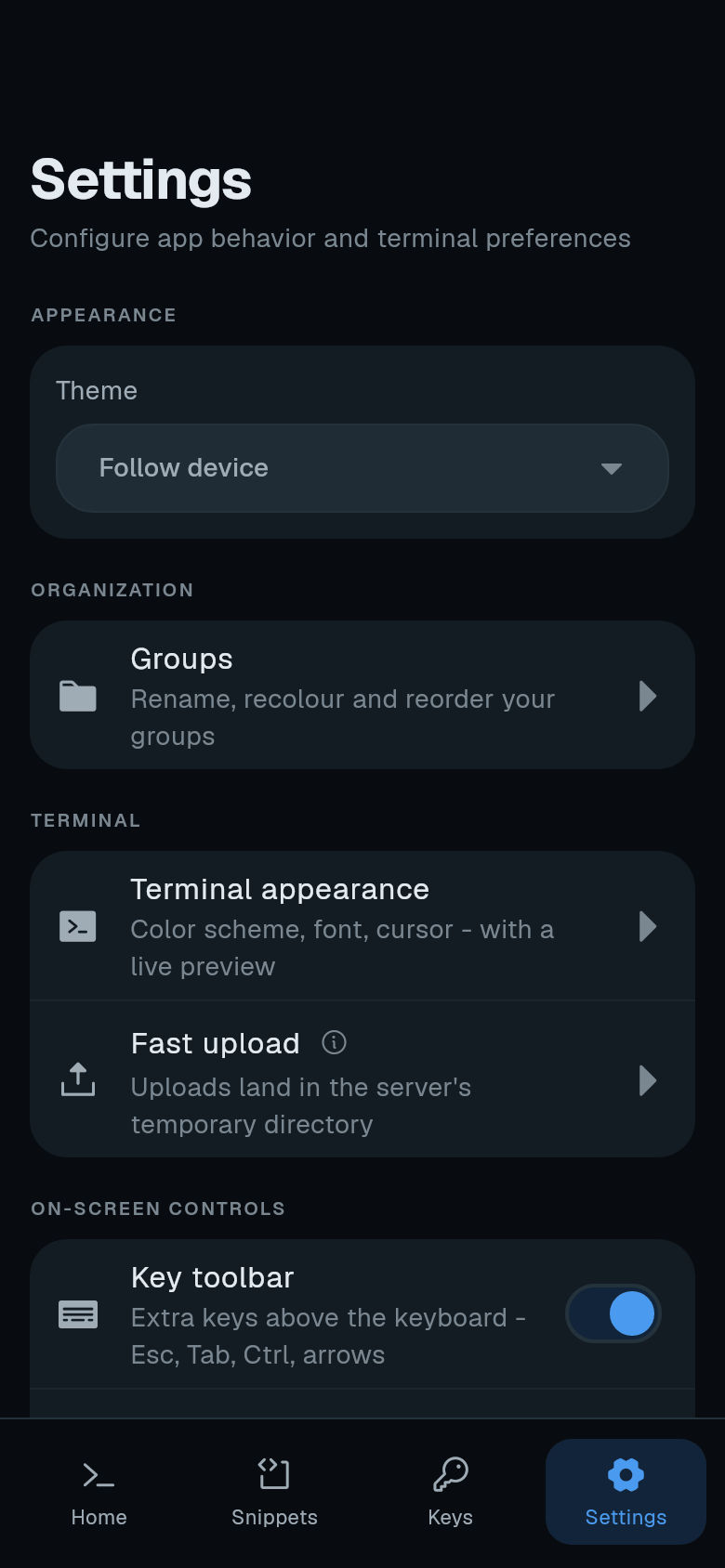
-
Change a setting. Tap any option to change it. The preview at the top updates immediately. Changes apply to all open sessions.
The terminal scheme also colours the session screen’s tab strip, toolbar and file browser.
Style
- Color scheme - 14 schemes, light and dark.
- Font - Hack, JetBrains Mono, Fira Code, Ubuntu Mono, Source Code Pro. These are Nerd Font versions, so status-line icons in TUIs draw correctly.
- Font size - Adjust with +/- steppers.
- Line height - Adjust vertical spacing.
- Side padding - Adjust horizontal padding.
- Cursor - Choose Block, Underline or Bar.
- Blink - Enable cursor blinking.
Behavior
- Touch mouse wheel - Emulate mouse scroll in apps like vim, less, tmux.
- Predictive echo - Show what you type before the server answers. Only kicks in on a slow connection. On by default.
App theme
The app’s own look is independent of the terminal scheme. In Settings, under Appearance, tap Theme. Choose Follow device, Light or Dark.