Machines
Managing machines
Add, edit, organise and delete machines, and what each part of the machine form does.
Machine list
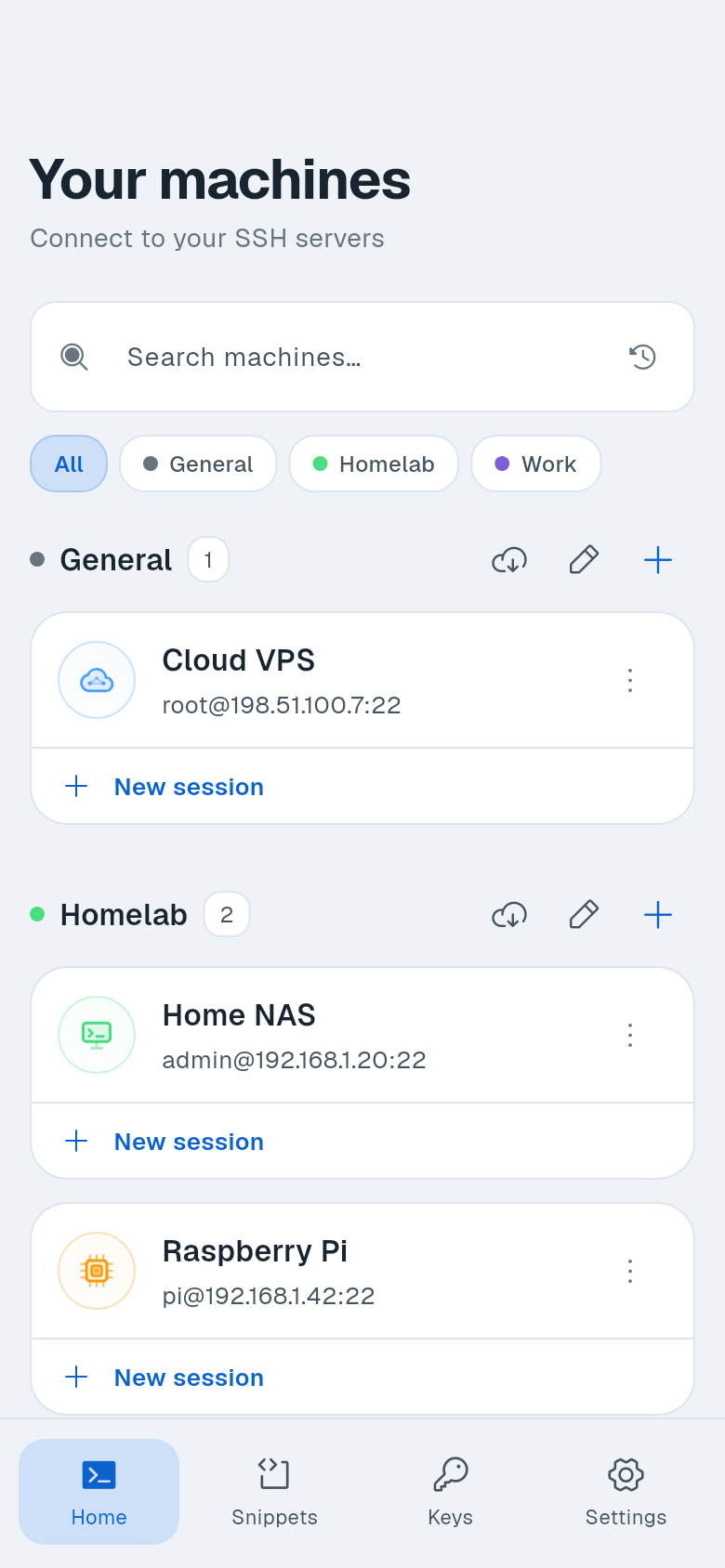
Your machines shows all your SSH servers. Each machine is a card with its avatar, name, user@host:port, a three-dot menu, and a New session row. Open sessions appear as rows under the card. Tap a card to connect or return to an open session. Tap New session to open another session on the same machine.
Use the search field to filter by name, host, username or group. The history icon next to it lets you sort by Recent, A-z or Z-a. Group filter chips (All and each group) narrow the list.
Each group header shows the group name, a count, and three icons: load sessions (download-from-cloud icon), edit group (pencil), and add a machine to this group (+).
Long-press a card to select it, then tap others to add to the selection. A bar appears with Select all, Clear selection, Move to group and delete.
Add a machine
-
Open the form. Tap + on the header of the group the machine belongs in. On an empty list, tap Add your first machine, or type
user@hostin the field above it and tap +. -
Fill in the form. See Form sections below.
-
Save. Tap Save at the top right. The machine appears in the list.
Edit a machine
Tap the three-dot menu on a machine card and choose Edit. The form opens as Edit Machine. Changes apply to new connections.
Delete a machine
Tap the three-dot menu and choose Delete. A confirmation dialog appears. If another machine uses this one as a jump host, the dialog lists those machines and warns they will stop connecting. Confirm to delete.
Form sections
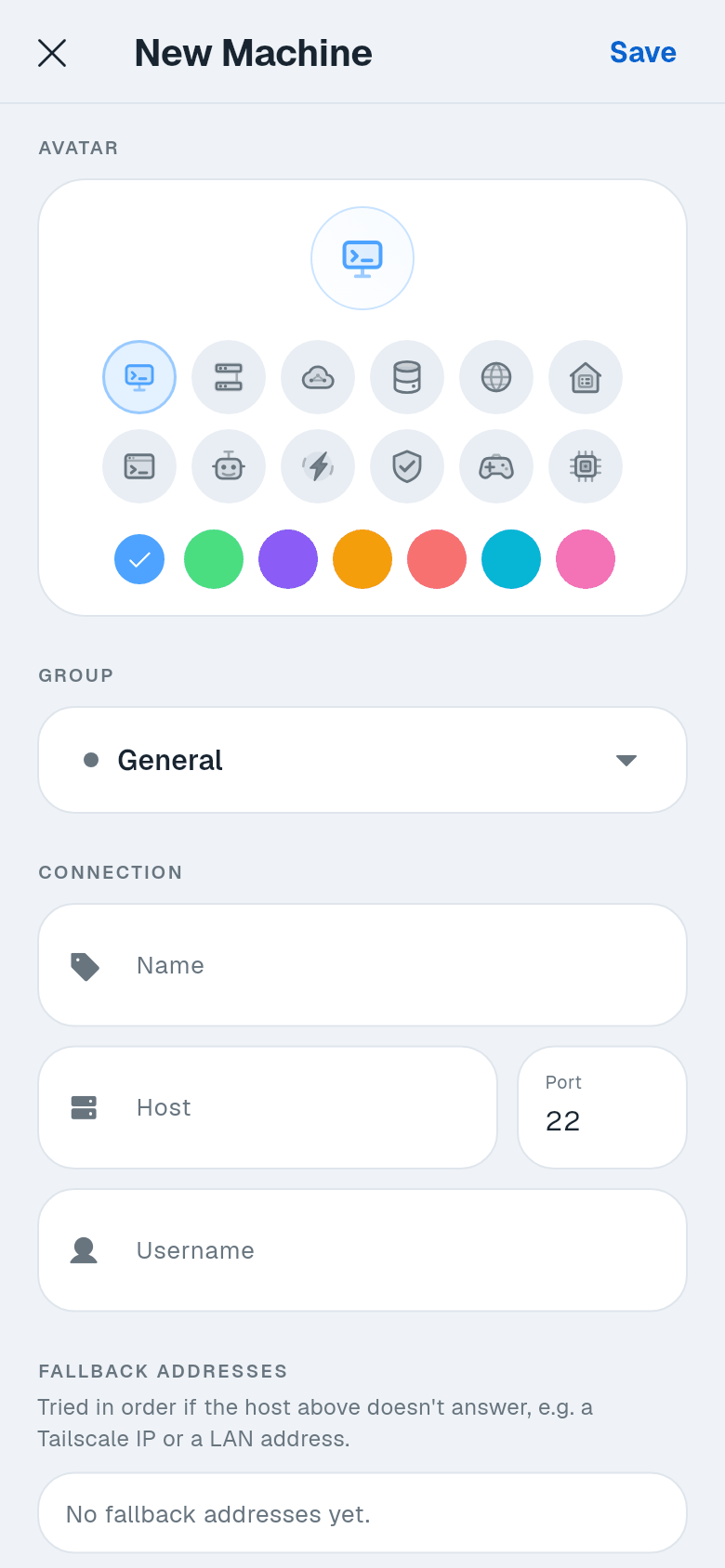
- Avatar - Choose from 12 icons and 7 colours.
- Group - Assign the machine to a group. See Groups.
- Connection - Name (optional, defaults to the host), Host, Port (default 22), Username.
- Fallback addresses - Additional host or host:port entries tried in order if the main host does not answer. Termphin remembers which address worked last and tries it first next time. Each address has its own host key. Tap Add address to add one.
- Jump host - Connect through another machine first (like OpenSSH ProxyJump). Default is Connect directly. See Jump hosts.
- Authentication - Choose No authentication, Password, or SSH Key. See Your first connection. Tap Test connection to verify the settings.
- Port forwarding - Rules started with each connection. Tap Add Rule. See Port forwarding.