
Productivity
Snippets
Save commands you run often, fill in values each time, and run them on several machines at once.
Creating a snippet
-
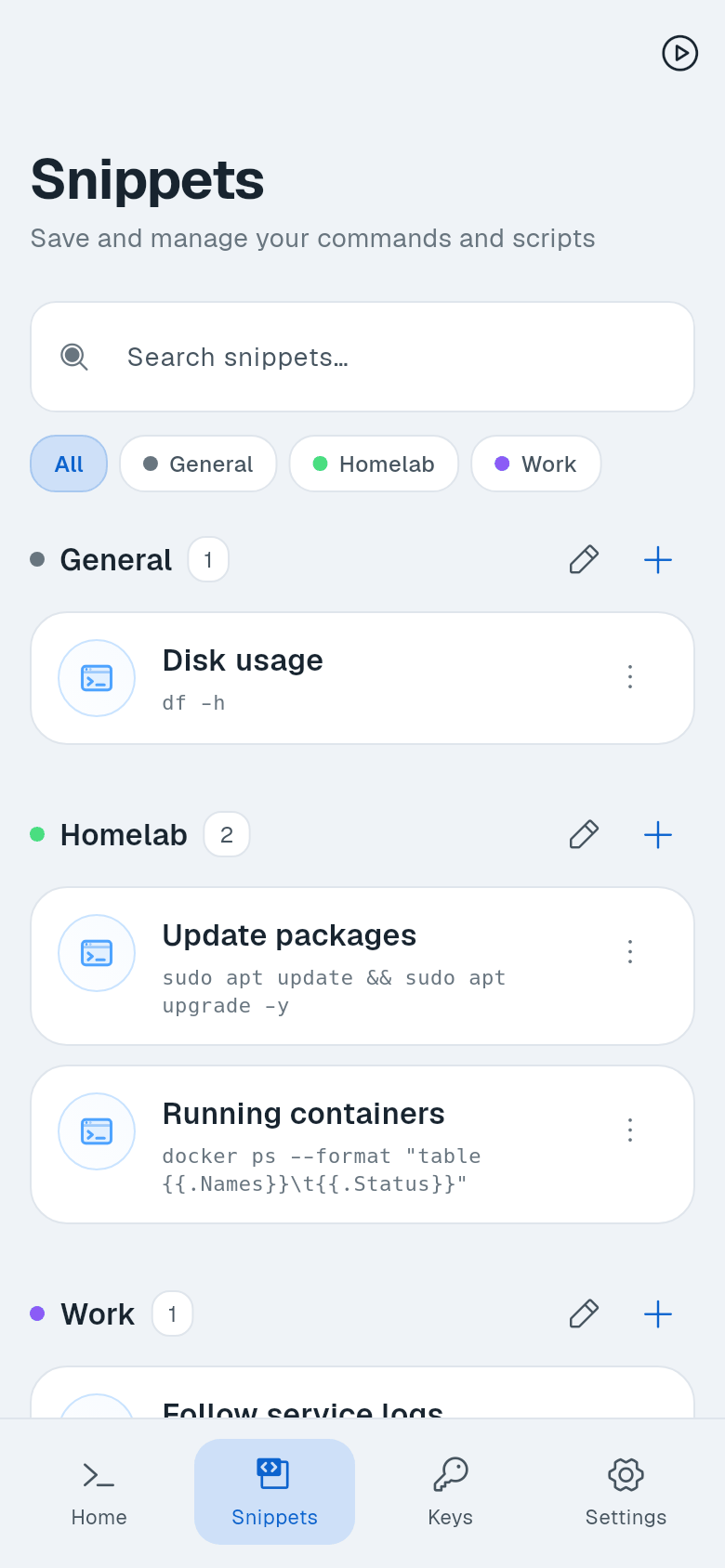
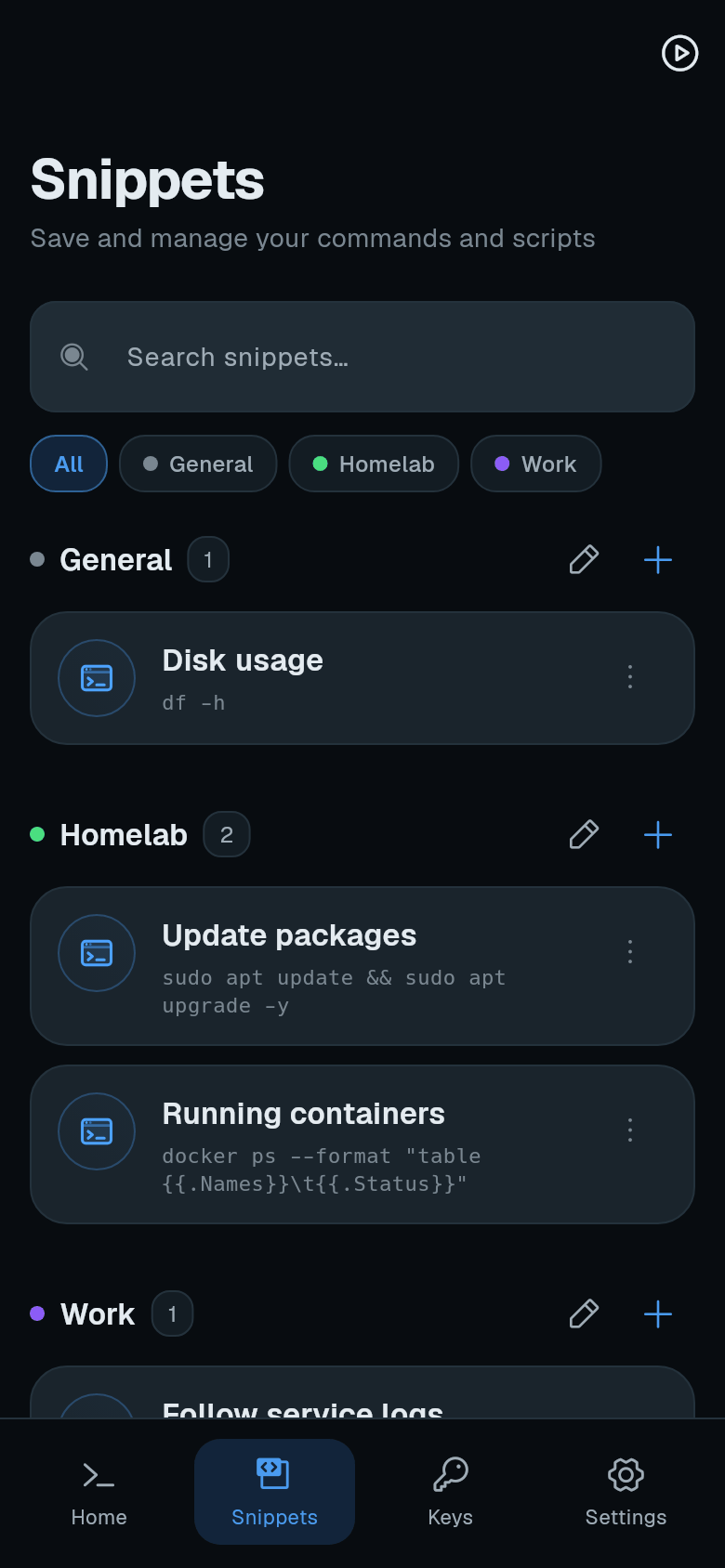
Open the Snippets tab. Tap Snippets in the bottom bar.
-
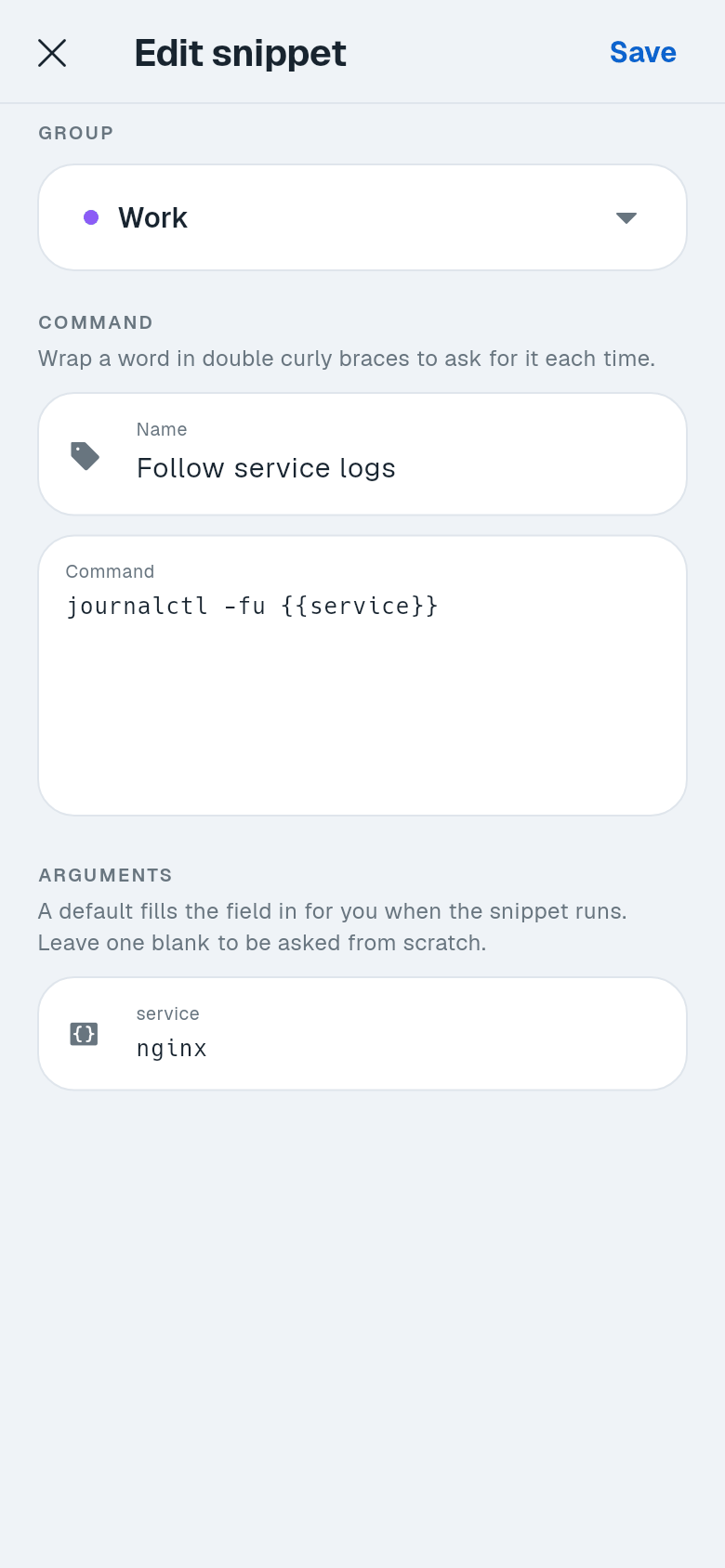
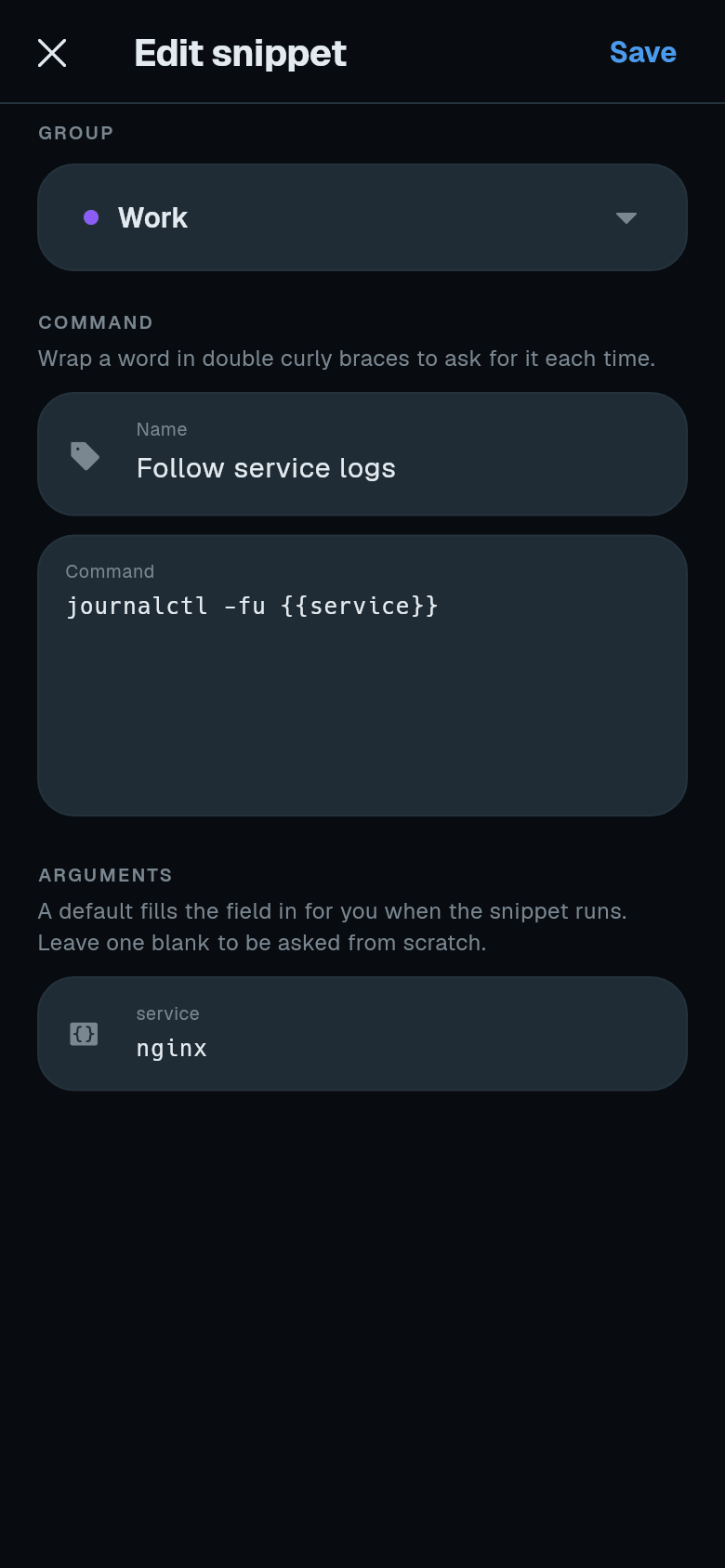
Create a new snippet. Tap the + button. Fill in Group, Name, and Command.
- To make an argument, wrap a word in double curly braces, for example
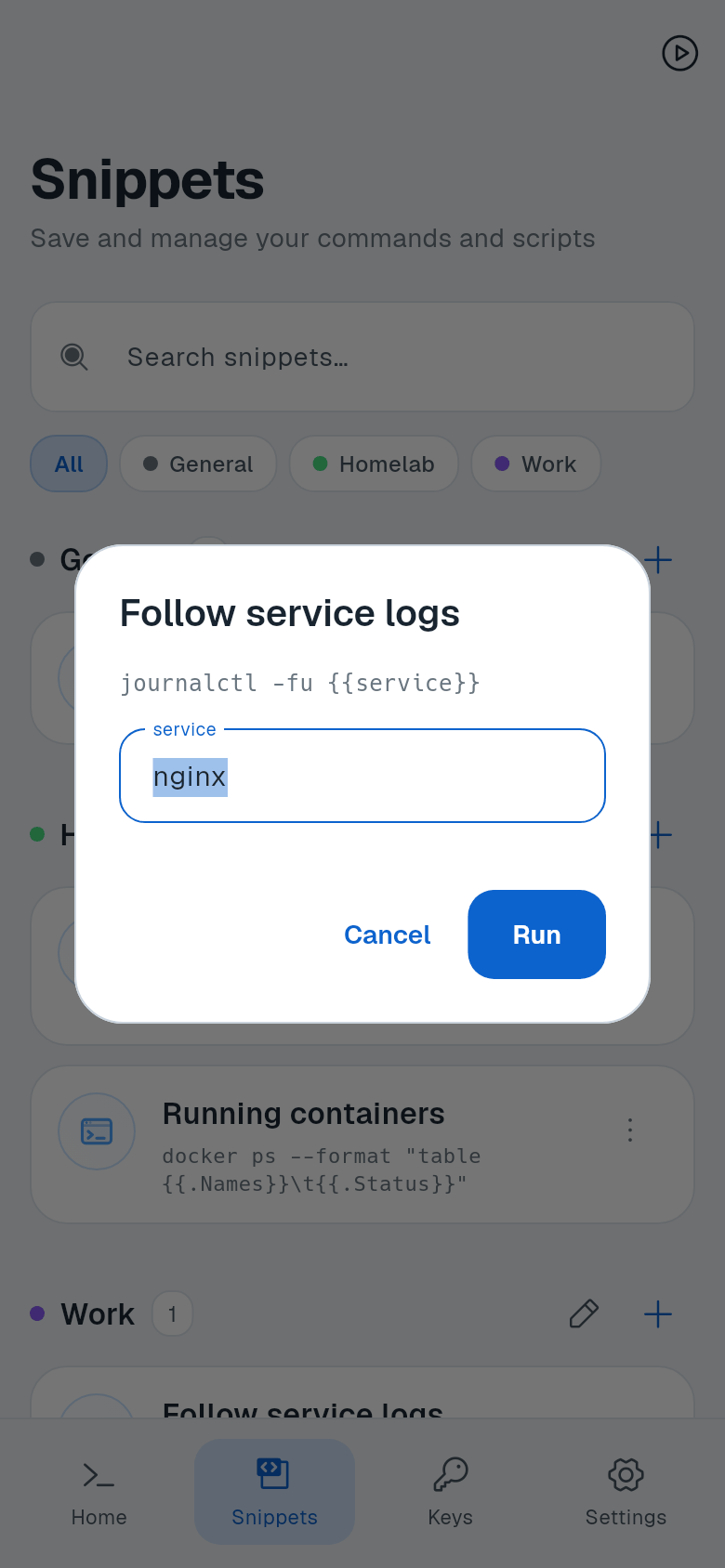
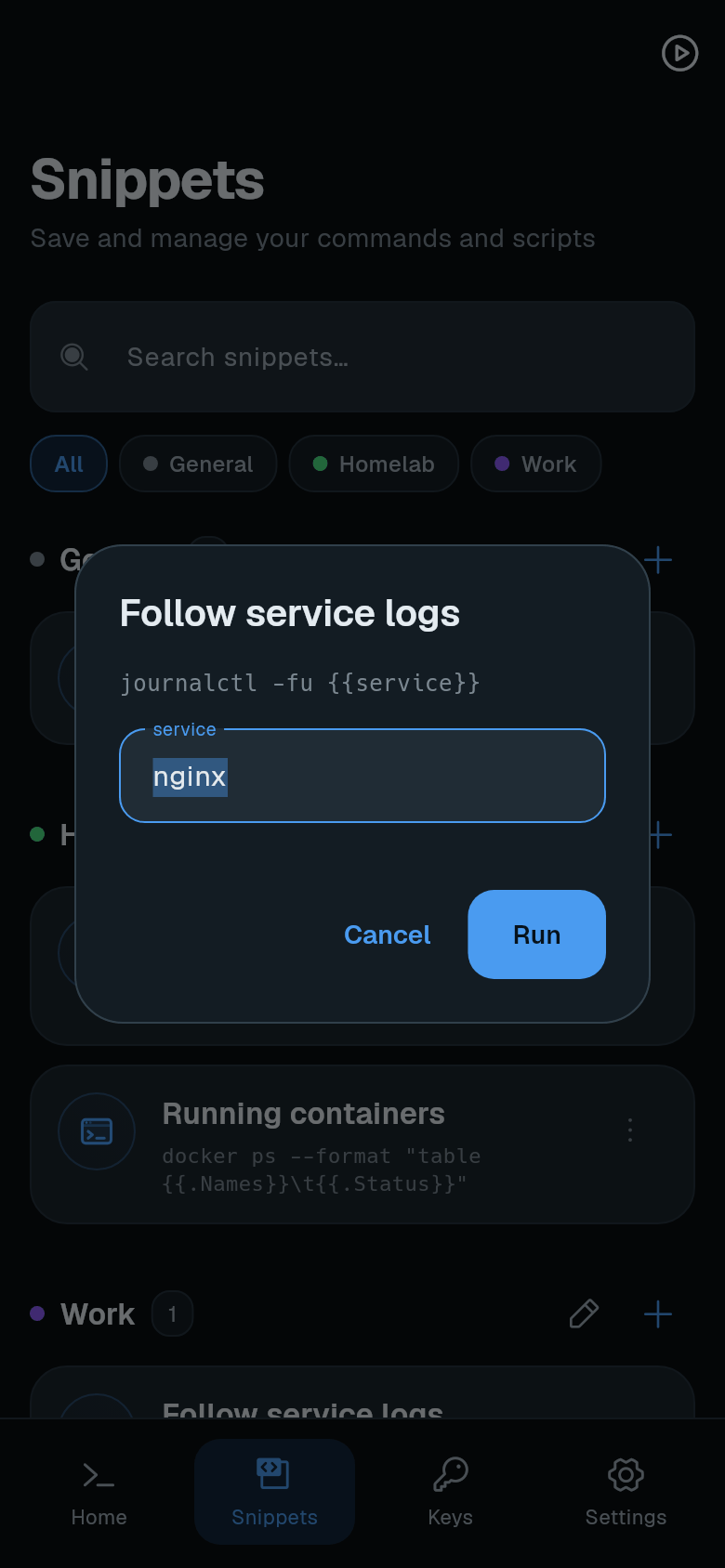
journalctl -fu {{service}}. The word appears under Arguments. - Optionally set a default value for each argument. Leave one blank to be asked from scratch.
- To make an argument, wrap a word in double curly braces, for example
-
Save. Tap Save.
Using a snippet in a session
-
Open a session. Connect to a machine.
-
Open the action dock. Tap the round floating button, then Insert snippet. A snippet can also sit on the key toolbar as its own key.
-
Pick a snippet. Search or browse, then tap it.
-
Fill in arguments. If the snippet has arguments, a dialog asks for them. Enter values and tap Run.
Running a snippet on several machines
-
Tap the snippet on the Snippets tab. Run snippet opens.
-
Choose machines. Tick one or more machines, then tap Run on 3 machine(s) (the number is how many you ticked).
- Arguments are filled in once for all machines.
-
View progress. Tap the play icon at the top of the Snippets tab to open the Runs screen.
- Each machine shows a status: Waiting, Connecting, Running, Done, or Exit with the command’s exit code, such as Exit 1.
- Tap a run to see its output. Use Copy output or Run again. Tap Clear to remove a run.