
Machines
Keys in Termphin
The Keys tab: generate, import, copy, organise and delete SSH keys.
Keys tab
The Keys tab, titled SSH Keys, lists all your keys. Use the search bar to filter. Keys are grouped by the group you assign them. Each row shows the key name, a type badge (Ed25519, RSA 2048, RSA 4096), the creation date, a copy-public-key icon, and a three-dot menu.
Tap + to generate a new key or import an existing one.
Generate a key
-
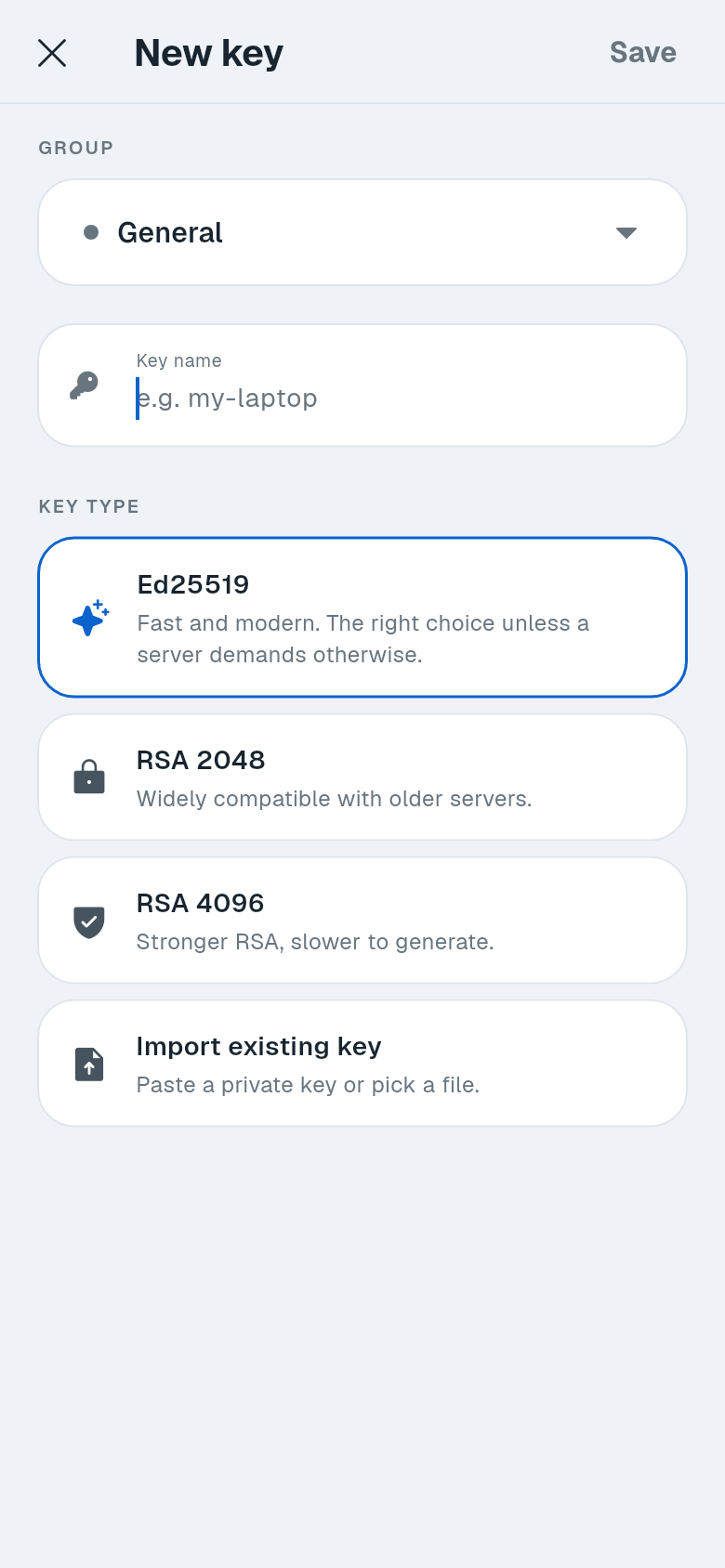
Tap +. The New key screen opens.
-
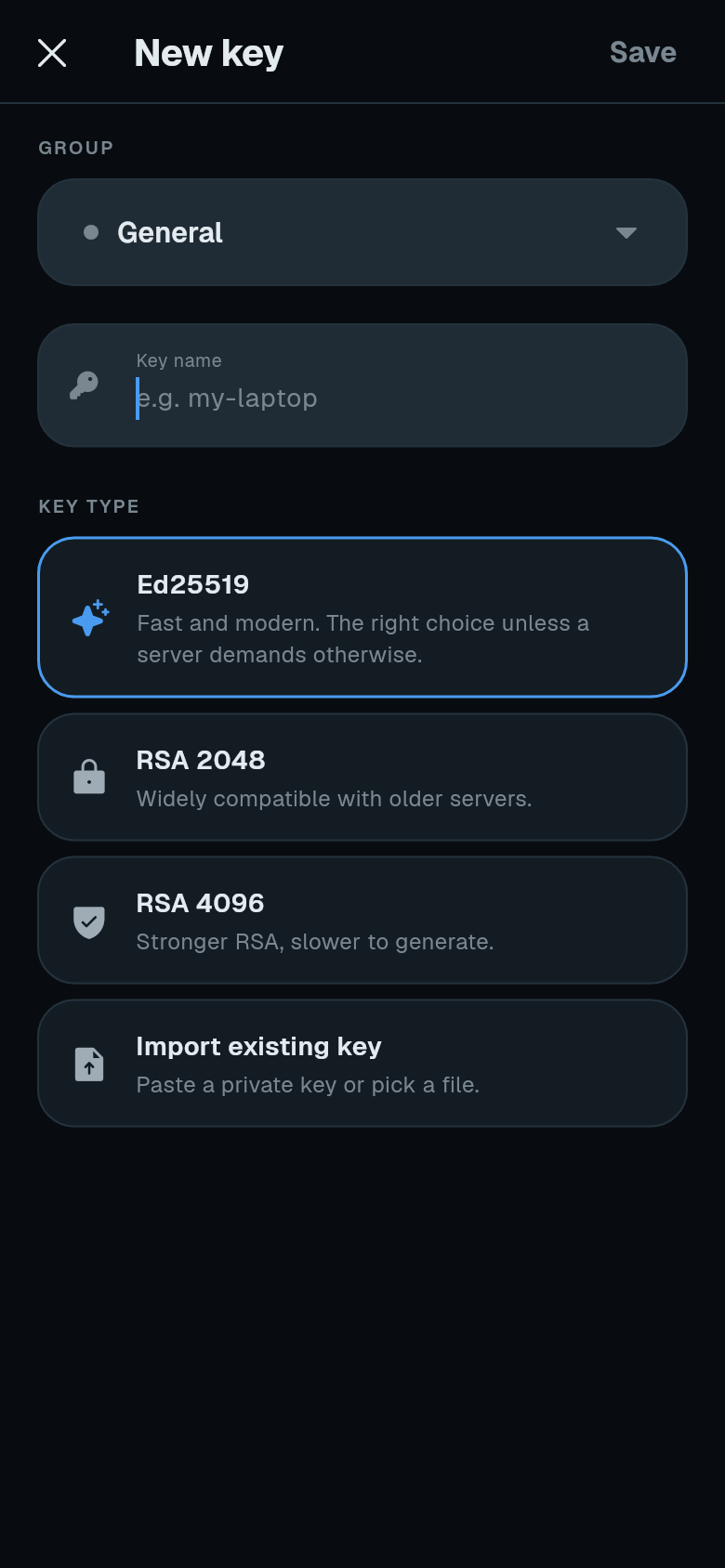
Fill in the details. Choose a Group, enter a Key name (e.g.
my-phone) and pick a Key type: Ed25519 (recommended), RSA 2048 or RSA 4096. -
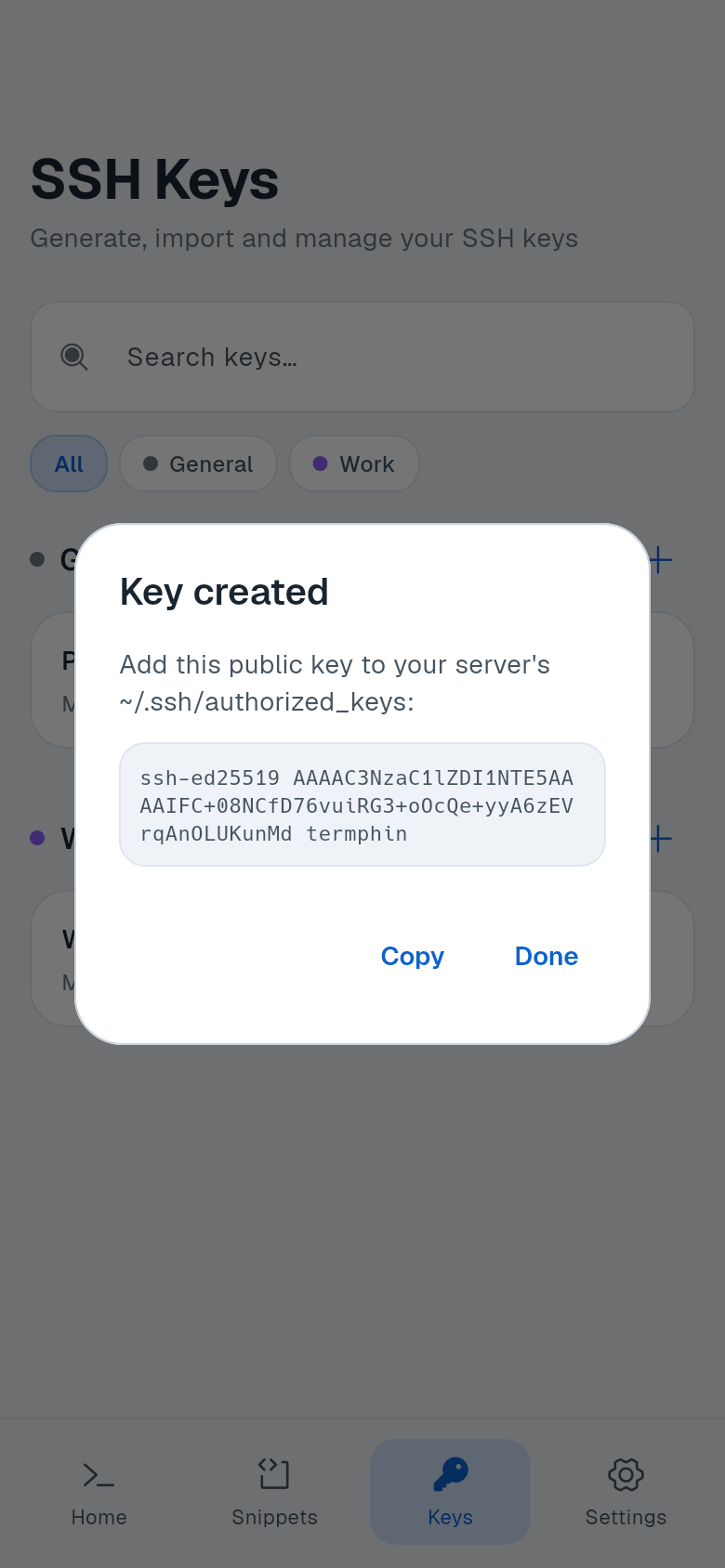
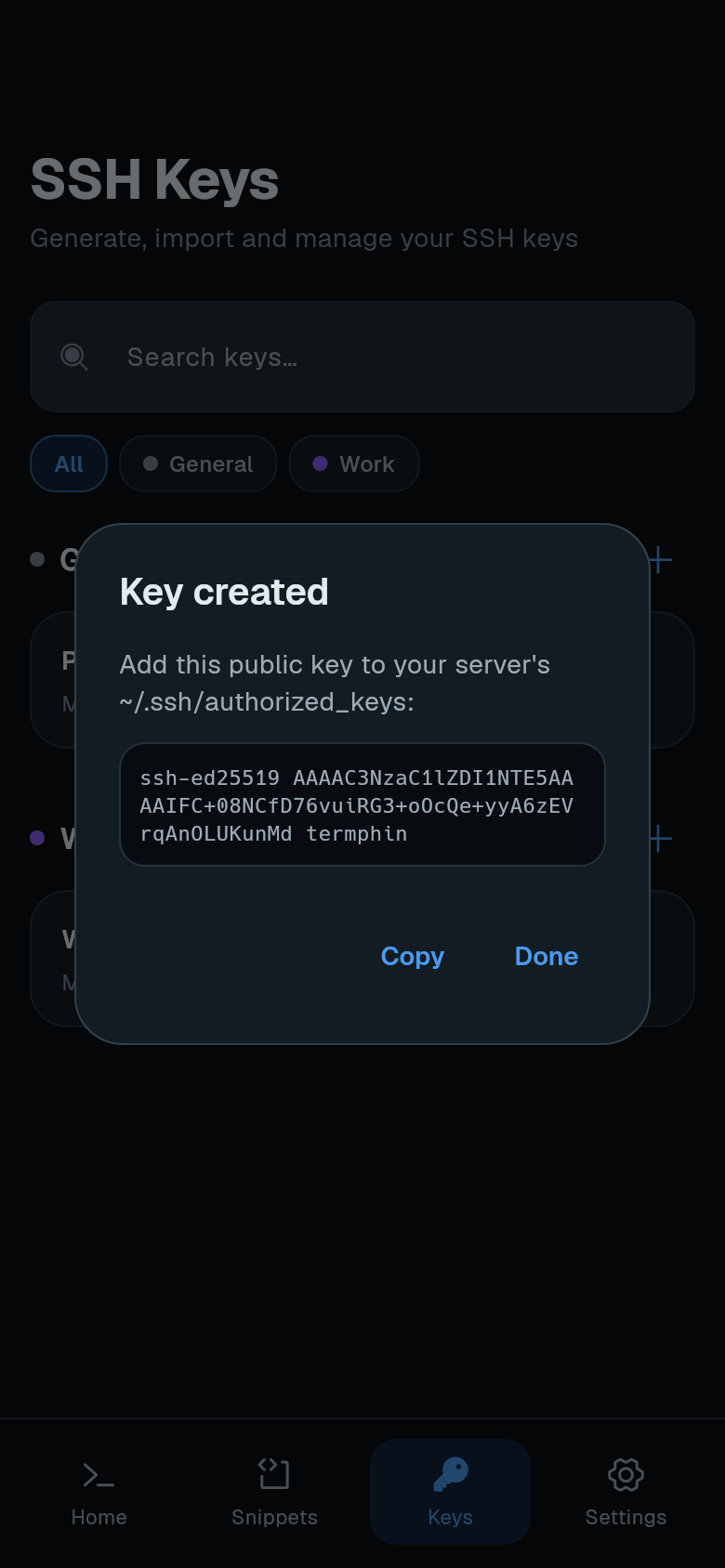
Tap Save. Termphin generates the key and shows the Key created dialog with the public key.
-
Copy the public key. Tap Copy to copy it to the clipboard. You need to add it to your server’s
~/.ssh/authorized_keys. See SSH keys explained for instructions.
Import a key
-
Tap + and pick Import existing key as the Key type.
-
Provide the private key. Tap Choose key file to select a file, or paste the PEM content into the Private key (PEM) field.
-
Enter the passphrase if the key is encrypted. The passphrase is used only to read the key. Termphin does not store it.
-
Tap Save. The key is added to the list.
Copy a public key
From the key row, tap the copy-public-key icon or open the three-dot menu and select Copy public key. The public key is copied to the clipboard.
After generating a key, you can also copy it from the Key created dialog.
Use a key on a machine
When editing or creating a machine, go to Authentication and pick an SSH key from the list. If the key has a passphrase, you must enter it on the machine profile. See Managing machines.
Delete a key
-
Open the three-dot menu on a key and select Delete.
-
Confirm deletion. The dialog warns: “This cannot be undone.” If the key is used by machines, the dialog lists them and shows Delete anyway.
Select several keys
Long-press a key to start selecting, then tap others or Select all. The bar offers Move to group and delete.
Limitations
- Termphin cannot export a private key.
- Termphin cannot add or change a passphrase on an existing key.