
SSH basics
Turn on SSH on a computer
Enable the SSH server on Linux, a Raspberry Pi, macOS or Windows, and find the address to connect to.
Turn on the SSH server
Ubuntu / Debian
-
Update and install. Run:
sudo apt update && sudo apt install openssh-server -
Enable the service.
sudo systemctl enable --now ssh -
Allow through firewall (if ufw is on).
sudo ufw allow OpenSSH -
Check it worked.
systemctl status ssh
Fedora
-
Install and enable.
sudo dnf install openssh-server sudo systemctl enable --now sshd -
Open firewall.
sudo firewall-cmd --permanent --add-service=ssh
sudo firewall-cmd --reload
Arch
- Install and enable.
sudo pacman -S openssh
sudo systemctl enable --now sshd
Raspberry Pi OS
When writing the SD card:
In Raspberry Pi Imager, open OS customisation settings, go to Services tab, tick Enable SSH, and set a username and password.
On a running Pi:
- Use raspi-config: run
sudo raspi-config, then Interface Options, SSH, Yes. - Or directly:
sudo systemctl enable --now ssh
macOS
- Open System Settings > General > Sharing.
- Turn on Remote Login. Click the info icon next to it to choose which users may log in.
- Or from Terminal:
sudo systemsetup -setremotelogin on
- Or from Terminal:
Windows
-
Go to Settings > System > Optional features > Add a feature.
-
Search for OpenSSH Server and install it.
-
Open PowerShell as Administrator and run:
Start-Service sshd
Set-Service -Name sshd -StartupType 'Automatic'
The installation automatically adds a firewall rule for port 22.
Alternative command-line install:
Add-WindowsCapability -Online -Name OpenSSH.Server~~~~0.0.1.0
Find the address and username
Linux
Address:
Run hostname -I - the first address is your IP. Or use ip -4 addr.
Username:
Run whoami.
macOS
Address:
Go to System Settings > Wi-Fi, click Details next to your network. Or in Terminal: ipconfig getifaddr en0.
The Remote Login pane also shows ssh user@address.
Username:
Run whoami.
Windows
Address:
Open Command Prompt and type ipconfig. Look for IPv4 Address under your active network adapter.
Username:
Run whoami and use the part after the backslash. With a Microsoft account, the username is the folder name under C:\Users and the password is the Microsoft account password.
Connect from Termphin
-
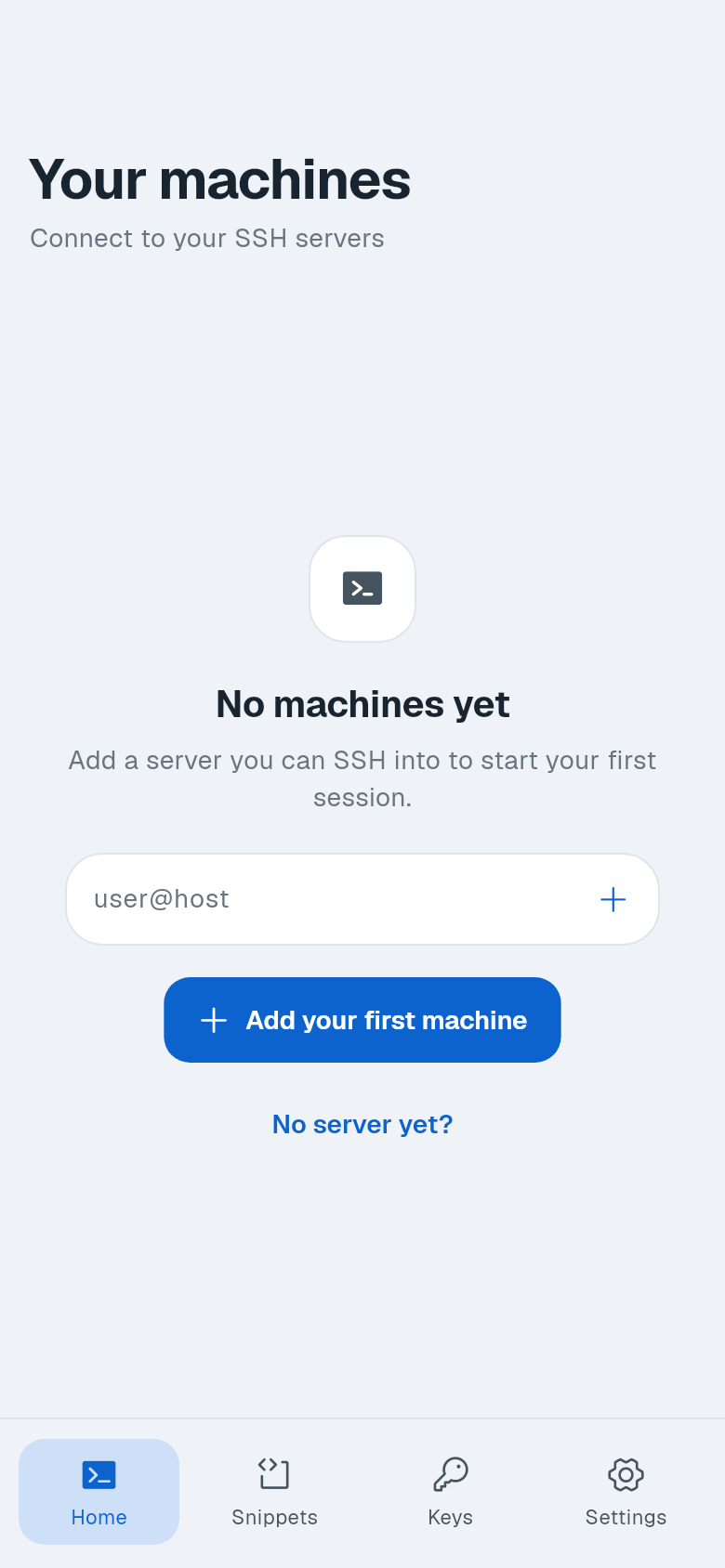
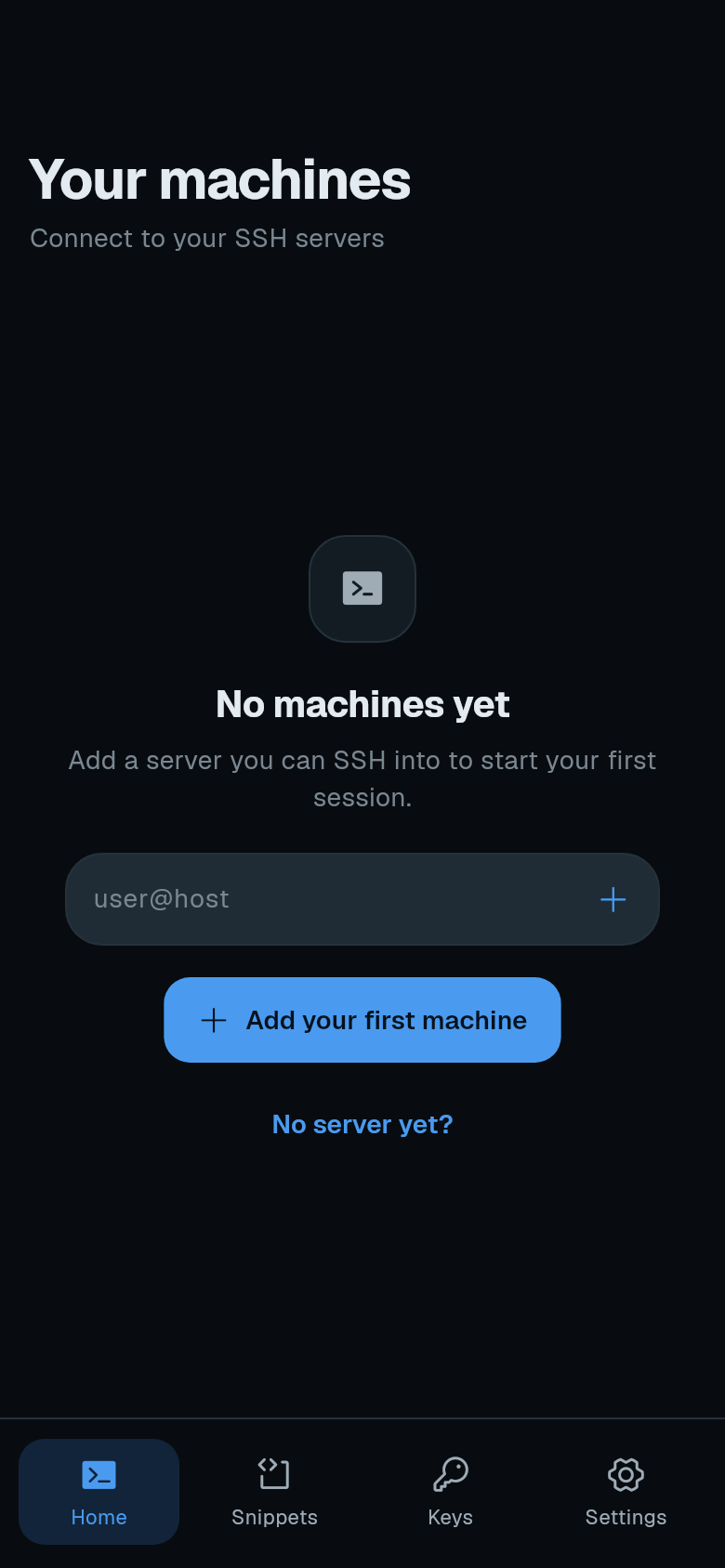
Open Termphin. You see the empty machine list.
-
Enter user@address. Type your username and the IP address in the user@host field (e.g.
[email protected]). Tap +. -
Choose authentication. Under Authentication, select Password. Tap Save, then tap the machine. When prompted, accept the host key.
Now you are connected. Next: switch to SSH keys for passwordless login, or harden the server.