
Sessions
Tabs and split screen
Run several sessions at once, switch between them and show two side by side.
Opening another session
To start a new session alongside the current one, tap the + button on the tab strip. The “Select device to connect” sheet opens. Search or pick a group, then tap a machine’s New session button. You can open several sessions for the same machine.
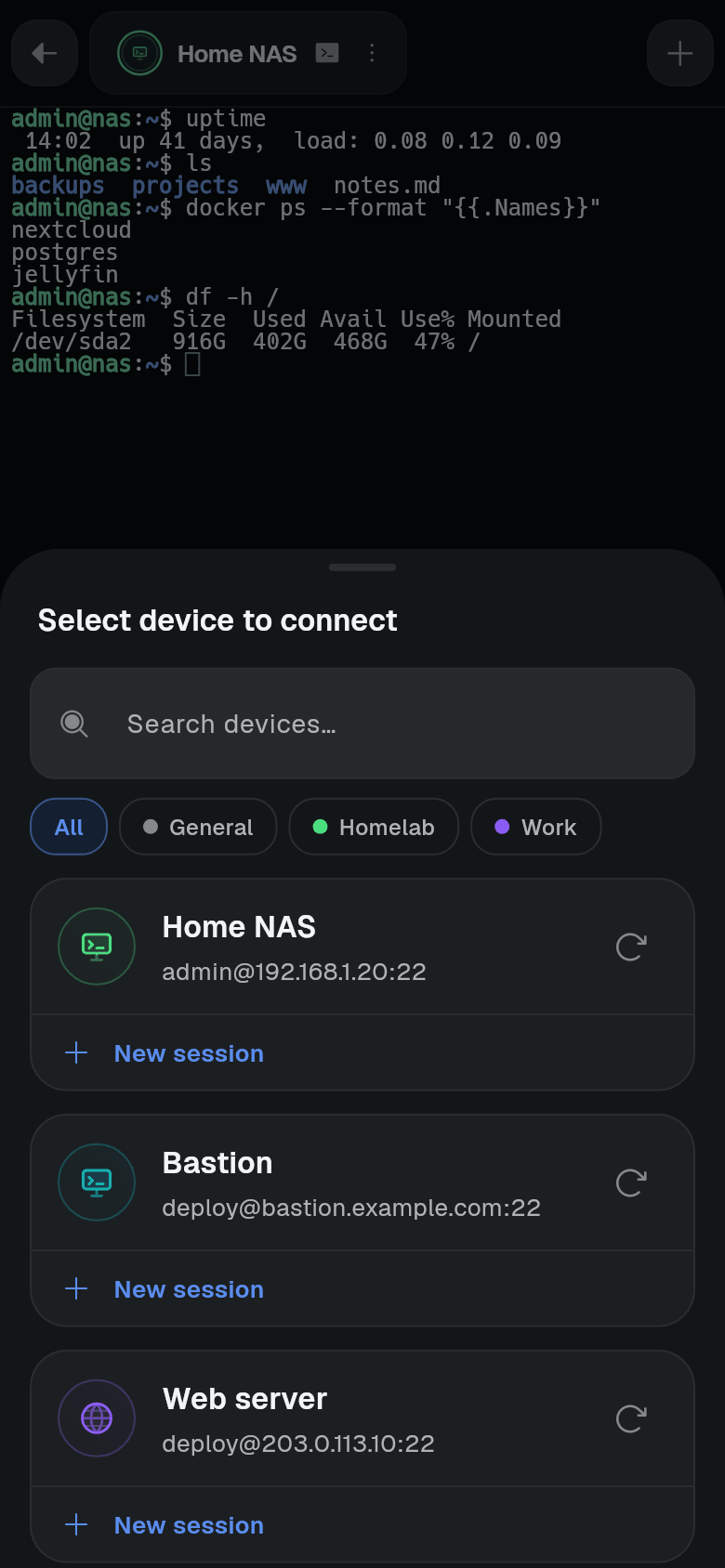
Switching and reordering
Switch between open sessions by tapping a tab on the strip. You can also swipe the terminal area left or right.
To reorder tabs, drag a tab along the strip to a new position.
Back to the machine list
Tap the back arrow at the top left. This returns you to “Your machines”. All sessions keep running in the background. Open sessions appear as rows under their machine’s card.
Split screen
A tab can show two sessions side by side (or stacked).
- Open the tab menu. Tap the three-dot icon on the tab.
- Tap Split screen with….
- Pick the second session. Choose an open tab, or New connection to start one.
The two sessions share one tab on the strip. In portrait they are stacked vertically; in landscape they are side by side. Each pane has a name bar.
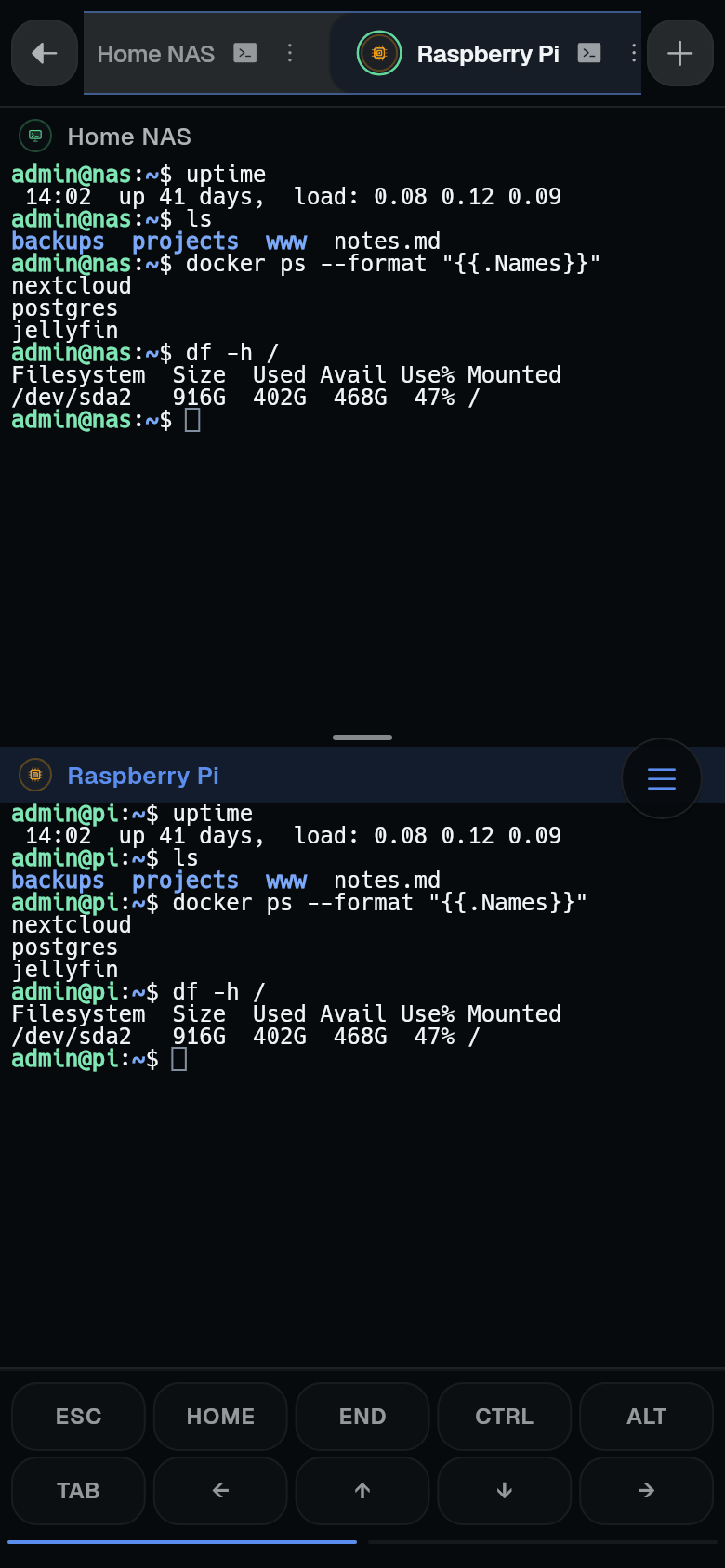
Working with panes:
- Tap a pane to focus it (your keyboard input goes there).
- Hold the name bar of a pane and drag it onto the other pane to swap them.
- Drag the divider between panes to resize - the handle shows Resize split.
- If the keyboard is up in portrait, the inactive pane folds down to just its name bar.
Undoing a split:
Open the tab menu and tap Move out of split. The current pane becomes a separate full-screen tab.
Closing a session
Open the tab menu. The action depends on the session type:
- For agent sessions: Detach (keep running) - the session continues on the remote machine.
- For plain SSH sessions: Disconnect.
- When the session is already disconnected: Close.
Landscape layout
When the device is in landscape, the tab strip becomes a rail down the side of the screen. Tap the arrow button to collapse the rail to avatar icons.