
Productivity
Key toolbar
The extra keys above the keyboard - Esc, Tab, Ctrl, arrows - and how to arrange your own.
Turn the toolbar on or off
-
Open Settings. Tap Settings in the bottom bar.
-
Go to On-screen controls. Tap On-screen controls.
-
Switch the toolbar. Turn on Key toolbar. When on, the toolbar appears above the keyboard in a session.
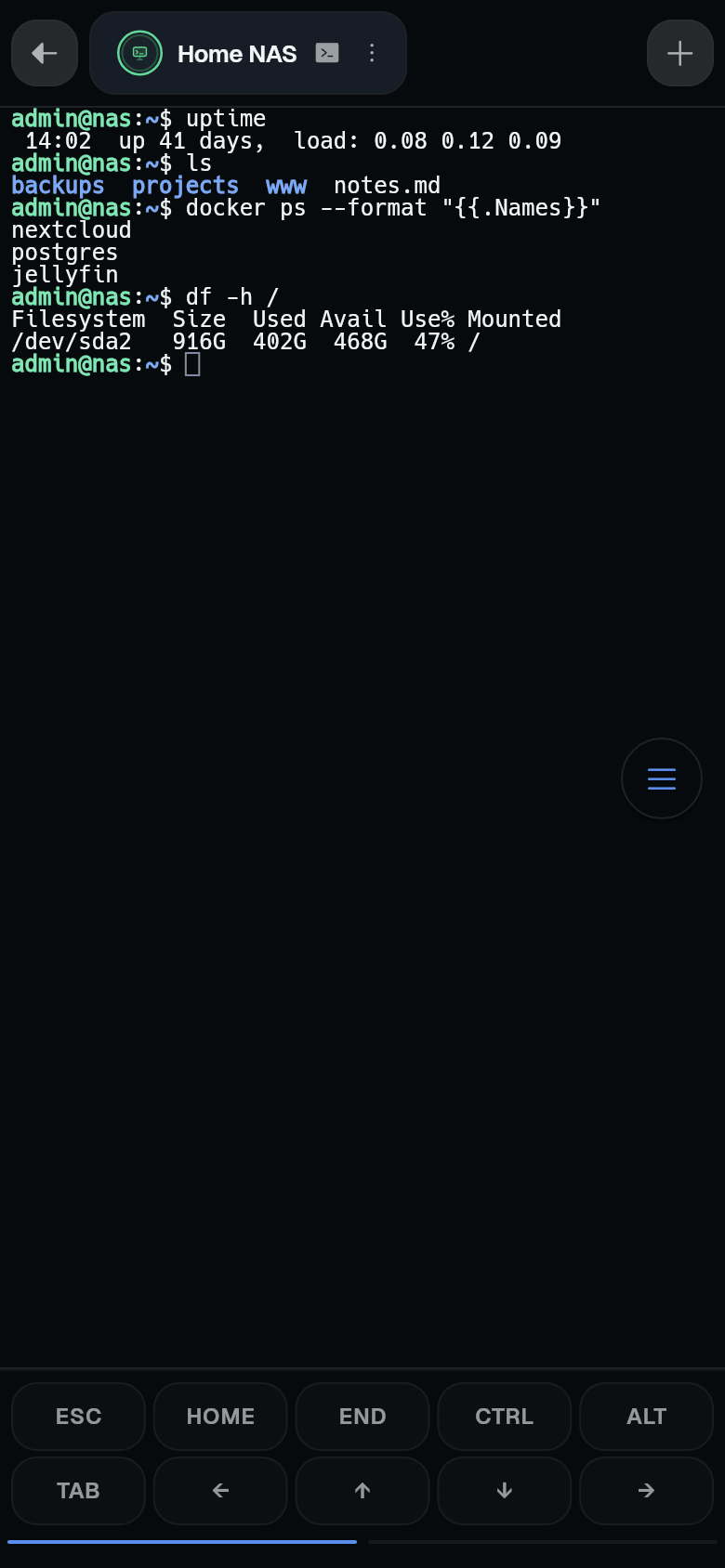
Turning it off hides the toolbar. The layout is not reset.
Edit the layout
With the toolbar on, tap Toolbar layout in the same settings section. Toolbar layouts opens. Open a layout’s three-dot menu and choose edit to open the editor.
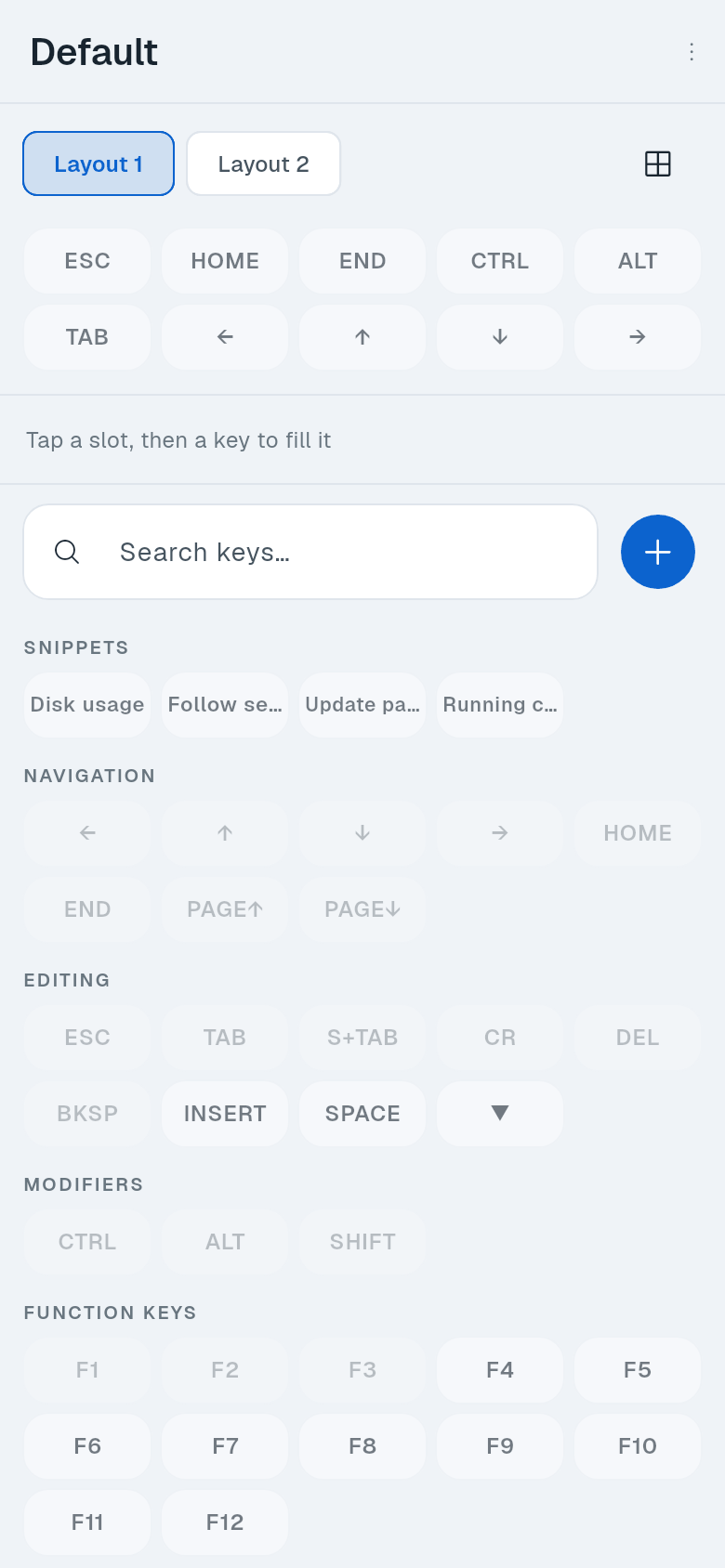
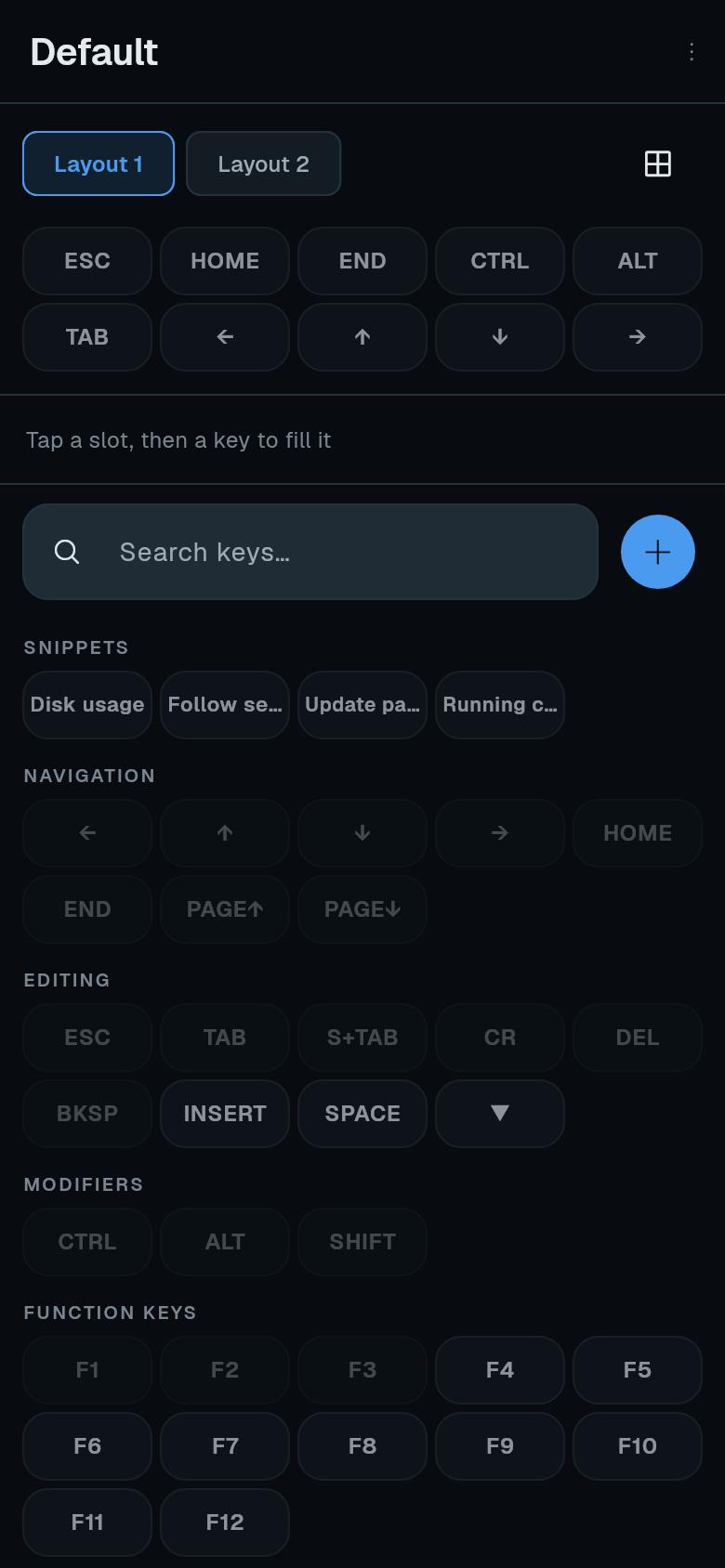
The grid shows the current arrangement. Below it is a searchable list of keys grouped by category: Snippets, Navigation, Editing, Modifiers, Function keys, Symbols, Custom.
Place keys
- Tap a slot in the grid, then tap a key from the list to fill that slot.
- Or drag a key from the list onto a slot.
A key can only be in one slot. Placing it again moves it from its old slot.
Remove keys
Tap a key in the grid, then tap Remove key.
Change the grid size
Tap the grid icon in the editor. Adjust Columns, Rows, Pages, or Button height.
If you shrink the grid, keys that no longer fit are removed. A warning shows how many. Tap Shrink anyway to confirm.
Add a custom key
-
Tap New key in the editor.
-
Choose a type.
- Text - Type the text to send. Optionally turn on Press Enter after to run the text as a command.
- Key combo - Tap the box and press a key on the keyboard. The key is recorded.
-
Save the key.
Custom keys appear in the Custom category. You can edit or delete them later.
Keep several layouts
-
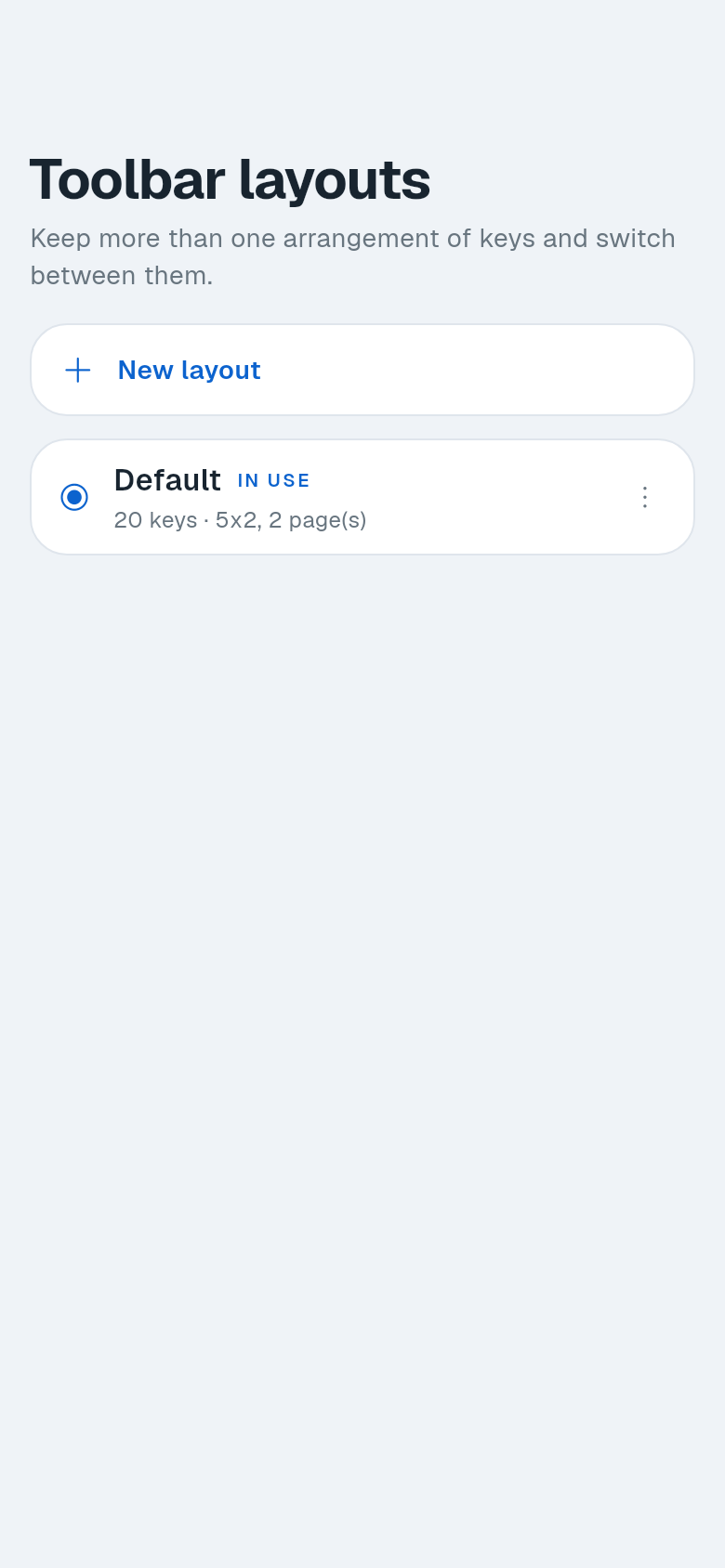
Open Toolbar layouts. Settings > On-screen controls > Toolbar layout.
-
Tap New layout. It gets a name like “Layout 2”, which you can rename from its menu.
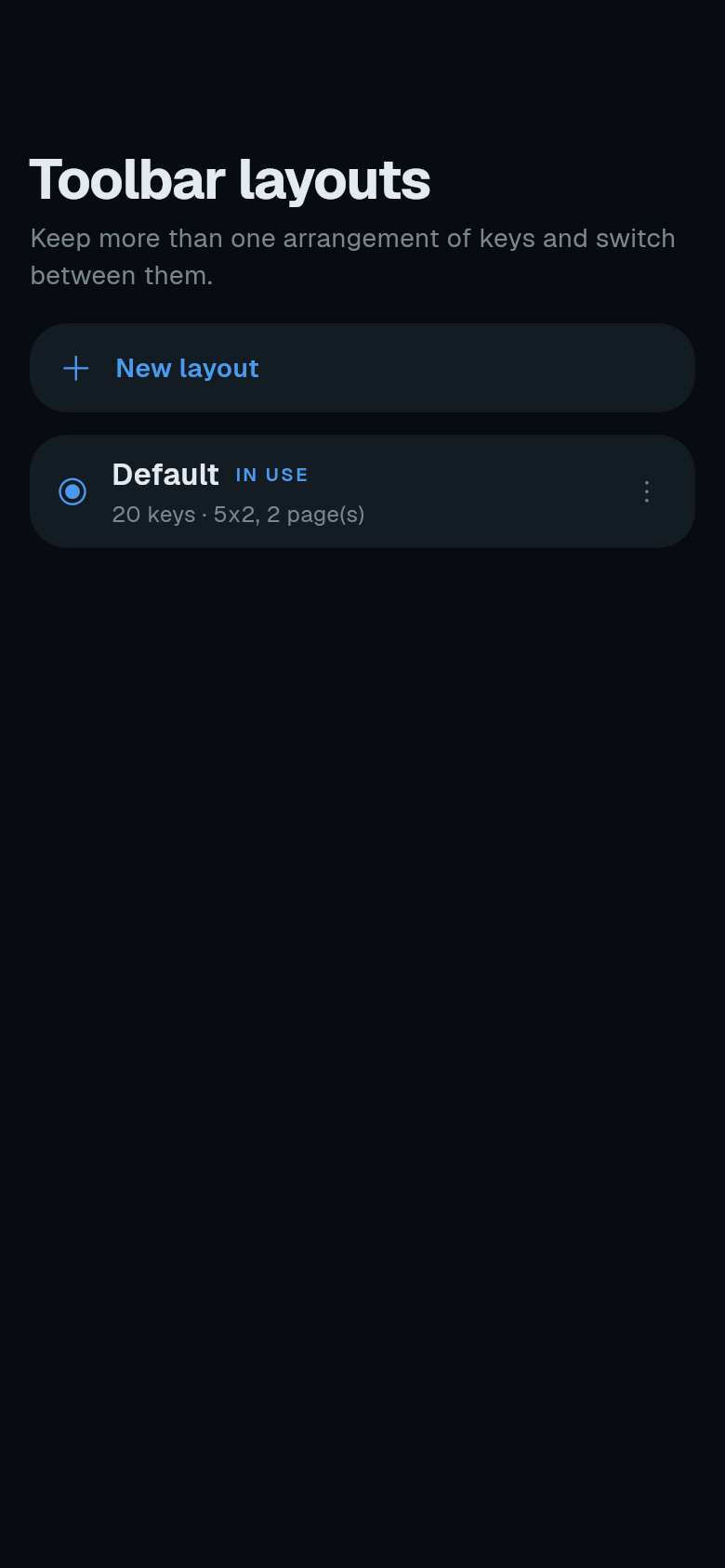
-
Pick the one to use. Tap a layout’s row. It is marked In use and the toolbar switches to it.
Each layout has its own keys and grid size. Its three-dot menu edits, renames or deletes it. The last remaining layout cannot be deleted. Reset layout returns the selected layout to the default arrangement.
The toolbar shows the keys of the layout marked In use. Swipe the toolbar to see additional pages.