
Files
The SFTP browser
Browse, create, rename and delete files on the server, on the same connection as the terminal.
-
Open a session. Connect to a server as described in The terminal.
-
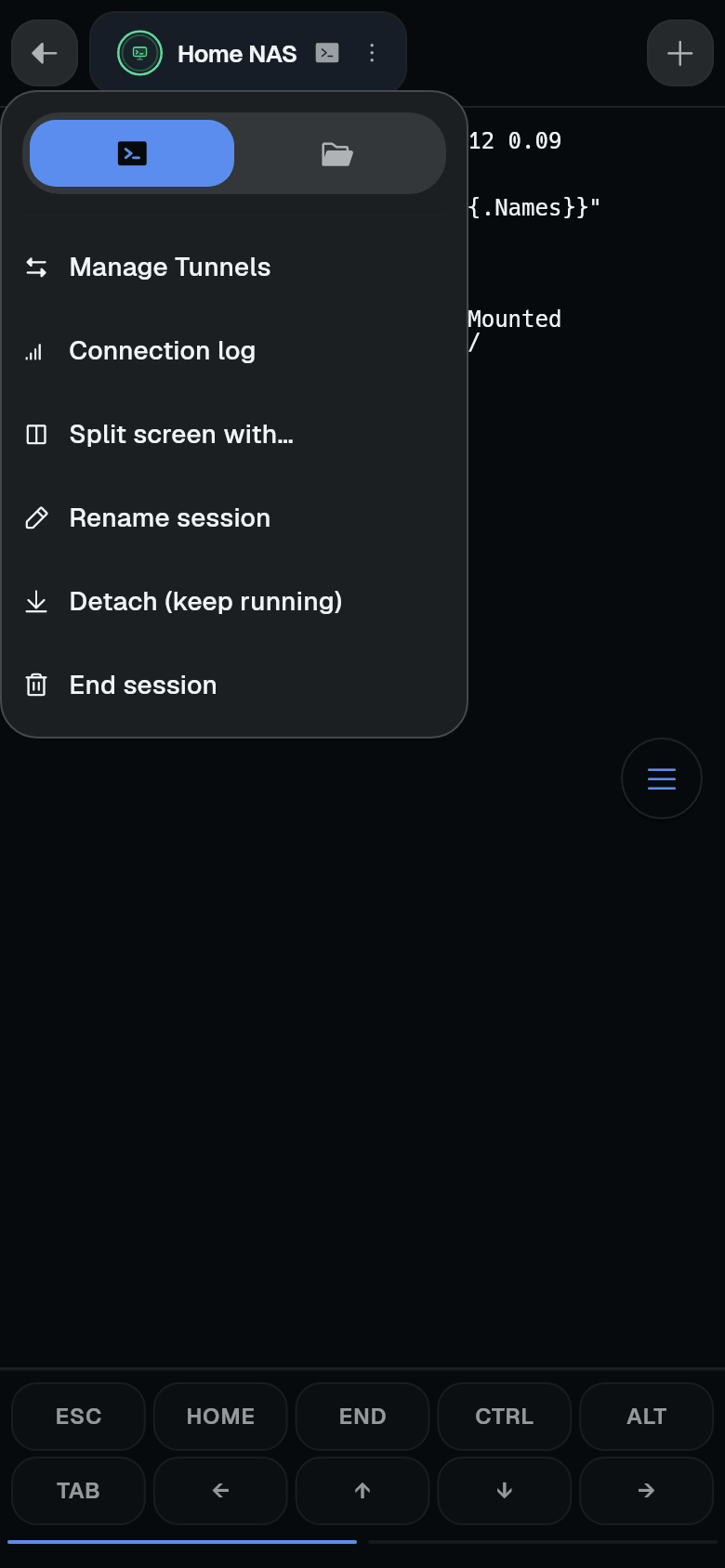
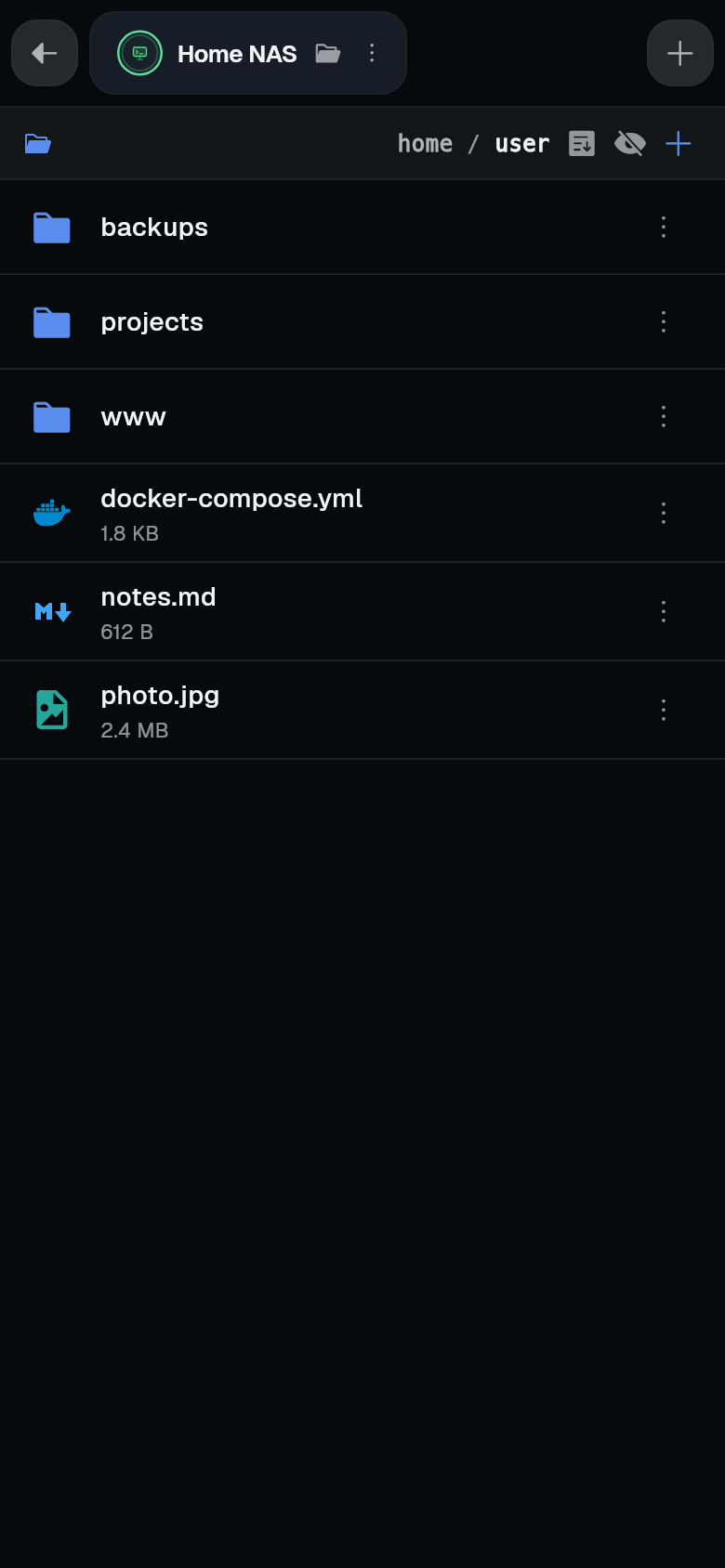
Switch to the SFTP browser. Tap the three-dot icon on the tab, then the folder icon at the top of the menu. The browser opens in your home folder, on the same connection.
Moving around
The path bar at the top shows the current folder, for example home / user. Tap a folder in the path bar to jump there. Tap a folder in the list to open it.
File actions
Each file row has a three-dot menu:
- Open in Editor - edit the file. See Editing files.
- Preview - preview images.
- Download - save the file to your device.
- Copy path - copies the path. The app shows Path copied.
- Rename - rename the file.
- Delete - asks Delete? with the file name, then confirms.
The + icon offers Upload, New folder, and New file. Uploading a file that already exists asks Replace file?.
For downloads and uploads, see Downloads and uploads.
Selecting several files
Long-press a row, then tap more rows. Select all selects everything. You can delete or download the selected files.
Sorting and hidden files
The sort icon opens Sort by: Name, Size, Date modified, and Reverse order.
The eye icon shows hidden files - names that start with a dot, like .ssh and .bashrc. The default is in Settings, SFTP, Show hidden files.
Errors are explained, for example Permission denied. You don’t have access to this file or directory.