
Files
Downloads and uploads
Copy files and folders between the phone and the server, and upload straight into a session with Fast upload.
Download
-
Open the SFTP browser. In a session, tap the three-dot icon on the tab, then the folder icon. See The SFTP browser.
-
Select files or folders. Tap the menu button next to a file, or long-press to enter multi-select. For a folder, the menu also offers Download.
-
Tap Download. The download starts immediately. For folders, Termphin first counts the items - you see “Scanning folder… 120 items”.

A progress dialog shows bytes done, total size and transfer speed. Tap Cancel to stop at any time, even mid-file.
-
Find the saved files. By default downloads go to the system Downloads folder. A message says “Saved: notes.md” with Open and Share buttons. Notifications also show progress and completion.
Change the download folder. Go to Settings > SFTP > Download folder. Pick any folder on your phone. Tap Use system Downloads to reset to the default. If the chosen folder is removed, Termphin falls back to the system Downloads folder.
Upload from the browser
-
Open the add menu. In the SFTP browser, tap + in the path bar.
-
Choose Upload. Tap Upload and pick files on your phone.
If a file with the same name already exists on the server, Termphin asks “Replace file?”. Tap Replace to overwrite, or Cancel.
Fast upload from a session
Fast upload sends a file from your phone straight into the session you are in, without opening the SFTP browser. It needs a session with the Termphin agent.
-
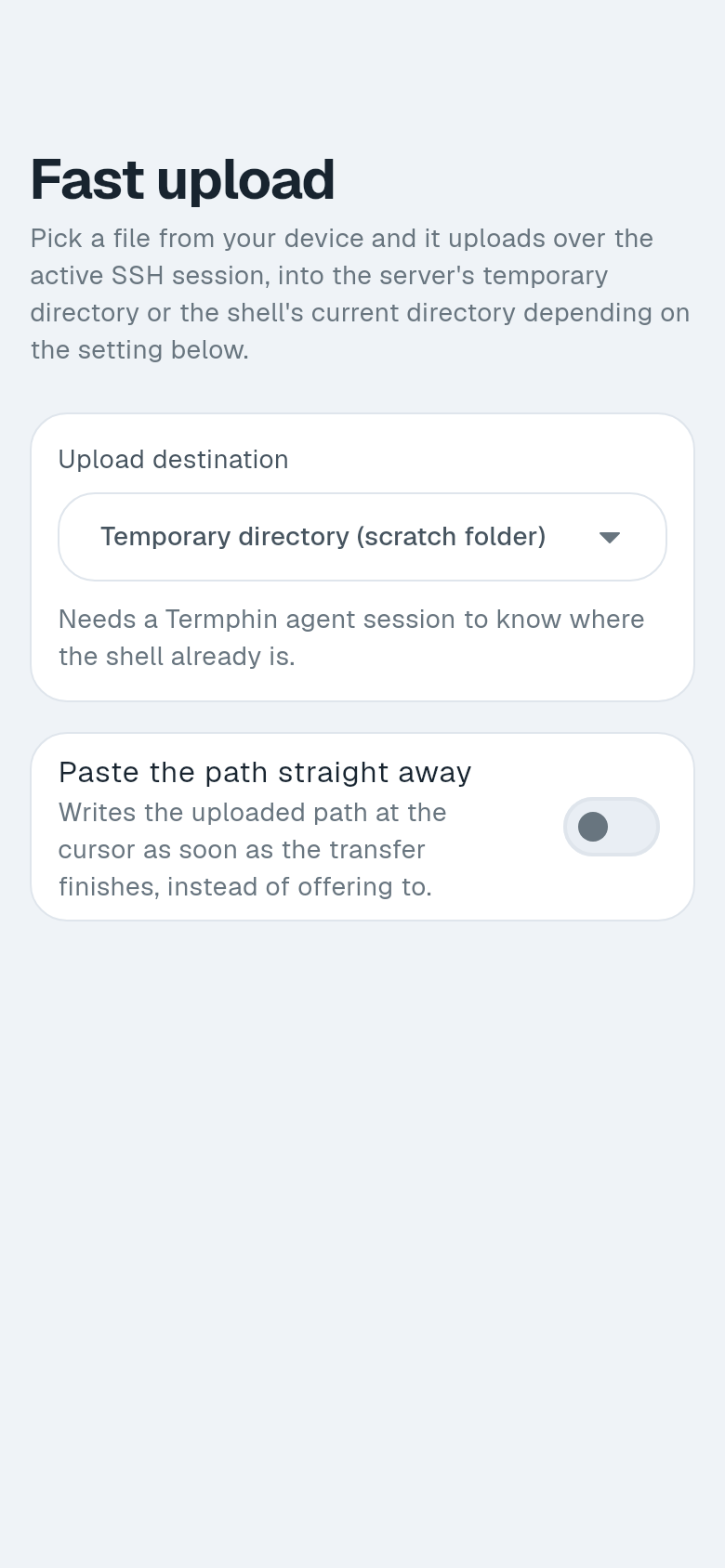
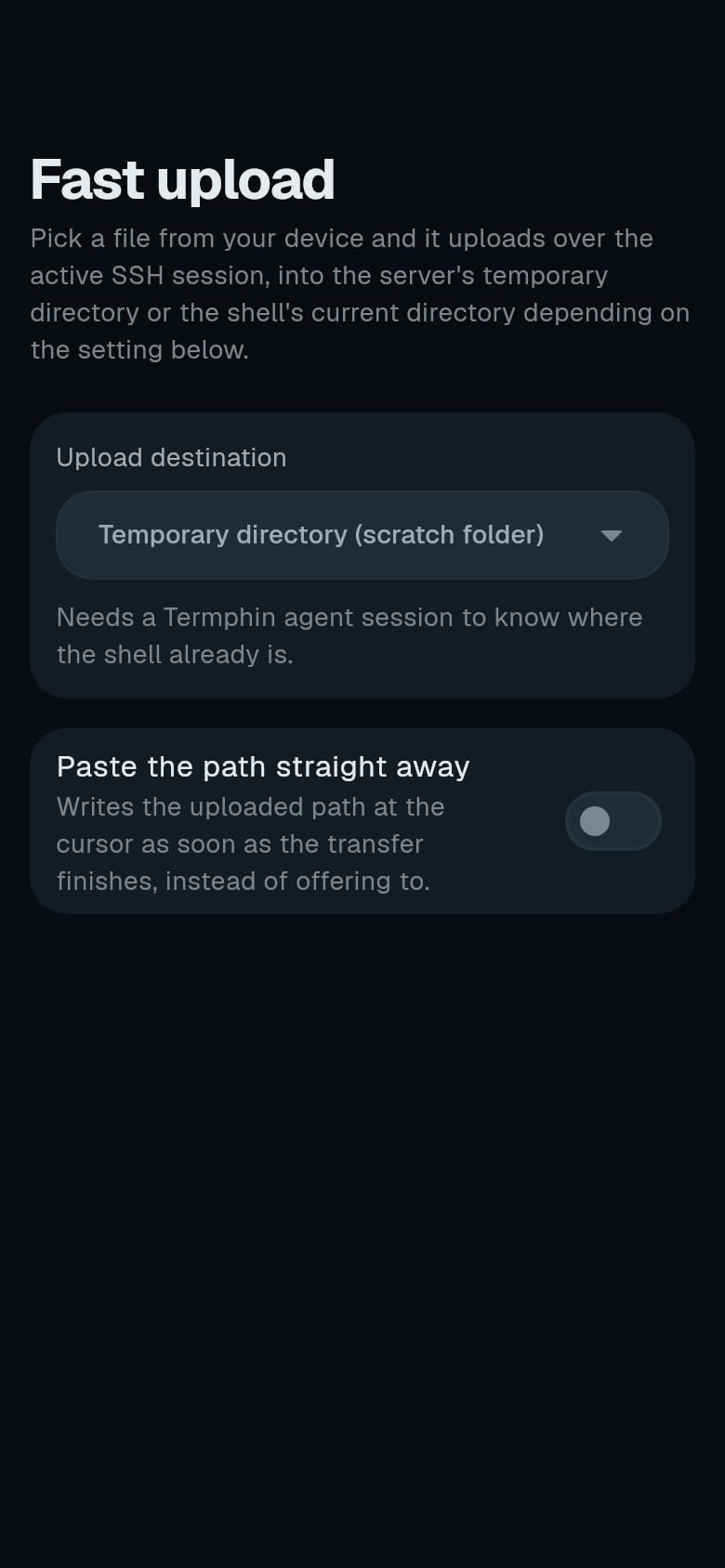
Choose where uploads land. In Settings > Terminal > Fast upload, pick Temporary directory (scratch folder) or Shell’s current directory.
-
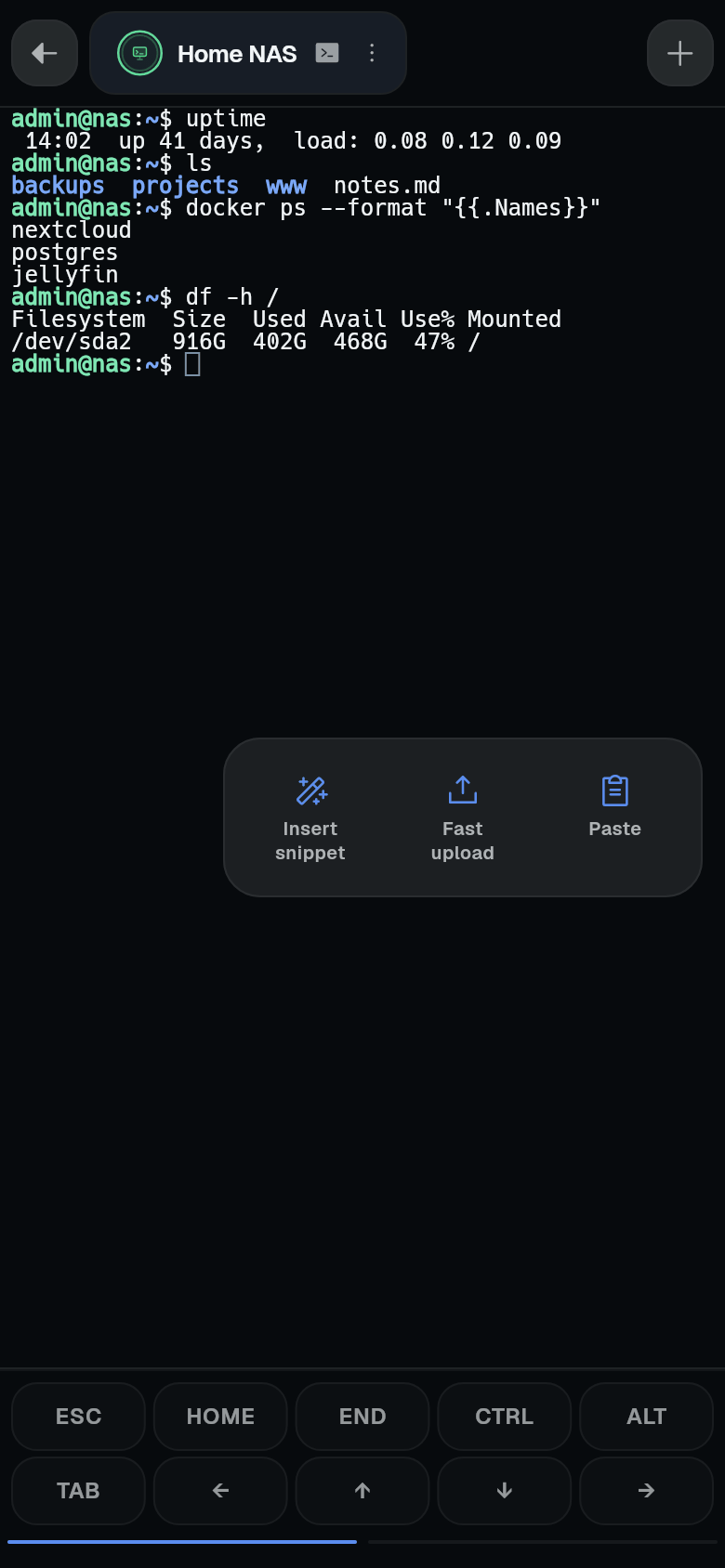
Open the action dock. In the session, tap the round floating button.
-
Tap Fast upload and pick a file. It uploads over the session.
-
Use the path. When it is done, tap Paste path to type the file’s path at the cursor. Turn on Paste the path straight away to have it pasted automatically.
All transfers use a fast cipher (ChaCha20-Poly1305 or AES-CTR) for maximum speed, especially on large files.