
Sessions
Reconnecting
What Termphin does when the connection drops, and what the connection indicators mean.
What you see
When the connection drops, the terminal stays on screen as it was. The toolbar stays visible. The only change is a small reconnecting indicator. It shows Reconnecting, attempt 3… or Retrying in 8s…. If there is no network at all, it shows Waiting for a network… and tries again as soon as one is back.
Retry timing
Termphin waits 0, 1, 2, 4, 8, 16 seconds, then every 30 seconds. Retries never run out while the problem can pass.
What stops retrying
Some problems cannot be fixed by retrying. The terminal shows an error card immediately:
- Wrong username or password
- Key not accepted
- Host key rejected or changed
- Broken jump host setup
- Missing local network permission
The error message tells you what went wrong. For example, Wrong username or password. or The server did not answer. Check the address and port.
Typing while reconnecting
What you type while the terminal is reconnecting is held and sent when the connection is back. Only plain text and backspace are kept. Enter, Ctrl keys, and escape sequences are dropped. This does not work in full-screen programs like vim.
If you use the Termphin agent, you land back in the same shell and only see the output you missed. Without the agent, a new shell starts.
Connection pill
A small pill appears over the top right of the terminal when something is wrong:
- Red: No reply for 7s - the server has not answered.
- Amber: Slow connection · 450 ms - round trips are slow.
Tap the pill to open the Connection log.
Connection log
The connection log shows each step: connecting, authentication, agent check, terminal session ready. It is the first place to look when something fails.
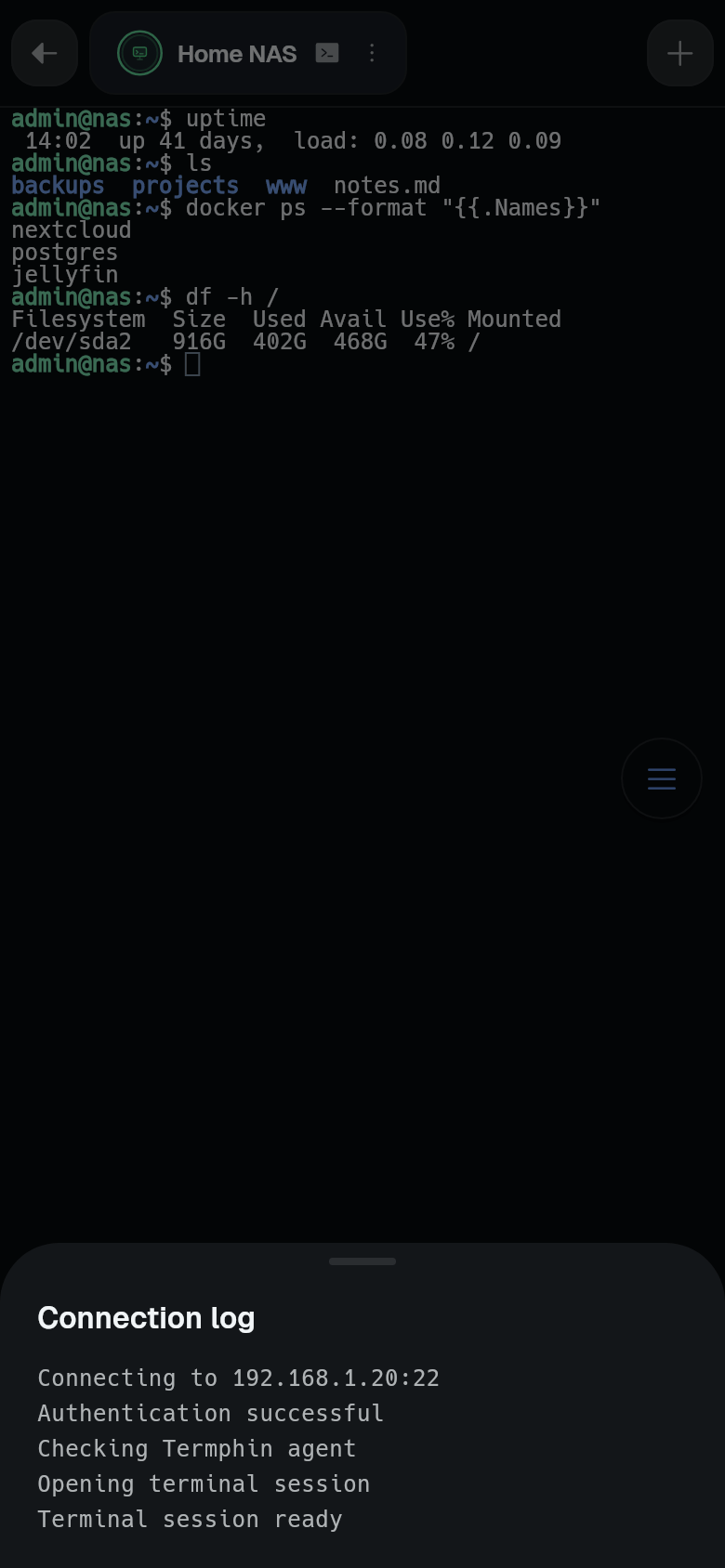
To open it, tap the connection pill when it appears, or open the tab menu and select Connection log.
Each tab reconnects on its own. If you switch Wi-Fi to mobile data or come back to the app, Termphin checks agent sessions quickly and reconnects if the old link went silent.
For more help, see Troubleshooting and Permissions.