
Settings and data
App lock
Protect Termphin with a PIN and fingerprint or face unlock.
Turn on PIN lock
-
Open Settings. Tap Settings in the bottom bar.
-
Find Security. Scroll to the Security section.
-
Turn on PIN lock. Switch on PIN lock. The Set PIN screen appears.
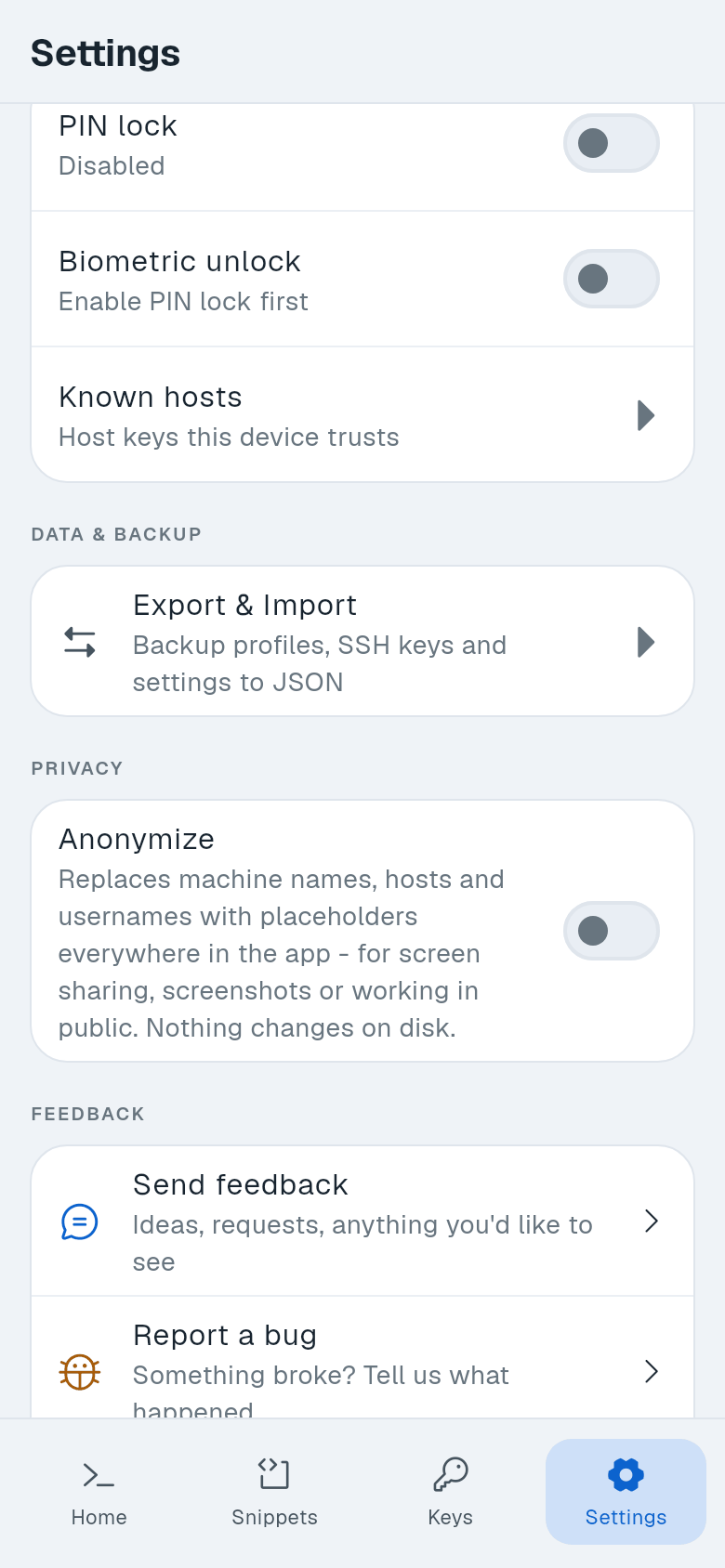
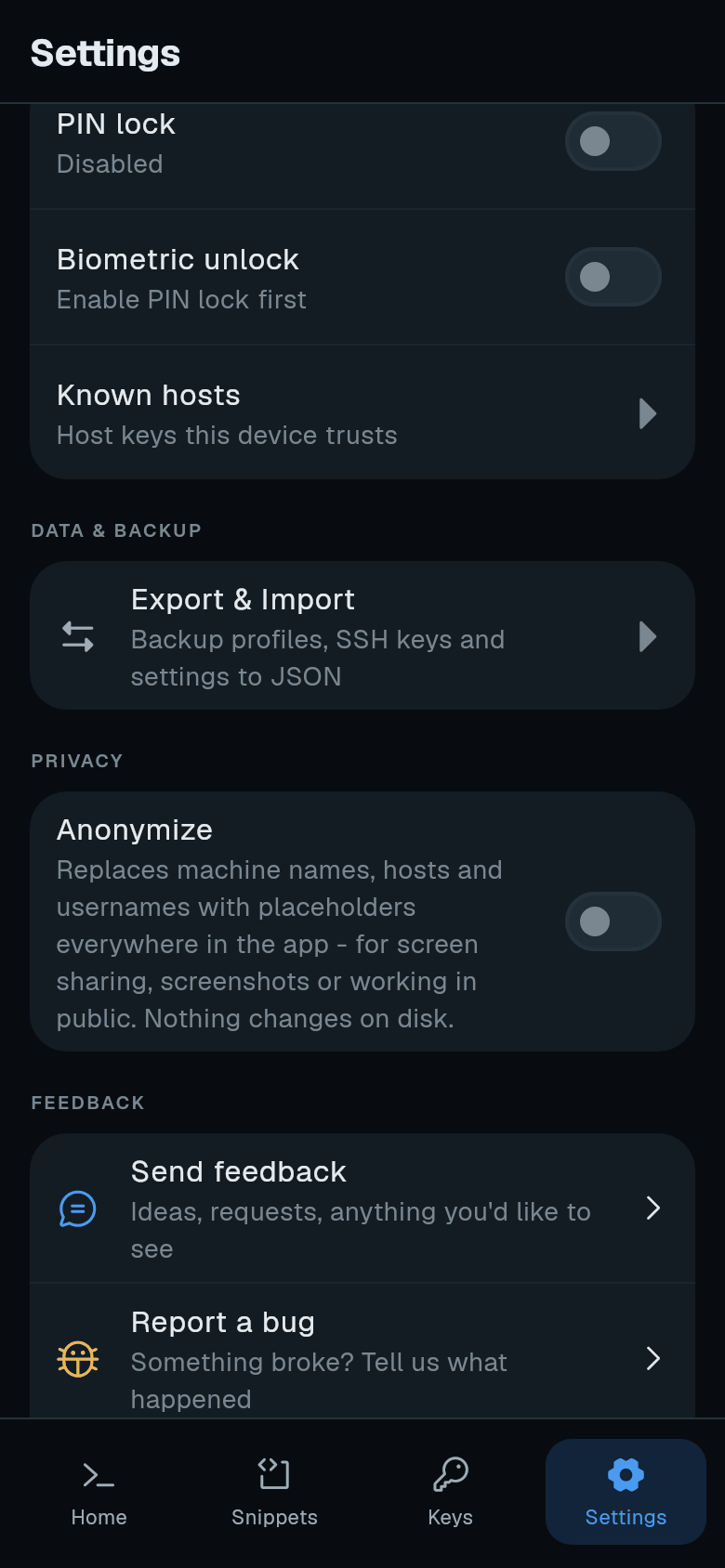
-
Enter a PIN. Type 4 to 6 digits. Tap Next.
-
Confirm the PIN. Enter the same digits again. It is checked as soon as you type the last one. The lock is now on. The status shows “Enabled - required on launch”.
When you next open Termphin, you see the lock screen.
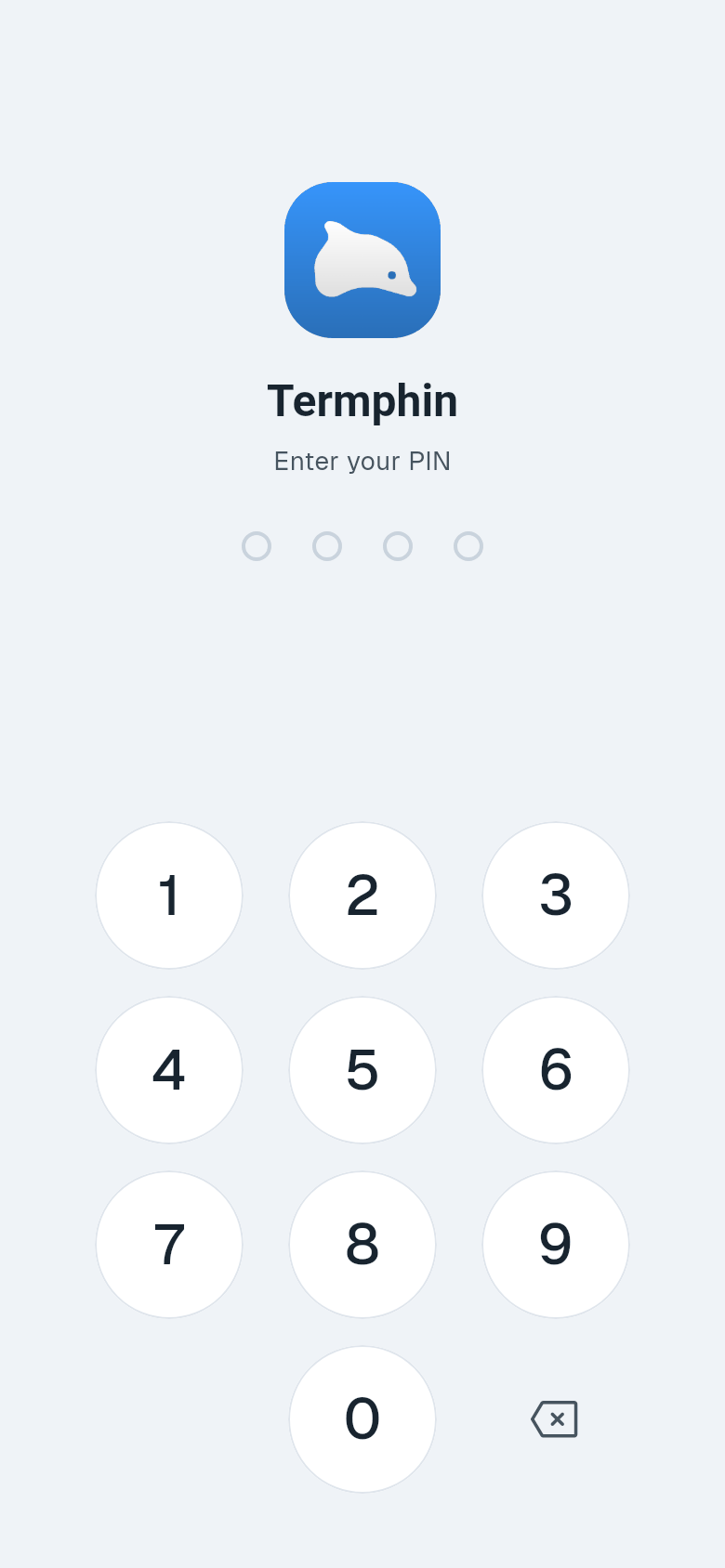
Turn on biometric unlock
After PIN lock is on, you can add fingerprint or face unlock.
-
Open Settings > Security.
-
Turn on Biometric unlock. Switch on Biometric unlock. If your phone has no fingerprint or face unlock set up, the row says Not available on this device.
Change PIN
-
Open Settings > Security.
-
Tap Change PIN. It shows while the lock is on.
-
Enter a new PIN. Type 4 to 6 digits and tap Next.
-
Confirm the new PIN. Enter it again.
Turn off the lock
-
Open Settings > Security.
-
Switch off PIN lock. Disable lock? warns that the PIN and biometric lock will be removed.
-
Tap Disable.
Wrong PIN attempts
The unlock screen checks automatically after the last digit. You get three free tries. After that, a 30-second wait appears: “Too many attempts. Try again in 30s.” The wait doubles each time, up to 15 minutes. Closing the app does not reset the wait.