
Productivity
Action dock
The floating button over the terminal with quick actions - and how to choose which ones.
-
Turn on the Action dock. Go to Settings > On-screen controls and switch on Action dock. The button appears in sessions. The toolbar and the dock are independent - see Key toolbar.
-
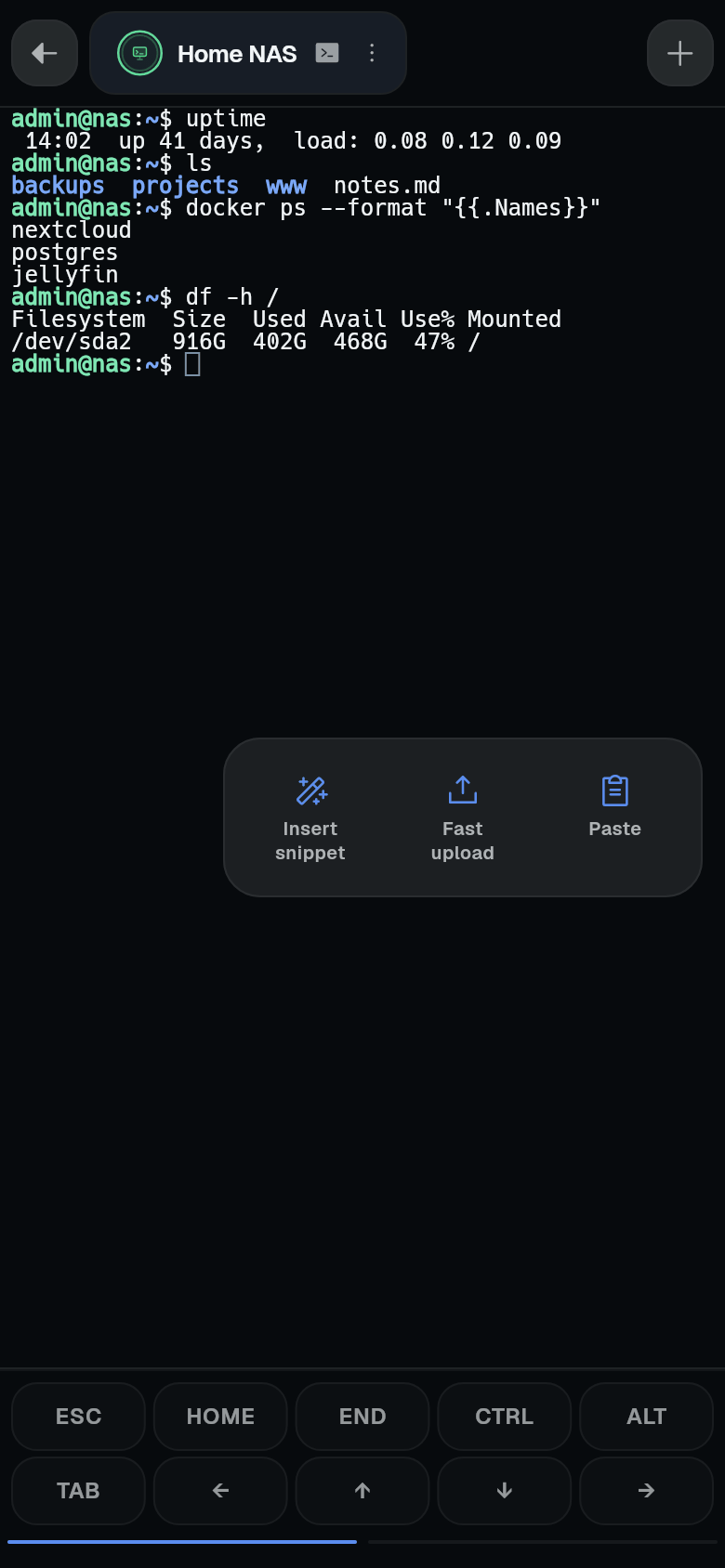
Open the dock. In a session, tap the round button. The tiles appear.
-
Use a tile. Tap a tile to perform its action. For example, Paste pastes clipboard content. Fast upload uploads a file (requires a Termphin agent session - see Downloads and uploads). Insert snippet opens the snippet picker (see Snippets).
-
Move the button. Drag the round button to a new position. The dock remembers the position.
-
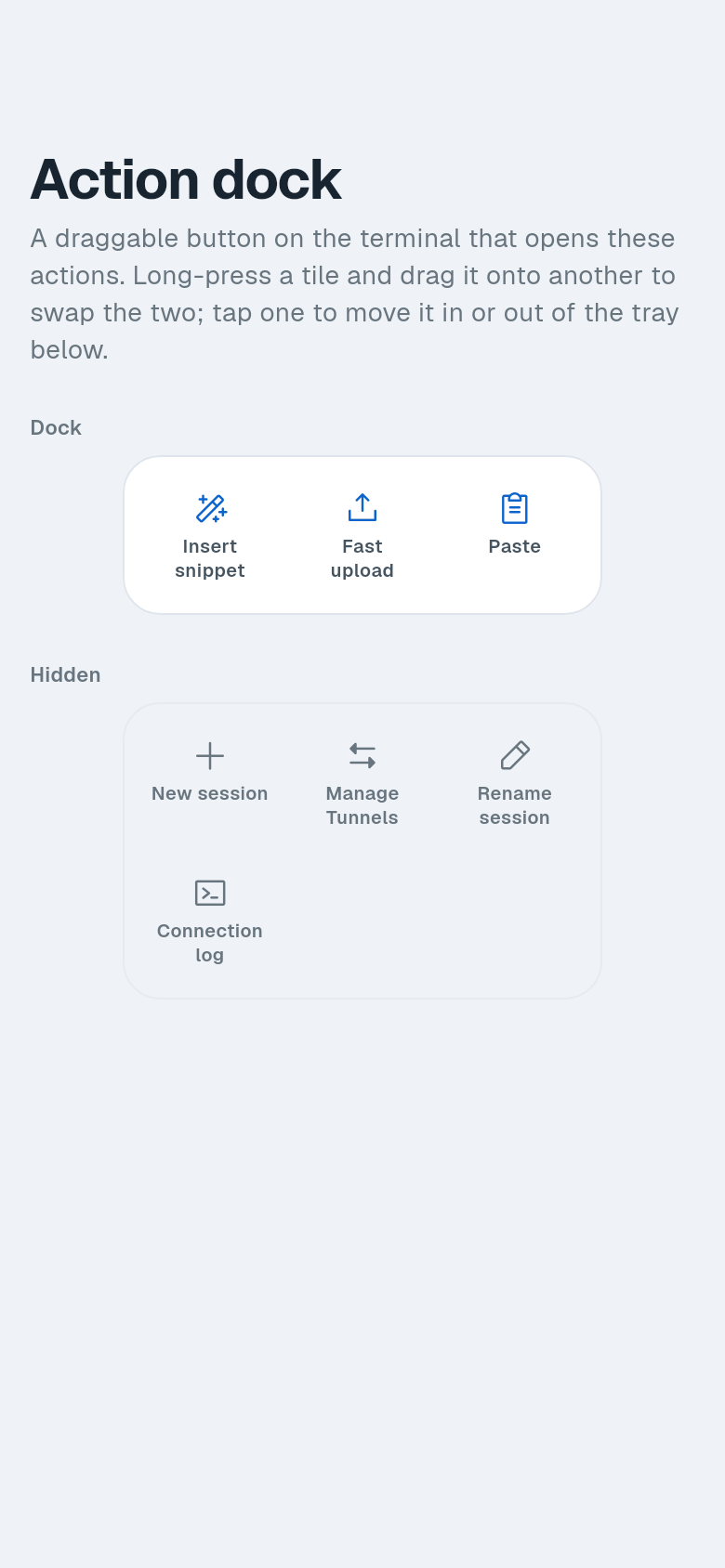
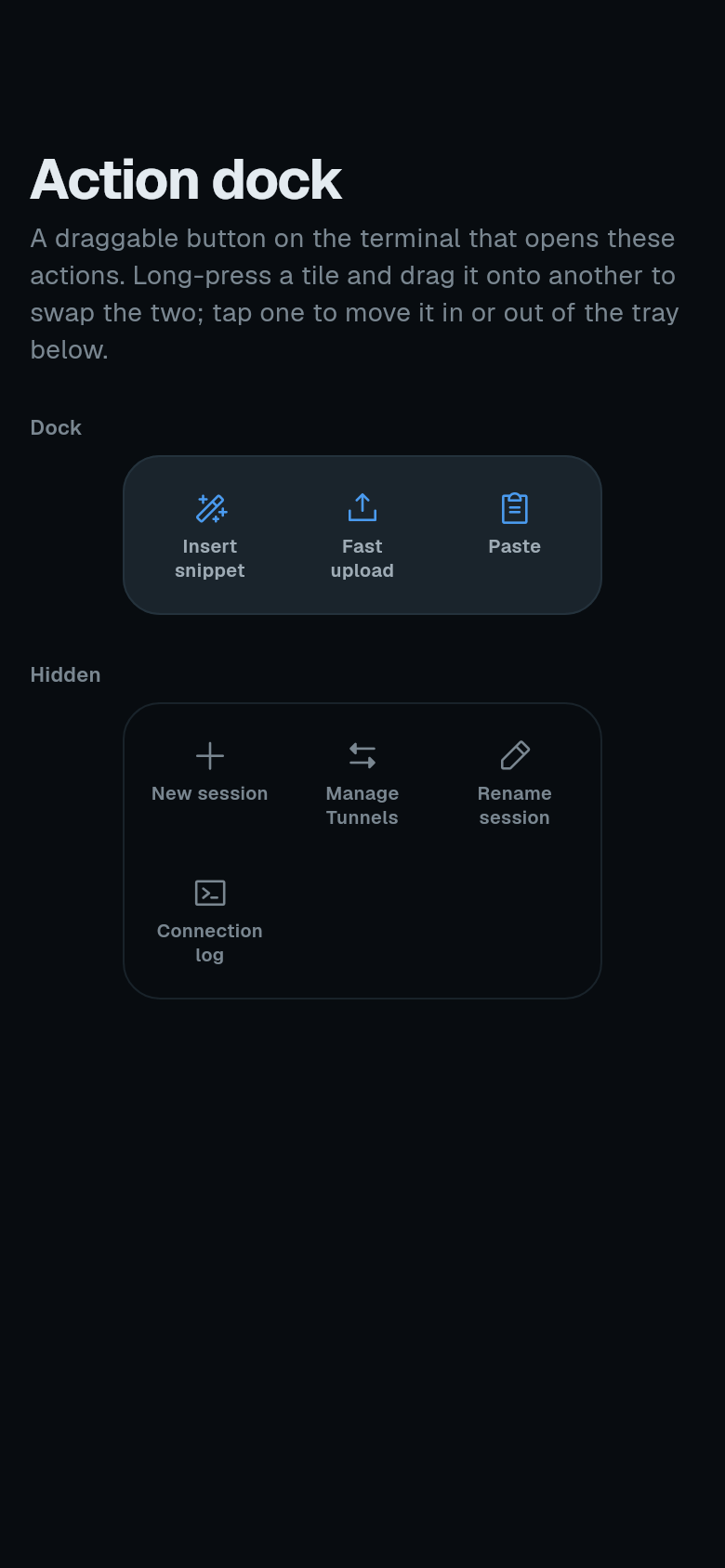
Customize the tiles. With the Action dock on, go to Settings > On-screen controls > Dock actions. You see a Dock preview and a Hidden tray.
-
Rearrange tiles. Long-press a tile in the Dock area and drag it onto another to swap them.
-
Show or hide tiles. Tap a tile to move it between the Dock and Hidden tray. Hidden tiles are not shown in the dock. By default, Insert snippet, Fast upload, and Paste are shown. Hidden tiles include New session, Manage Tunnels, Rename session, and Connection log.