
Getting started
Your first connection
Add a machine, sign in and accept its host key - from a fresh install to a working shell.
Add a machine
-
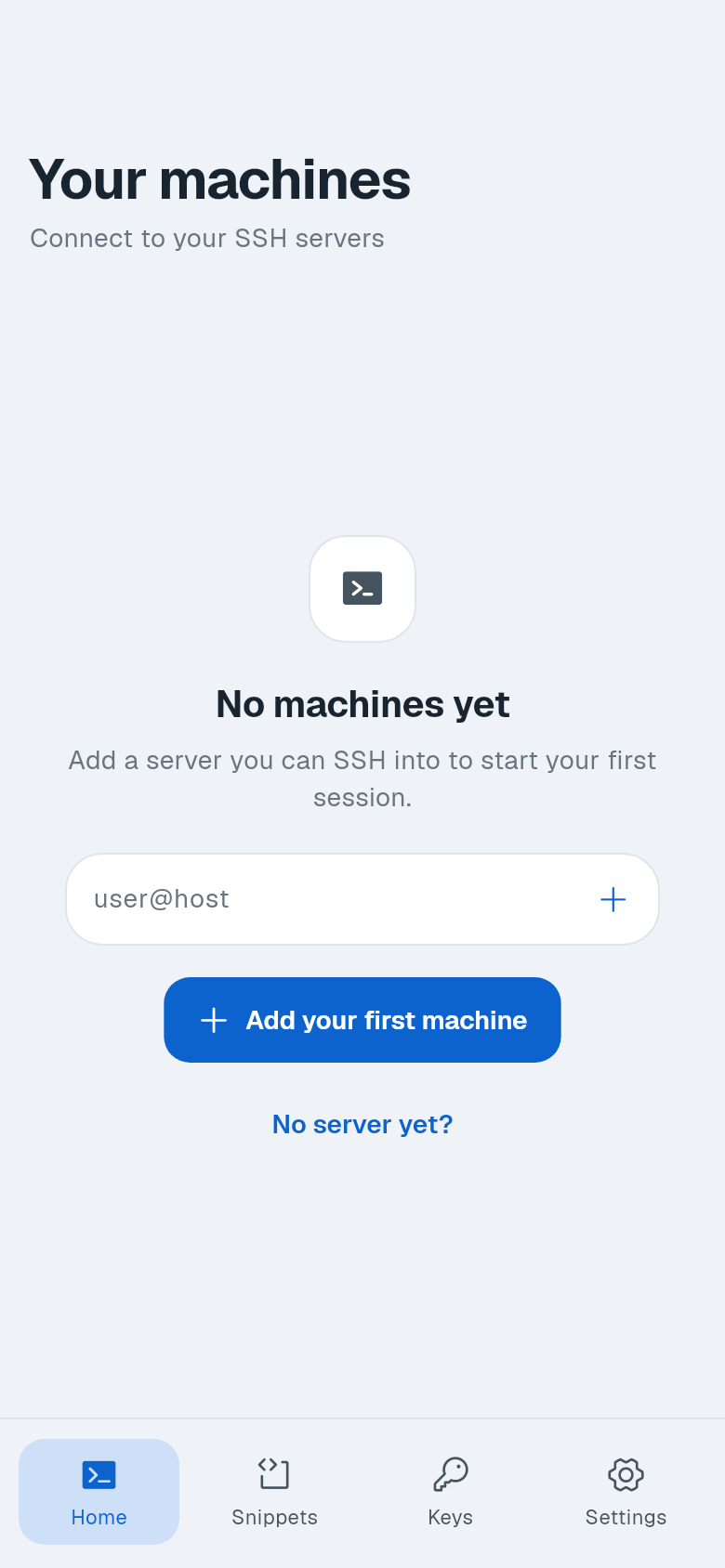
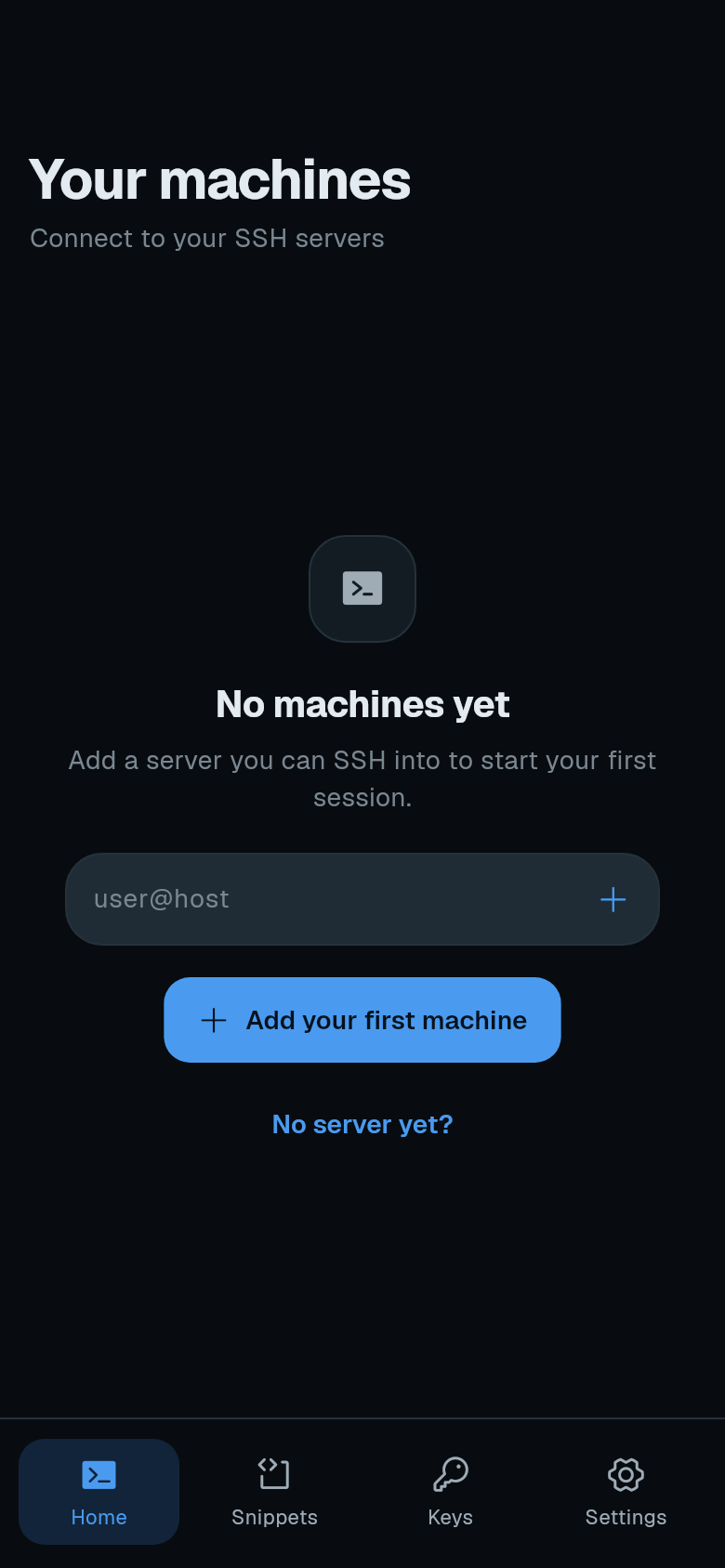
Open Termphin. You see the empty machine list with No machines yet and the Add your first machine button.
-
Tap Add your first machine. The New Machine form opens.
-
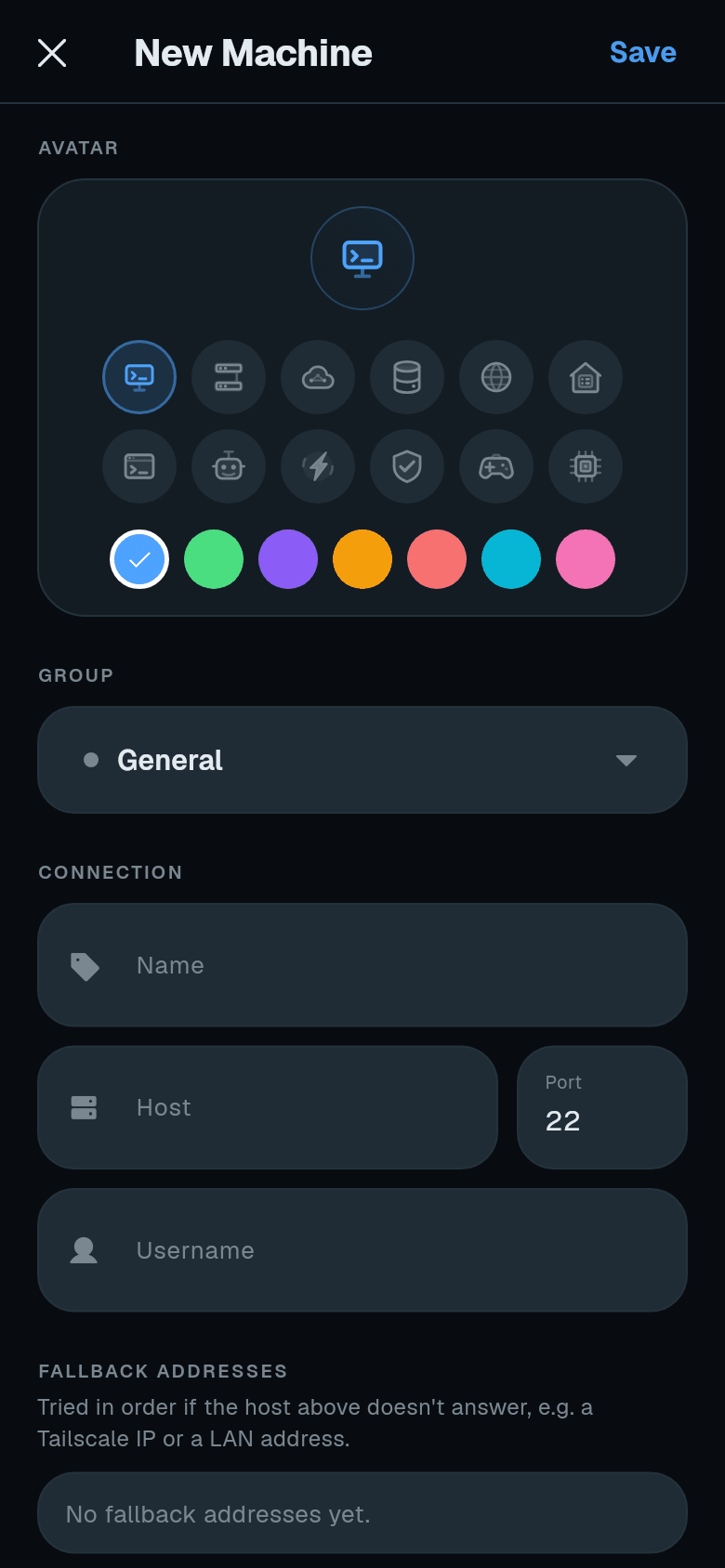
Fill in the connection details. Enter the server address in Host (for example
192.168.1.20orserver.example.com). Port defaults to22. Username is your account on the server, such asrootoradmin. Name is optional - leave it blank and the host becomes the name.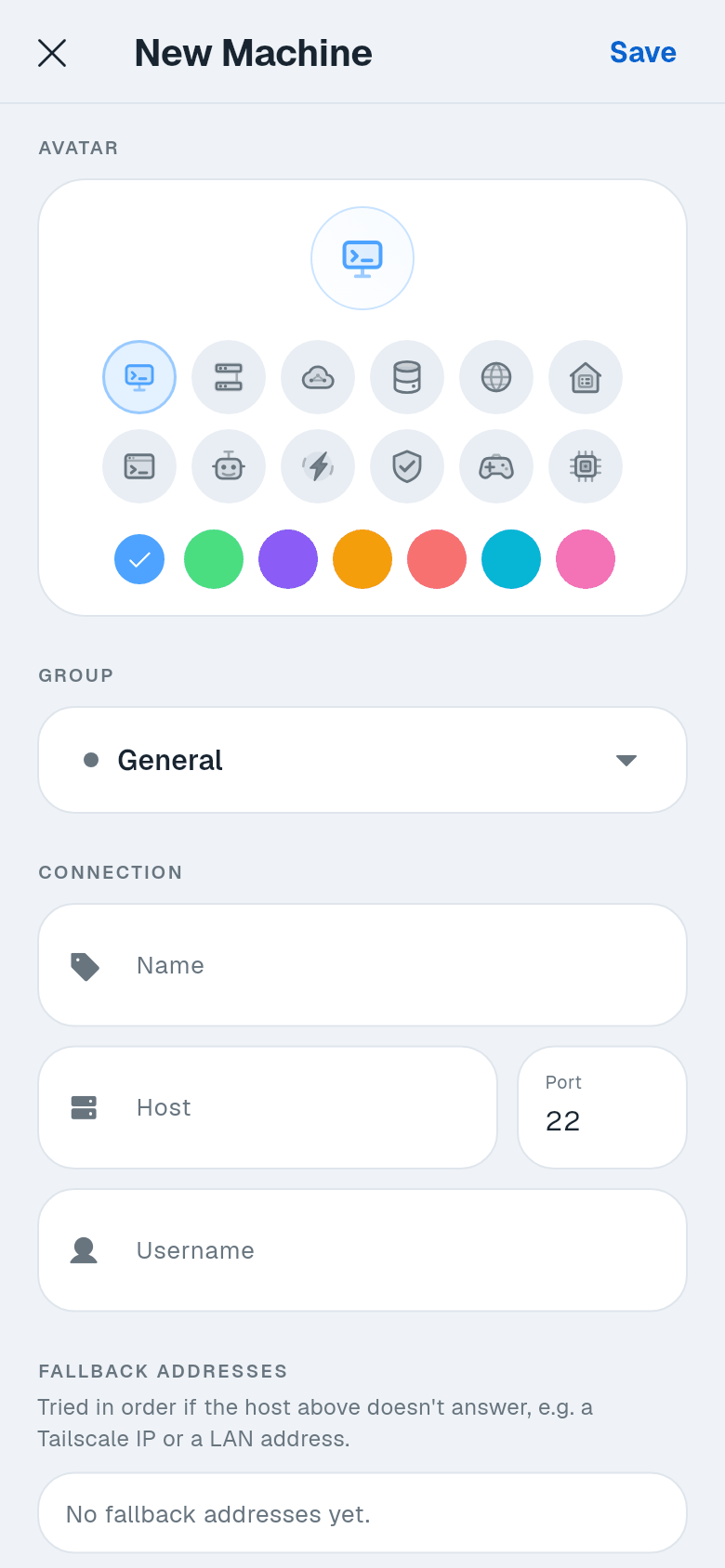
-
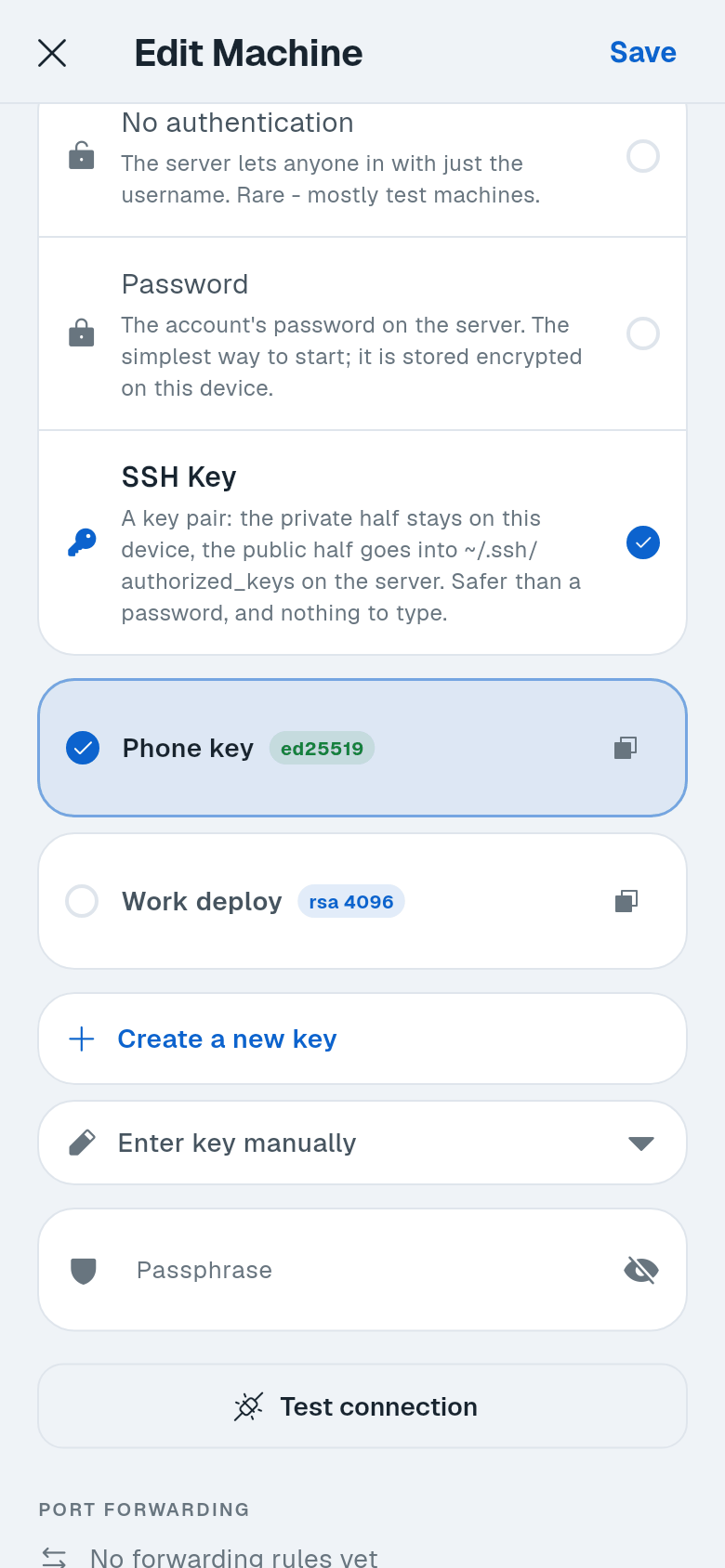
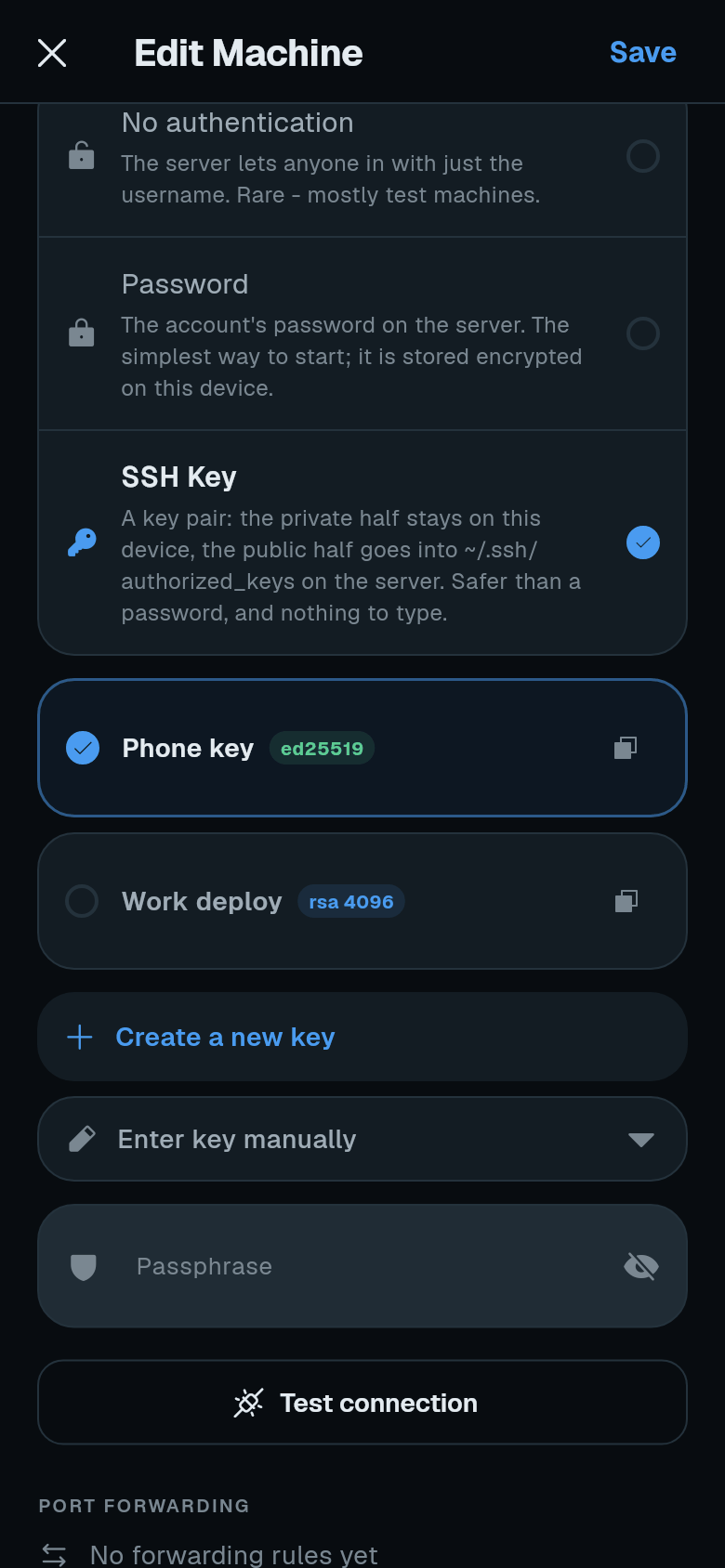
Choose an authentication method. Under Authentication, pick Password or SSH Key.
- Password: the account’s password on the server. It is stored encrypted on the device.
- SSH Key: select a saved key, tap Create a new key, or Enter key manually to paste one. If the key is encrypted, fill in Passphrase. A key only works once its public half is on the server - see SSH keys explained.
-
(Optional) Test the connection. Tap Test connection to verify the form works without saving. A message at the top says It works - the server let you in. or explains the failure. While testing, the button says Connecting… tap to stop.
-
Tap Save. The machine appears in the list.
-
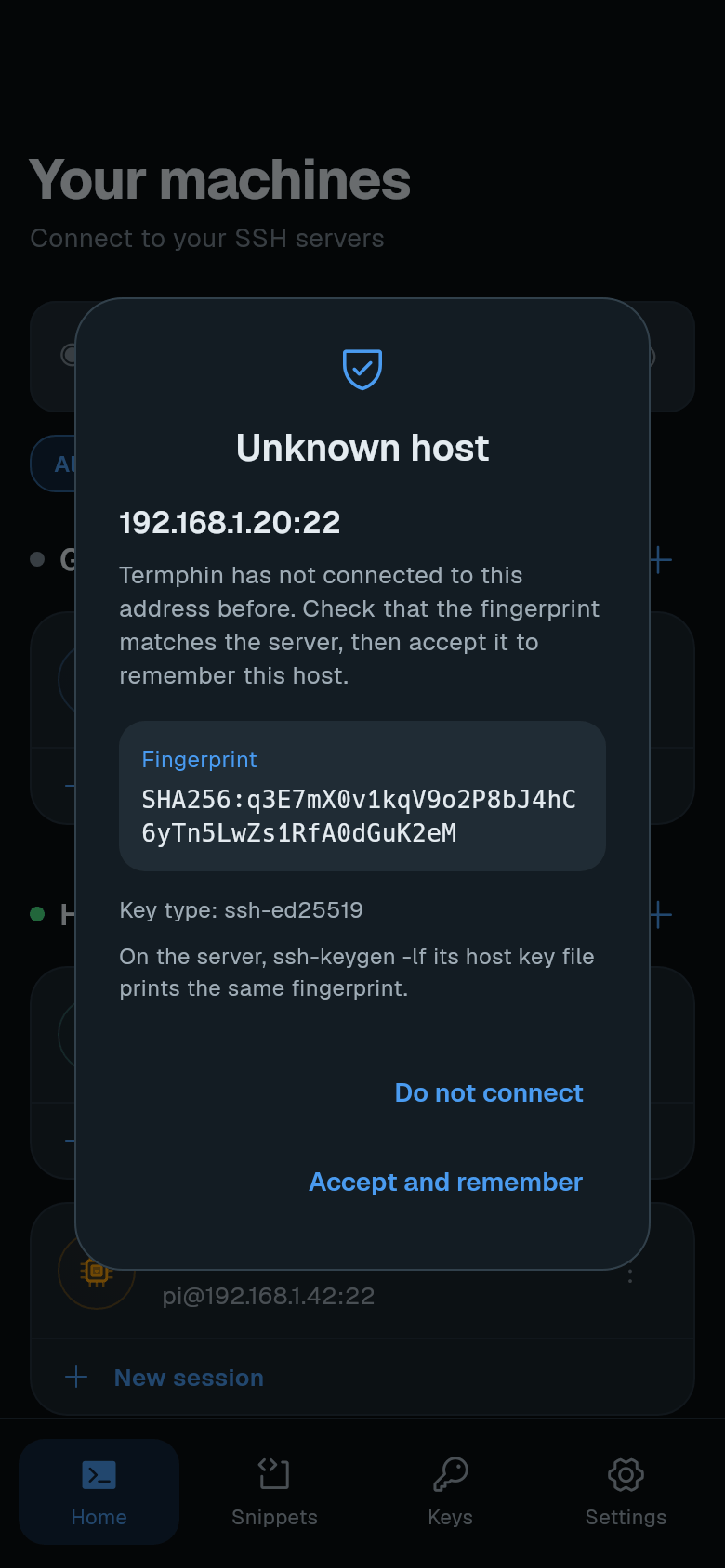
Tap the machine card to connect. On the first connection to this address, you see Unknown host with the fingerprint and key type. If you can, verify the fingerprint on the server with
ssh-keygen -lf /etc/ssh/ssh_host_ed25519_key.pub. Then tap Accept and remember.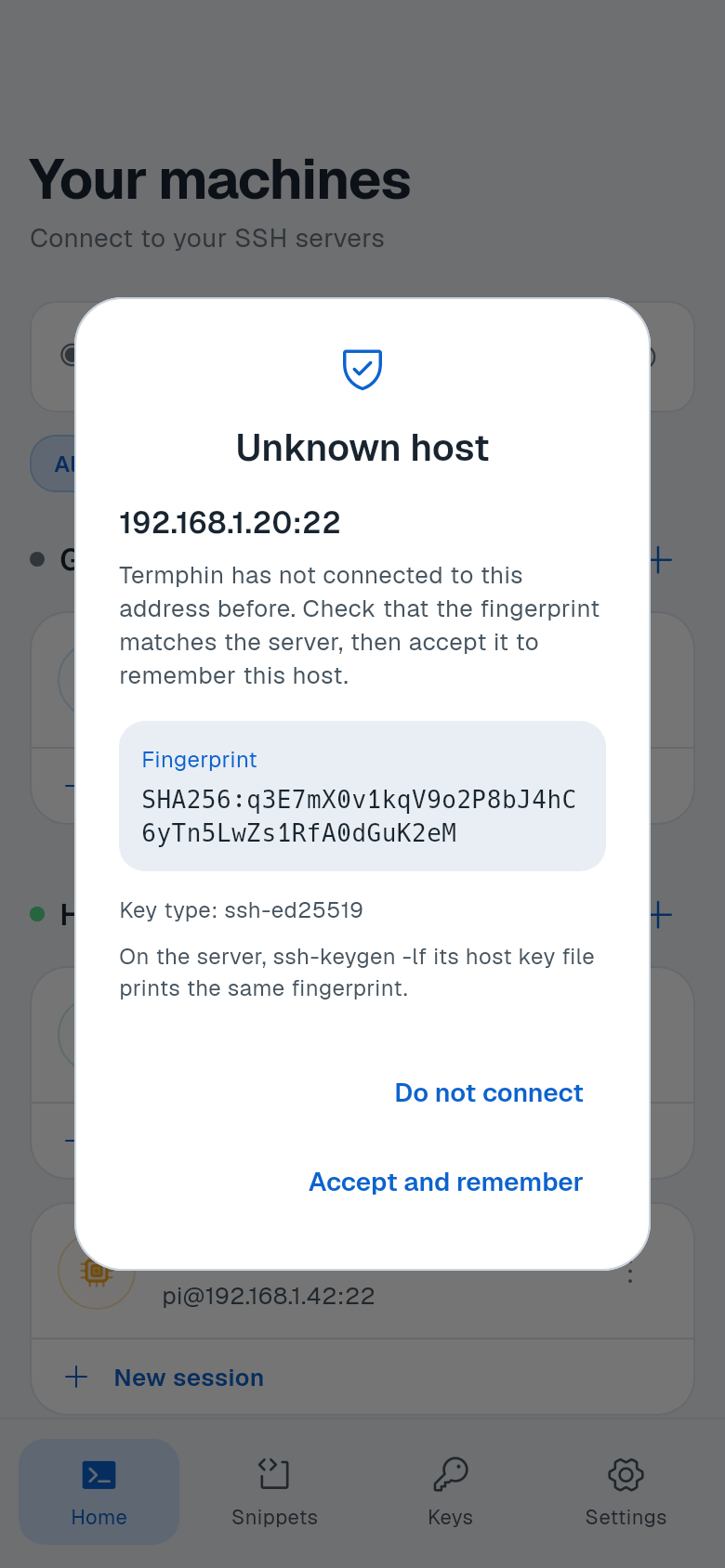
-
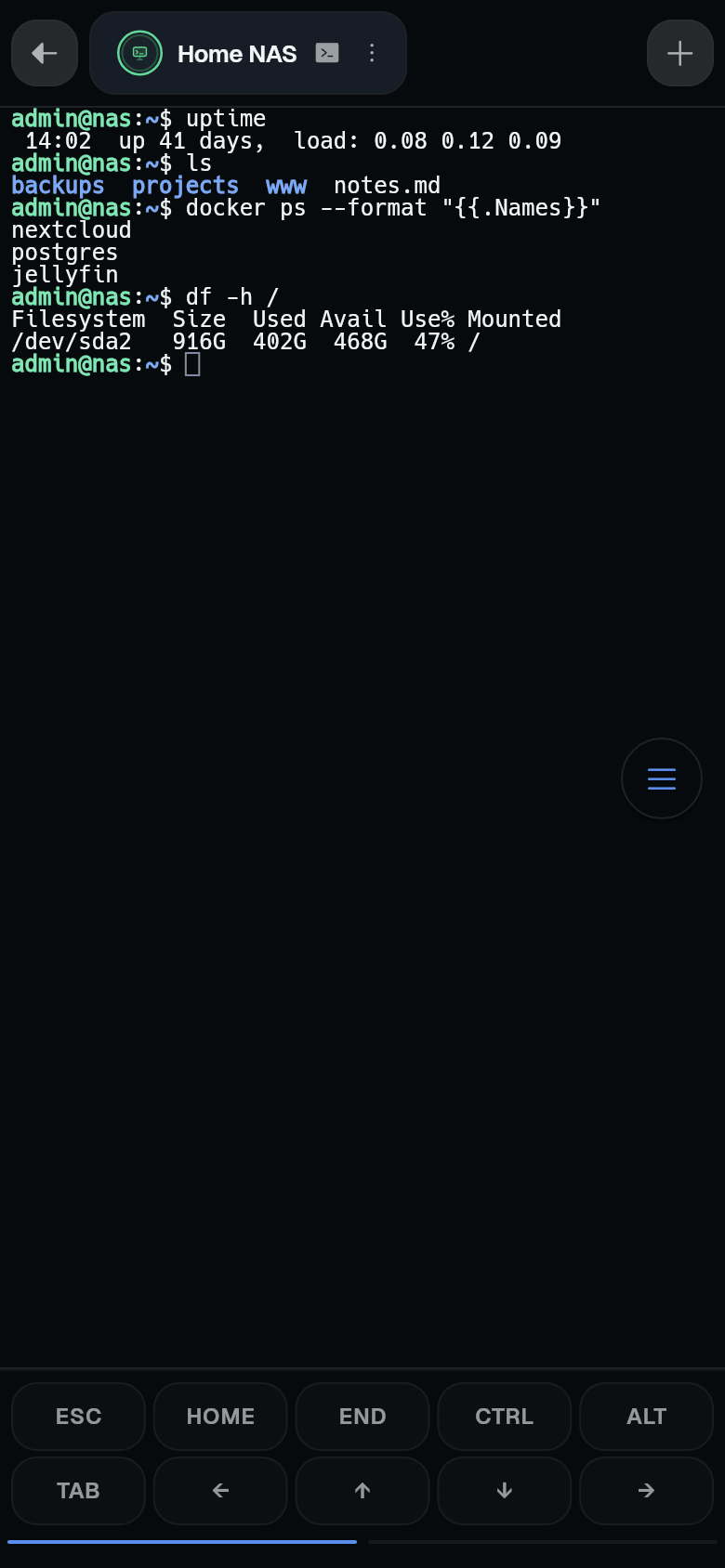
The terminal opens. You are signed in.
Quick way: type user@host
On the empty machine list, type the address the way you would after ssh - for example [email protected] or ssh -p 2222 [email protected] - then tap the + button. The New Machine form opens with the fields filled in. Set up authentication, test or save as above.
If it does not connect
An error card shows the reason, such as wrong username or password, or the server not responding. See Troubleshooting for common fixes.