
Sessions
The Termphin agent
How sessions survive a dropped connection, what runs on your server, and how to manage sessions left running.
What the Termphin agent does
Without the agent, a dropped SSH connection kills the shell and whatever was running. With the agent, the shell keeps running on the server and Termphin re-attaches to it.
The agent is installed automatically on the first connection. No manual setup. If the server cannot run it, you get a plain shell instead of an error.
- Runs on Linux and macOS (x86_64 and arm64) and on Windows (x86_64).
- Opens no network port.
- Runs as your user - no root, no service, no cron entry.
- Files in
~/.cache/termphin/sessions(%LOCALAPPDATA%\termphin\sessionson Windows). - Ending a session deletes its folder.
- Scrollback survives a server reboot.
- Checksum verified before upload and on the server.
- Open source, about 5,000 lines of Rust.
After a short drop you see only what you missed. After a longer drop, the screen shows the current state. If the server rebooted, the shell is gone: “The remote shell was restarted - reattached in the same directory, previous shell state is gone.”
Detach and re-attach
-
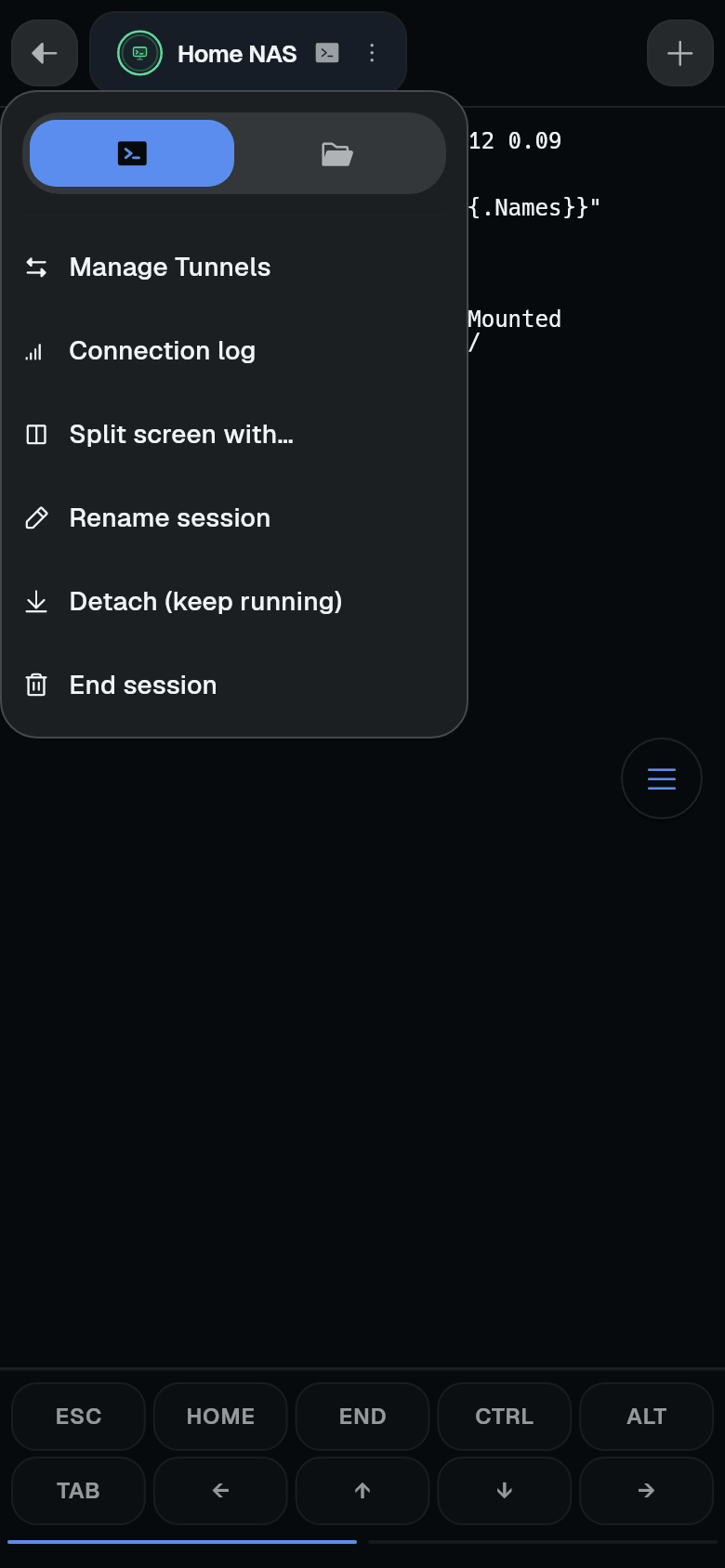
Open the tab menu. Tap the three-dot icon on the tab.
-
Detach the session. Tap Detach (keep running). The tab closes. The session keeps running on the server.
-
Re-attach later. On the machine card in Your machines, tap the session entry. Or tap the + on the tab strip, select the device, then tap the session name.
When you re-attach, you see the session as it was. If the session is unreachable, you can choose to forget it.
Find sessions still running on a server
Sessions are listed under the machine’s card on Your machines. To load them:
- On a single machine card, tap Load sessions from the card menu.
- On a group header, tap the download icon Load sessions for every machine.
You can also see sessions when adding a new tab: tap + on the tab strip, then select a device. Each machine shows its sessions. From there you can attach, rename, or kill a session.
End a session
-
Open the tab menu of the session you want to end.
-
Tap End session. A confirmation warns that anything running in the session stops.
-
Confirm. The session is killed on the server.
You can also kill a session from the session list on a machine card or in the add-session sheet, and confirm with Kill.
Update the agent
When a newer agent ships with the app, the tab menu shows Update Termphin agent. Tap it. The update runs over SSH and a message confirms the new version.
Turn the agent off
Go to Settings > Connection > Termphin agent. Switch it off. This does not delete anything from servers. Off means plain SSH - no persistence.
Using it from a computer
The agent is installed at ~/.local/lib/termphin/termphin-agent (not on PATH). Use these commands from a terminal on the server:
~/.local/lib/termphin/termphin-agent list
~/.local/lib/termphin/termphin-agent attach <name>
~/.local/lib/termphin/termphin-agent rename <old> <new>
~/.local/lib/termphin/termphin-agent kill <name>
A session started from a computer can be picked up in the app and the other way round.