
Getting started
The terminal
Typing, special keys, selecting and pasting, autocomplete and moving between sessions.
Tabs and the top strip
The top strip holds one tab per open session. The back arrow on the left returns to the machine list while sessions keep running. The + on the right starts a new session.
Each tab shows the machine name and a status ring around its avatar. Swipe the terminal left or right to move between tabs. Drag a tab along the strip to reorder it.
The tab menu
Tap the three-dot menu on a tab for session actions.
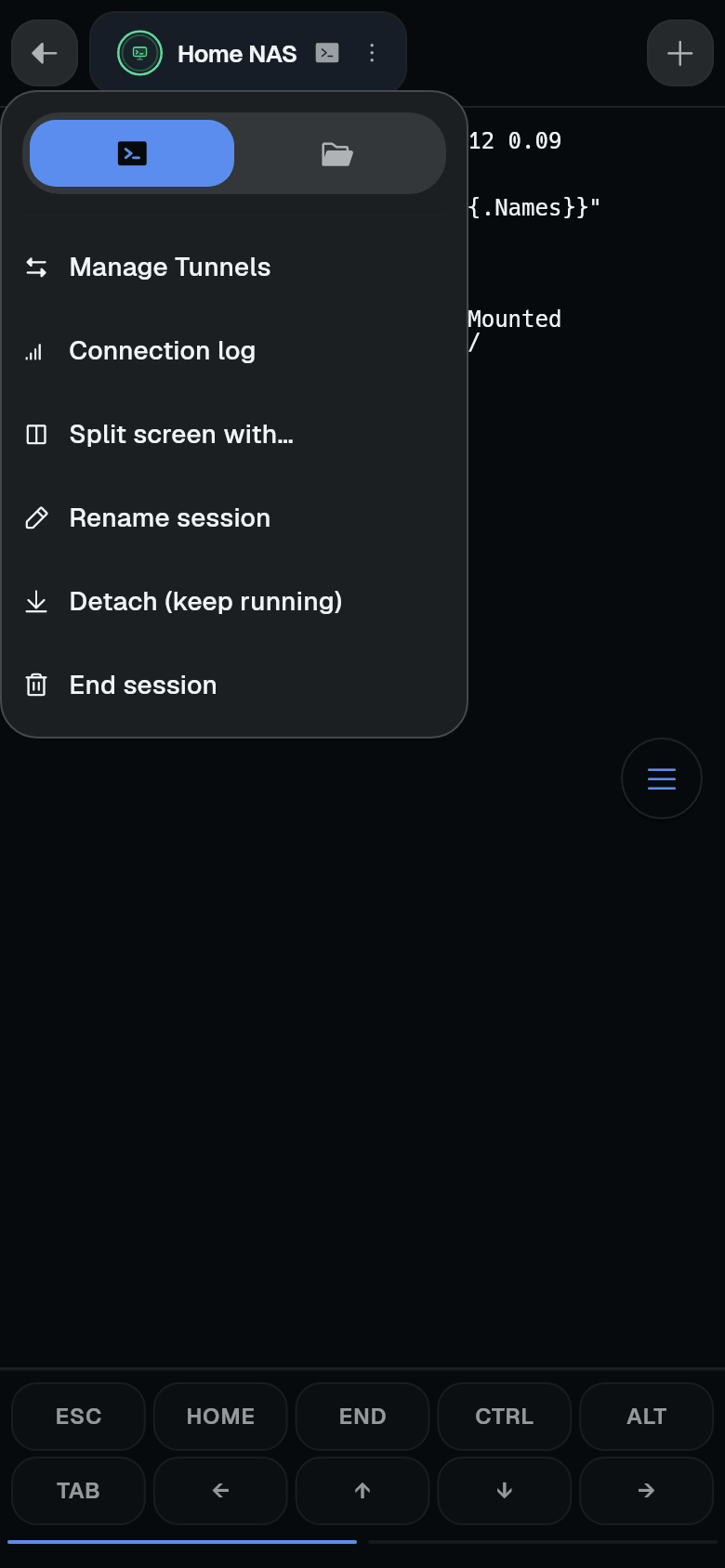
The switch at the top moves the tab between the terminal and its files (the SFTP browser). Below it:
- Manage Tunnels
- Connection log
- Split screen with… - see Tabs and split screen
- Rename session - agent sessions only
- Detach (keep running) - agent sessions only
- End session - agent sessions only
- Disconnect - plain SSH sessions
Extra keys
A row of extra keys sits above the keyboard. By default it shows Esc, Home, End, Ctrl, Alt, Tab and arrows, with more pages. Ctrl and Alt apply to the next key you type. Customise the toolbar in Key toolbar.
The action dock
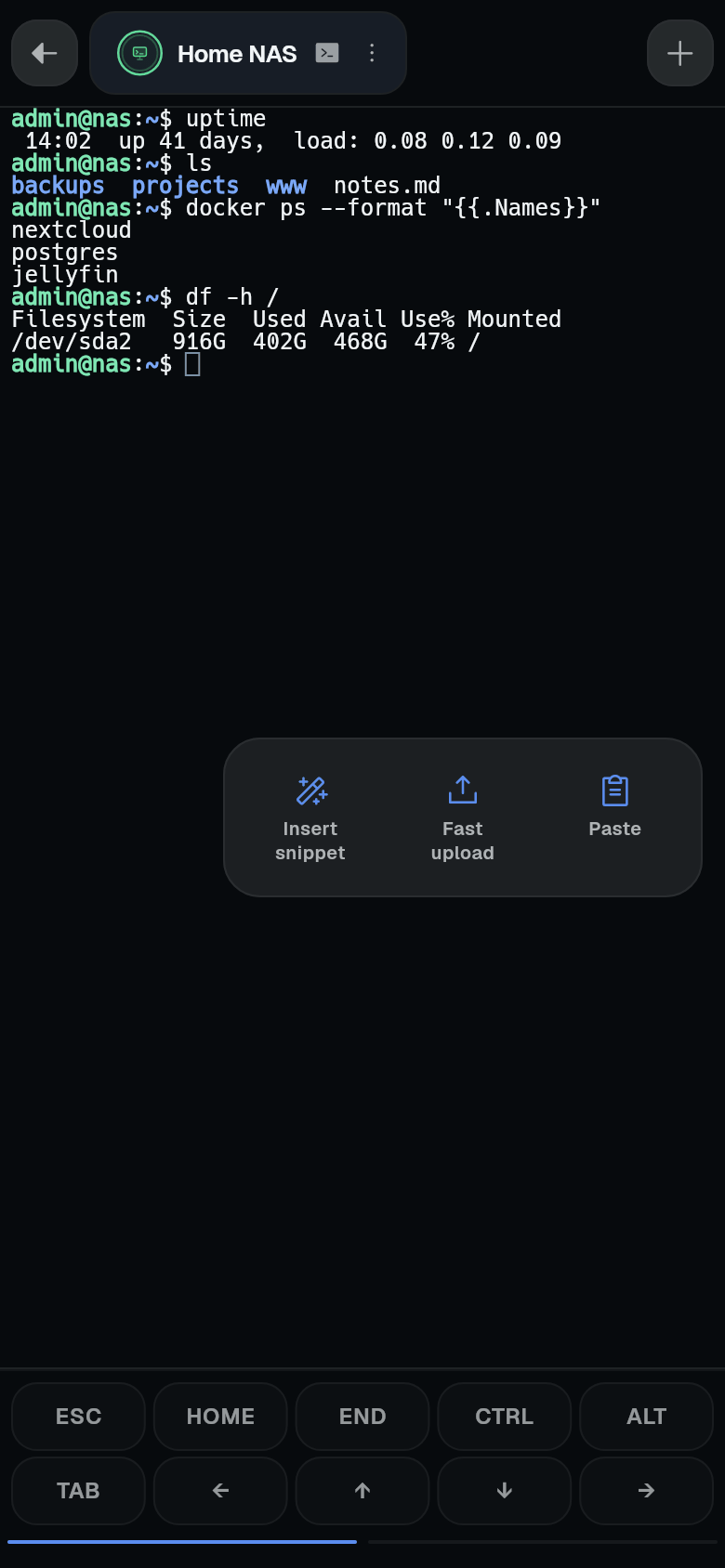
A round floating button sits over the terminal. Tap it for tiles: Insert snippet, Fast upload, Paste by default. Drag the button anywhere on the screen. See Action dock.
Selecting and pasting
Long-press text, then drag the handles to select. Copy from the menu that appears. To paste, long-press and choose Paste, or use the dock’s Paste tile.
Links and scrolling
Tap a link printed in the terminal to see a small preview with Open in Browser.
Drag up to scroll back through output. Scroll to bottom returns to the newest output.
Font size
Pinch the terminal to zoom. Permanent settings live in Terminal appearance.
Autocomplete
Turn on Autocomplete in Settings > On-screen controls. As you type, likely commands and paths appear in a small card over the line, with the best match next to the cursor. Tap one to use it.
Predictive echo
Predictive echo in Settings > Terminal appearance shows what you type before the server answers. It only kicks in on a slow connection. On by default.
Full-screen programs
Programs like vim, htop, less and tmux work normally. Turn on Touch mouse wheel in terminal settings to scroll inside them by dragging.
Landscape
In landscape, the tab strip becomes a side rail that can collapse to icons.
Reconnecting
When a connection drops, the terminal stays on screen and reconnects. See Reconnecting.