Files
Editing files
Open a file from the server in the built-in editor, find and replace, and save it back.
Edit a file
-
Open a file in the editor. In the SFTP browser, tap the file menu and choose Open in Editor. The file is checked before opening.
-
Edit the file. The editor shows the file content with syntax highlighting using your terminal scheme. Pinch to change the font size. Word wrap has its own button in the top bar.
-
Find and replace. Tap the search icon to open the find bar. Enter text in Find. Use Replace to replace one or tap All to replace all. Options: Match case, Regular expression. Navigate with Previous match and Next match. The match count shows like “2/7” or None.
-
Save the file. Tap the save icon. The file is written back to the server. If the file changed on the server since you opened it, a dialog says File changed on server with Save anyway. If you leave with unsaved changes, a dialog asks Discard changes?.
Safety checks
Before opening, the file is checked. If it is binary, invalid UTF-8, or UTF-16/32, you see an explanation and an Open as text anyway option. If the file is too large, a message suggests downloading it instead.
Large files load in parts. The editor shows “Lines 1-500 of 12000” and “scroll to load more” as you scroll.
Editor settings
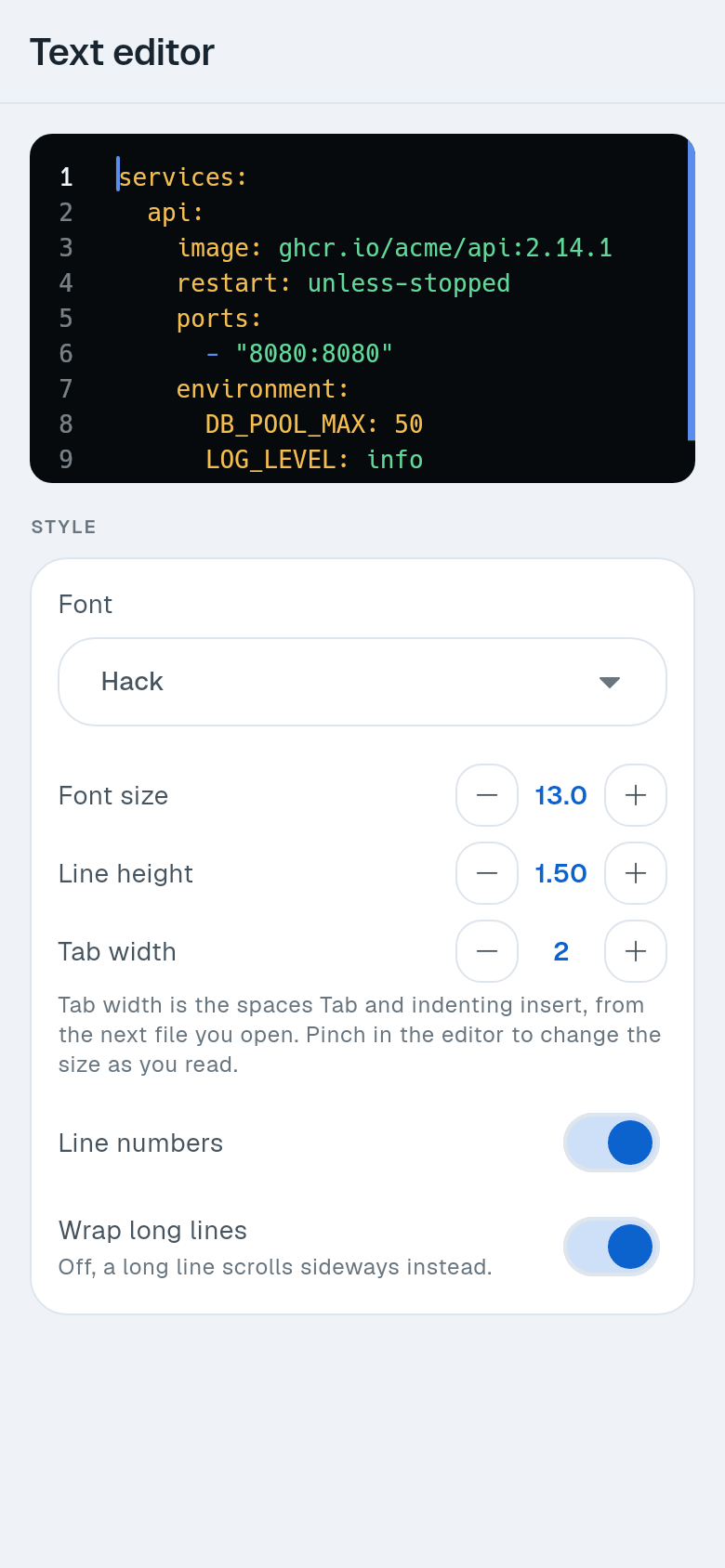
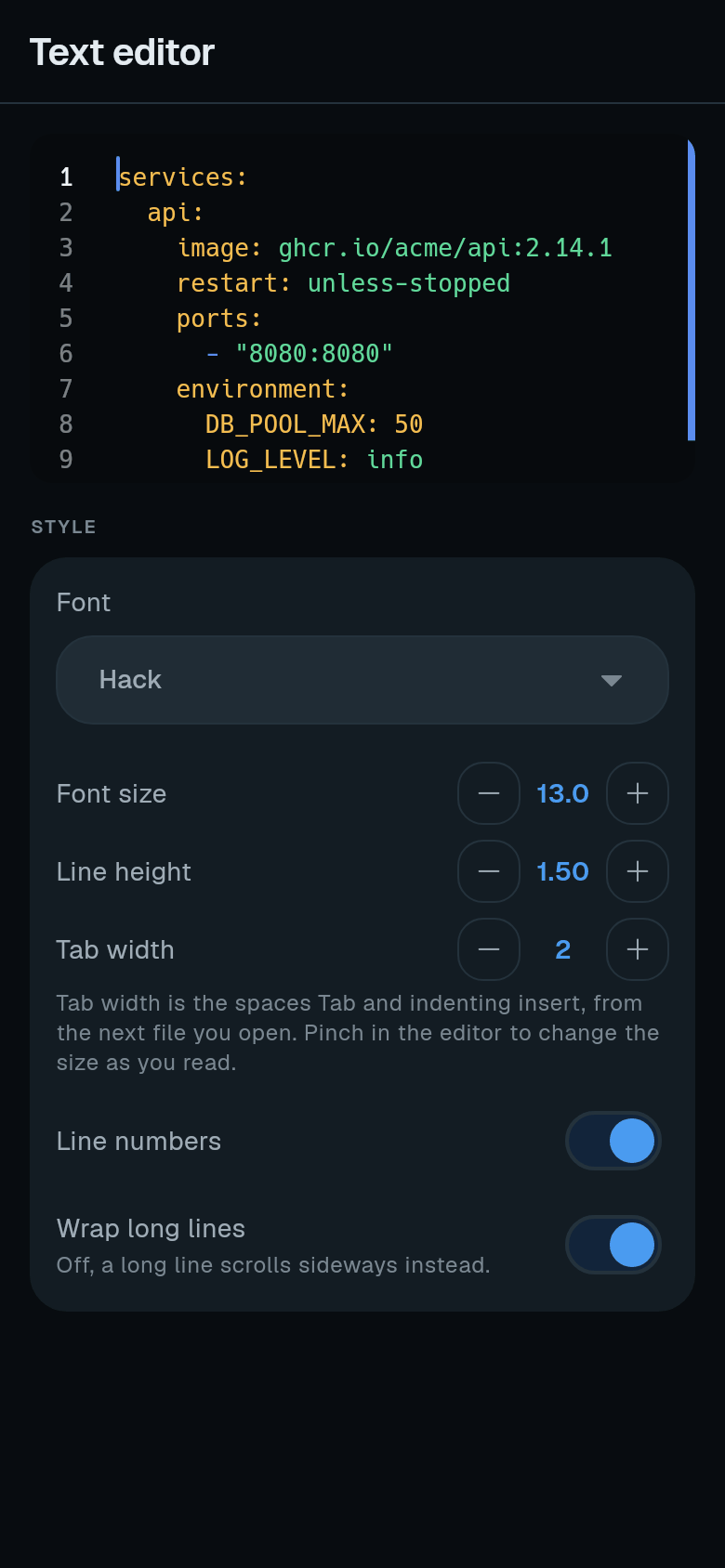
Go to Settings > SFTP > Text editor. You see a live preview of the current settings. Adjust:
- Font and Font size
- Line height
- Tab width (spaces inserted by Tab)
- Line numbers toggle
- Wrap long lines toggle