
What's new in Termphin 1.10.0
One search for everything, copy and move on the server, search in the terminal output, and session tabs within reach of your thumb.

This release is about finding things faster and moving files without a detour: one search across the whole app, copy and move on the server, search inside the terminal, and tabs where your thumb can reach them.
One search for everything
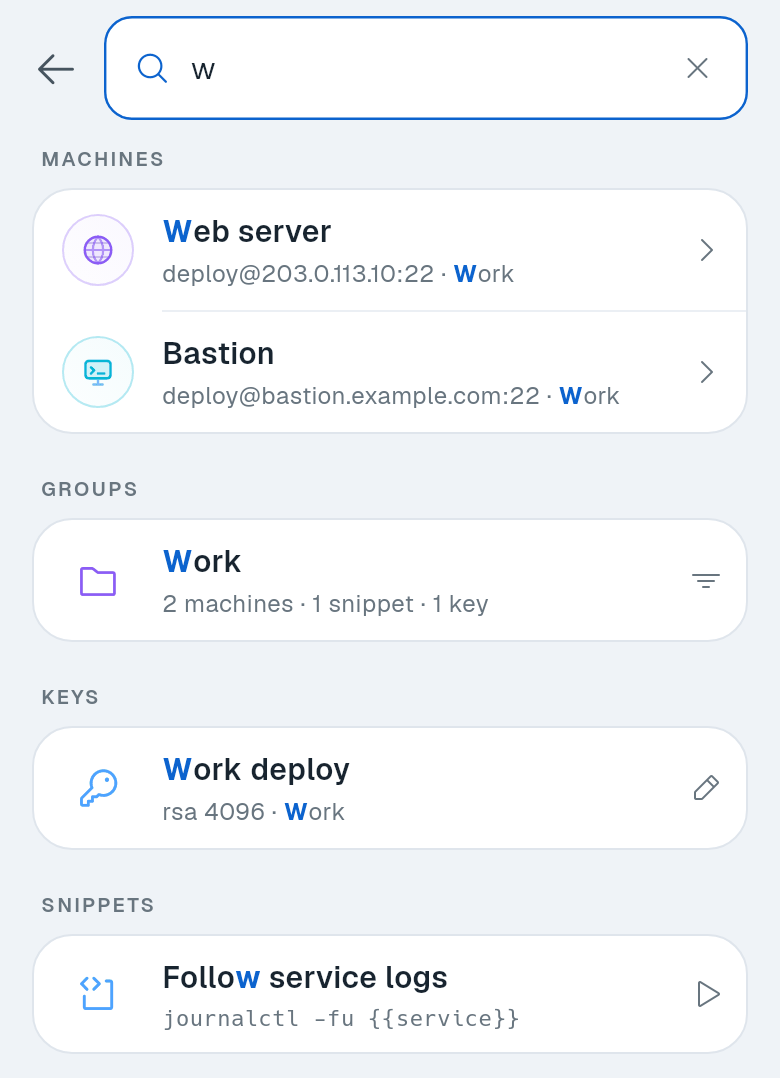
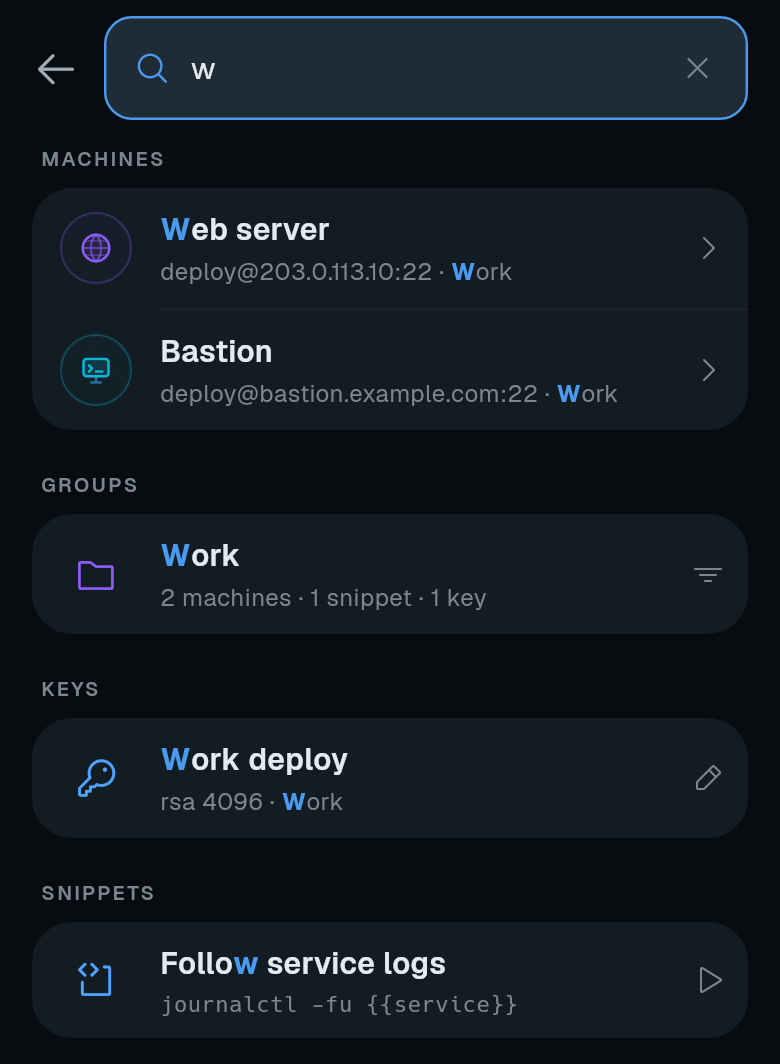
The search box at the top of the machine list now searches the whole app at once. Type a few letters and it finds machines, open sessions, groups, snippets and keys. A machine matches on its name, address or username, everything else on its name. Results are grouped by kind, with the matching letters highlighted, and the best match comes first.
Before you type anything, it shows your recent machines and open sessions. Tap a group in the results and the search narrows to that group. The keys and snippets screens have the same box.
Copy and move on the server
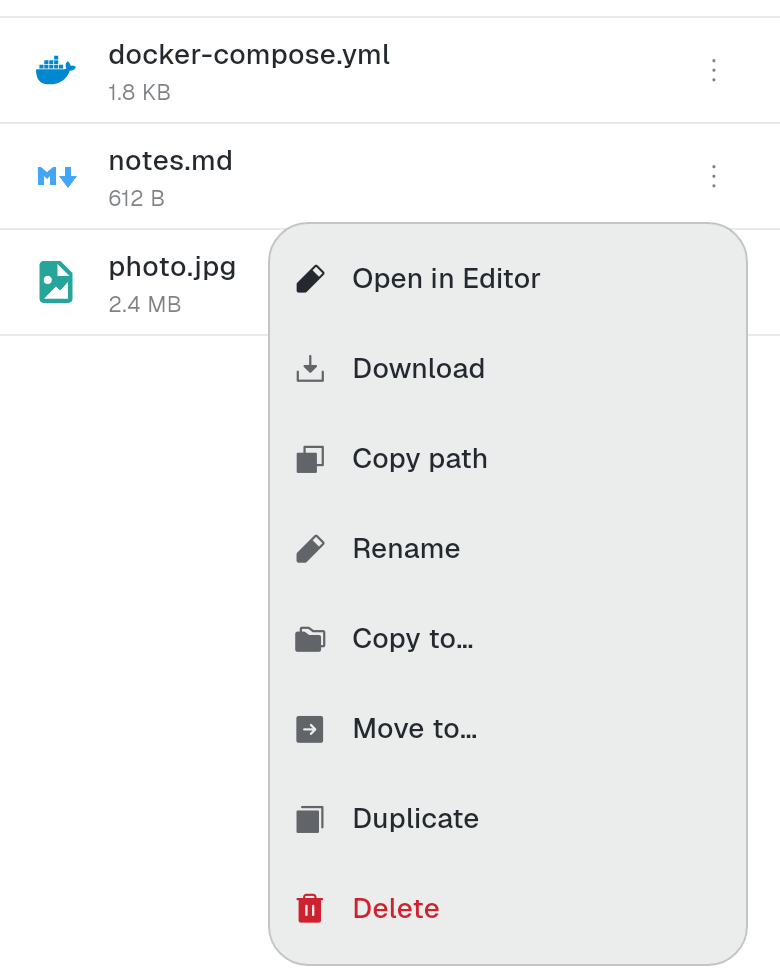
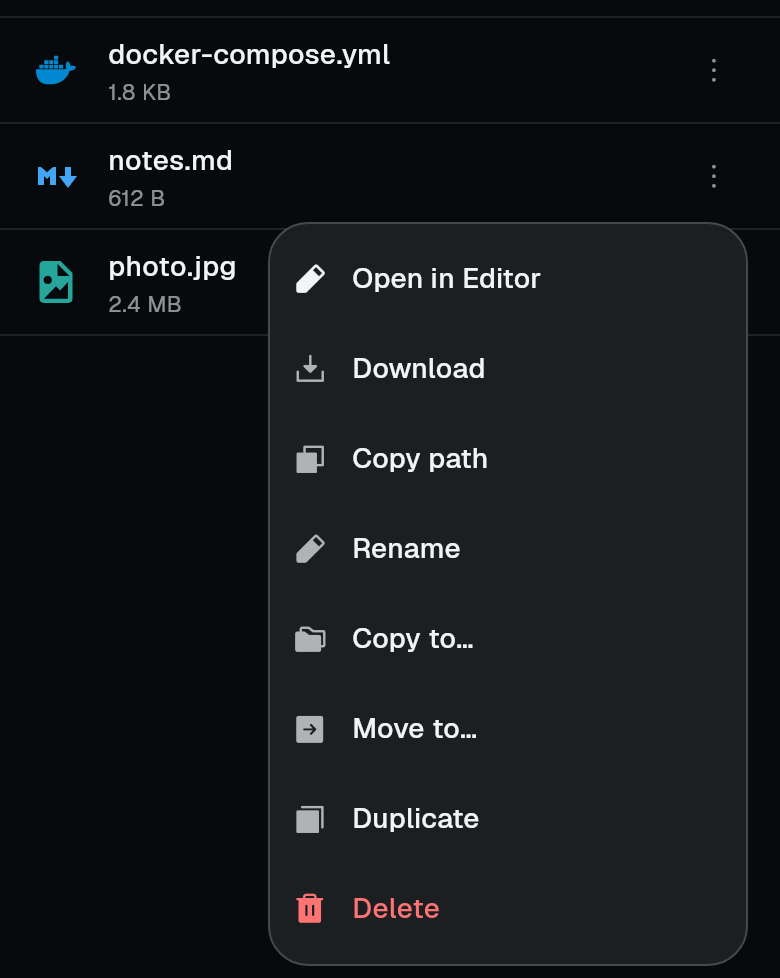
Files and folders can be copied or moved to another folder on the server. Pick Copy to… or Move to… in the file menu, or select several items first, then choose the folder.
The copy happens on the server itself. Nothing is downloaded to the phone and uploaded again, so a big folder copies as fast as the server can copy it. If some names already exist in the destination, the app asks once for the whole batch: Skip, Replace or Keep both.
“Keep both” and the new “Duplicate” give the copy a free name like “report (1).pdf”. Duplicating “report (1).pdf” gives “report (2).pdf”, not “report (1) (1).pdf”. Copying needs a shell on the server. On an account that only allows SFTP, copy and duplicate are not offered, but move still works.
Search in the terminal
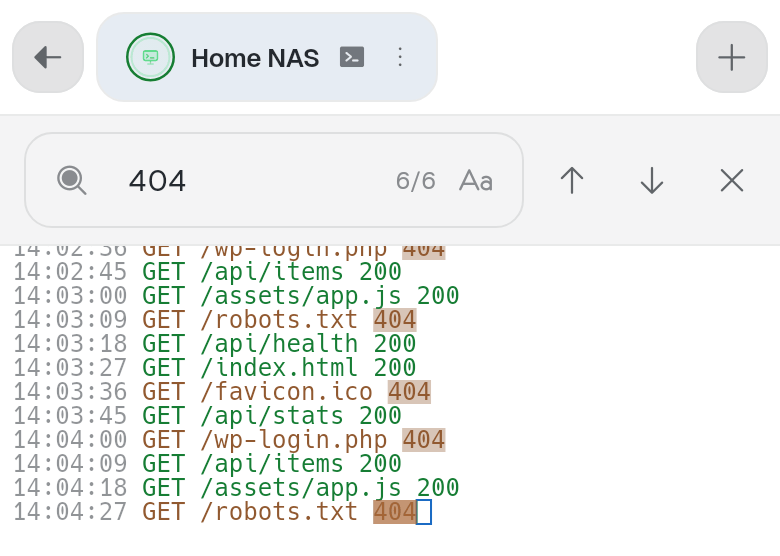
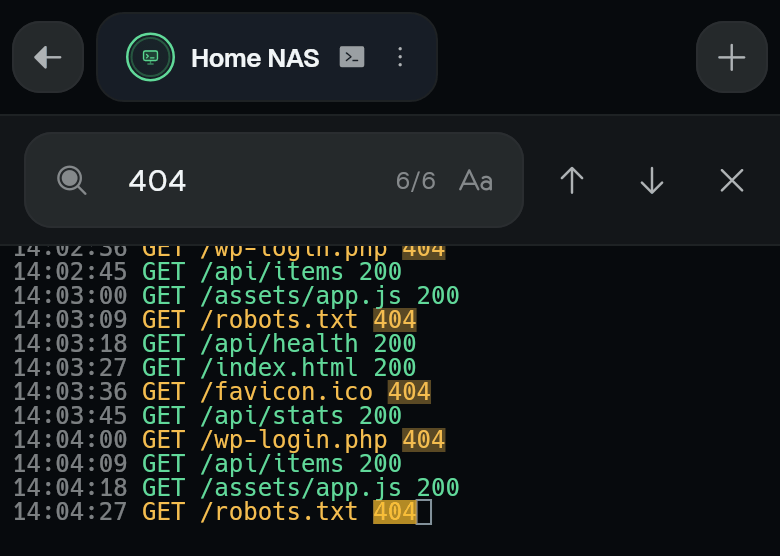
You can now search the terminal output. The action dock has a new Search tile that opens a search bar over the terminal, scrollback included. Every match is highlighted, a counter shows which one you are on, and the arrows jump to older and newer matches. Match case is one tap away.
Tabs at the bottom
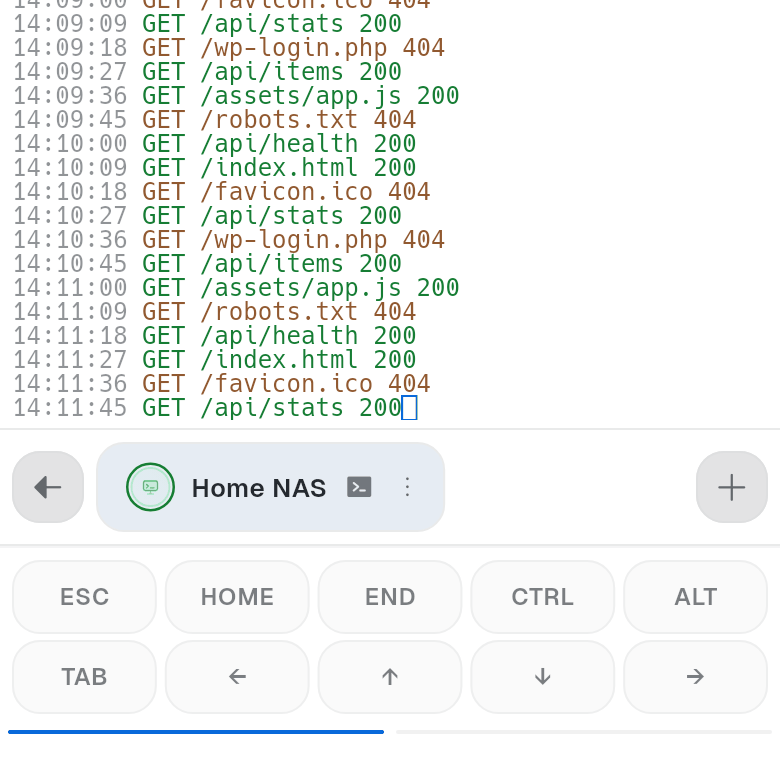
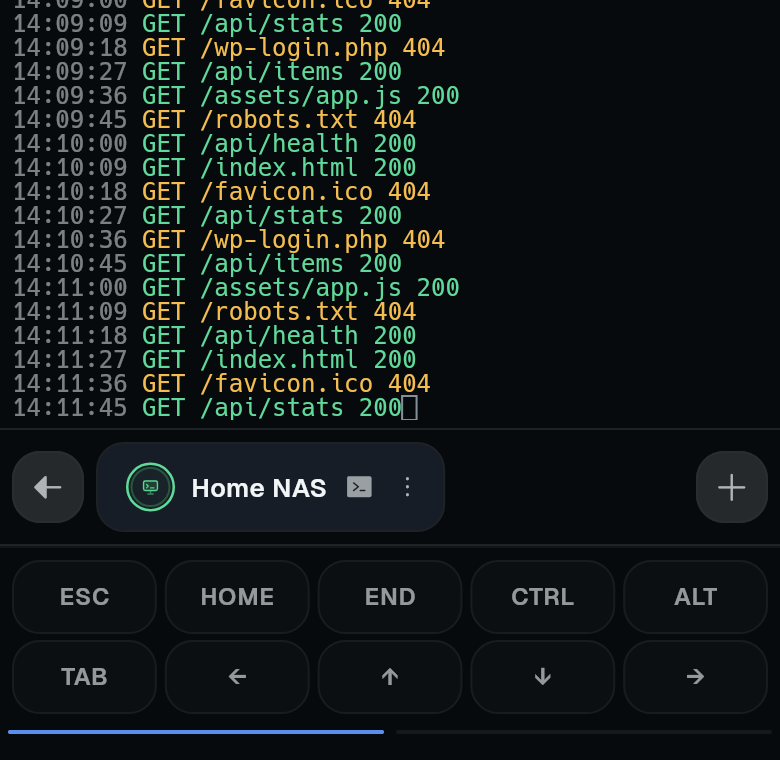
The session tabs can now sit at the bottom of the screen, just above the key toolbar, where your thumb already is. Turn on Tabs at the bottom in Settings > On-screen controls. It is off by default, and on a wide screen the tabs stay at the top.
A cleaner tab menu
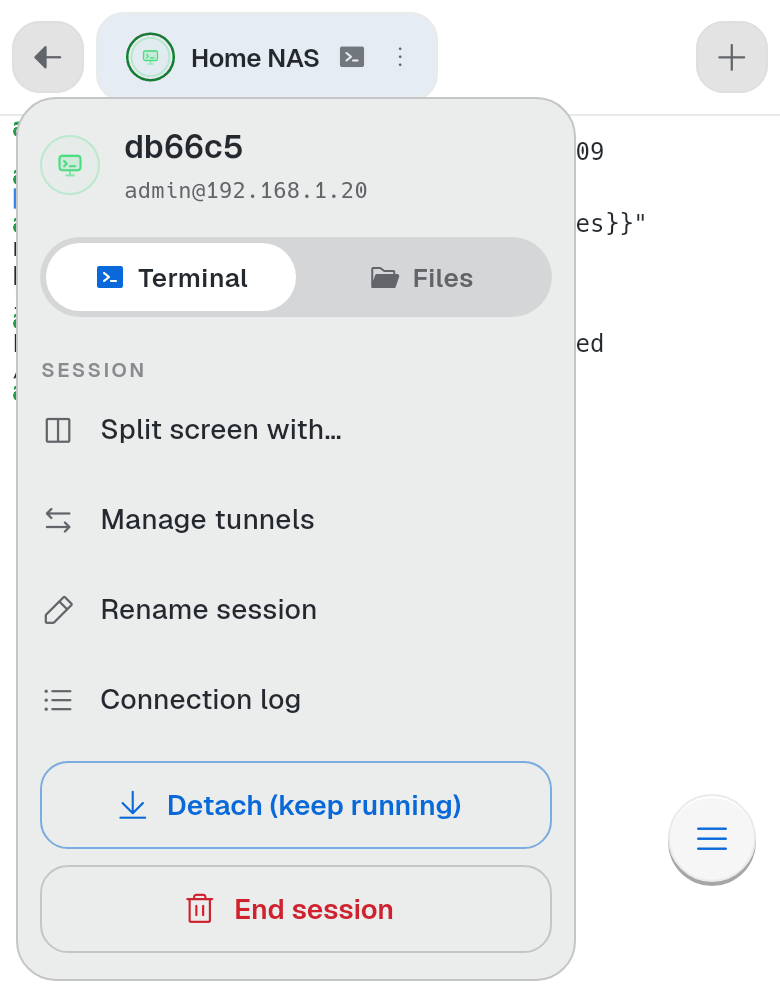
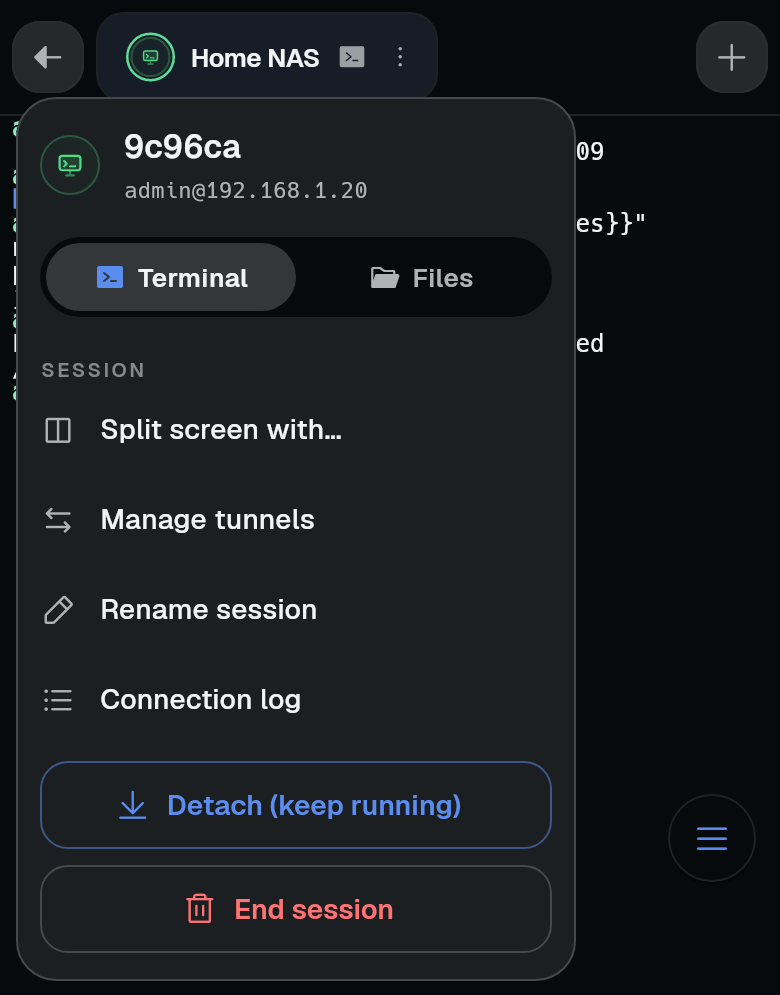
The tab menu is redesigned. The top shows the session’s name, the user and address it logs in with, and the Terminal / Files switch. Under it are Split screen, Manage tunnels, Rename session and Connection log.
Leaving a session is now its own place at the bottom. Detach (keep running) and End session are two full-width buttons, one above the other, so the one you mean is hard to miss. A plain SSH session has Disconnect there instead.
Smaller changes
Autocomplete no longer disappears after you type a space. After a command, it suggests what can follow it. Web addresses printed in the terminal are now underlined, so you can see they can be tapped.
Also fixed: going back to a detached session after changing the machine’s address now connects to the new address, and tapping a web address shows its preview again without opening the keyboard.