
What's new in Termphin 1.9.0
Autocomplete in the terminal, an easier first run, find and replace in the editor, and a stronger lock screen.
This release is about typing less and getting connected sooner: autocomplete in the terminal, a first run that leads to your server, a better text editor and a stronger lock screen.
Autocomplete

The terminal suggests what you are about to type. Start a command and Termphin offers the rest. One tap fills it in. Suggestions come from three places: commands you ran before on that server, files and folders in the directory you are in, and the command’s options, taken from the server’s own shell completion.
It learns from the history already on the server. The app reads the history files of bash, zsh and fish, or PowerShell on Windows, and adds what you type during the session. The most recent command comes first, not the most frequent one, so the guess is the one you would expect.
Commands that look secret are never suggested or kept. That covers a command started with a space, the usual way to hide one from history, and a command with a password or token typed into it. Autocomplete works on Linux, macOS and Windows servers, and can be turned off in Settings.
Settings that explain themselves



Some settings now show you what they do. A small info button next to their name opens a short animation of the feature at work. Autocomplete and Fast upload have one.
A better first run
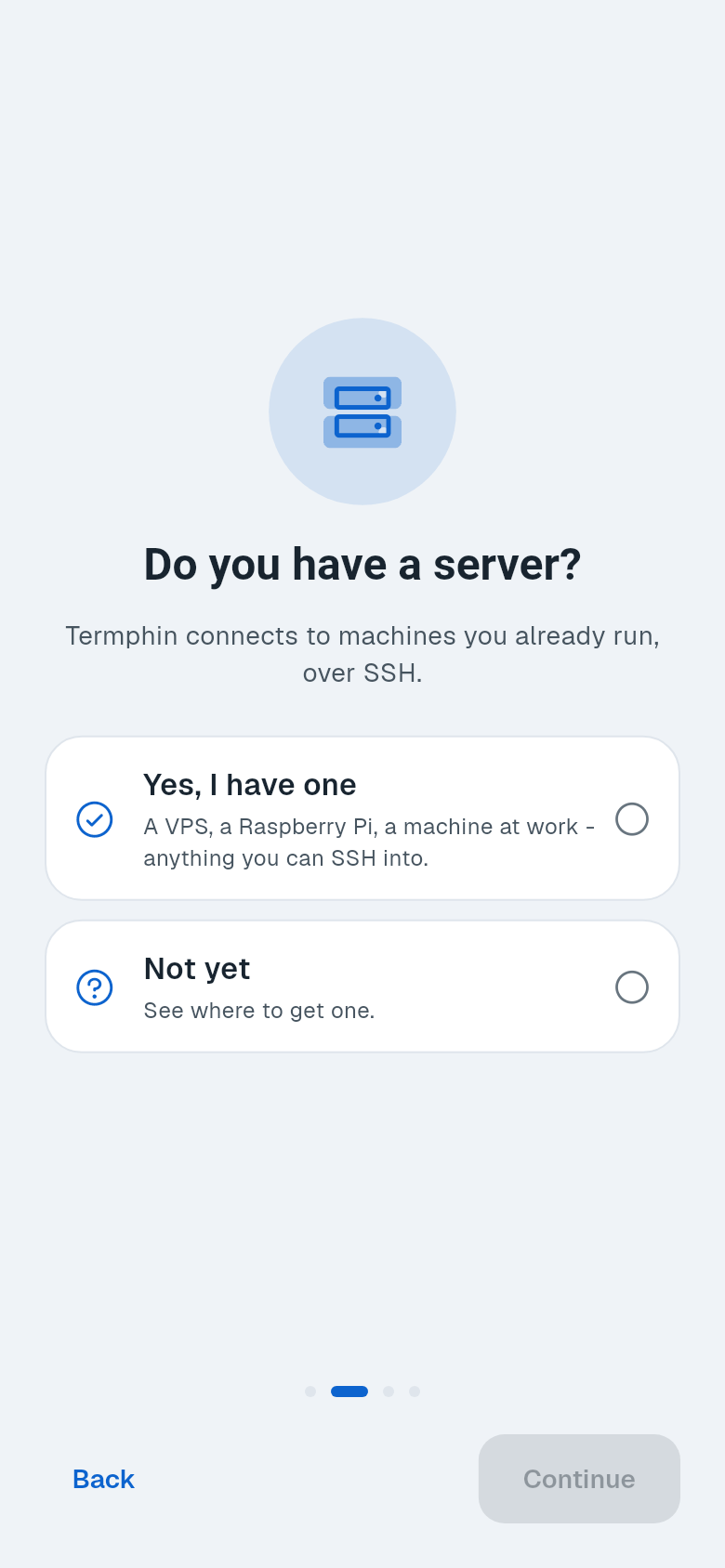
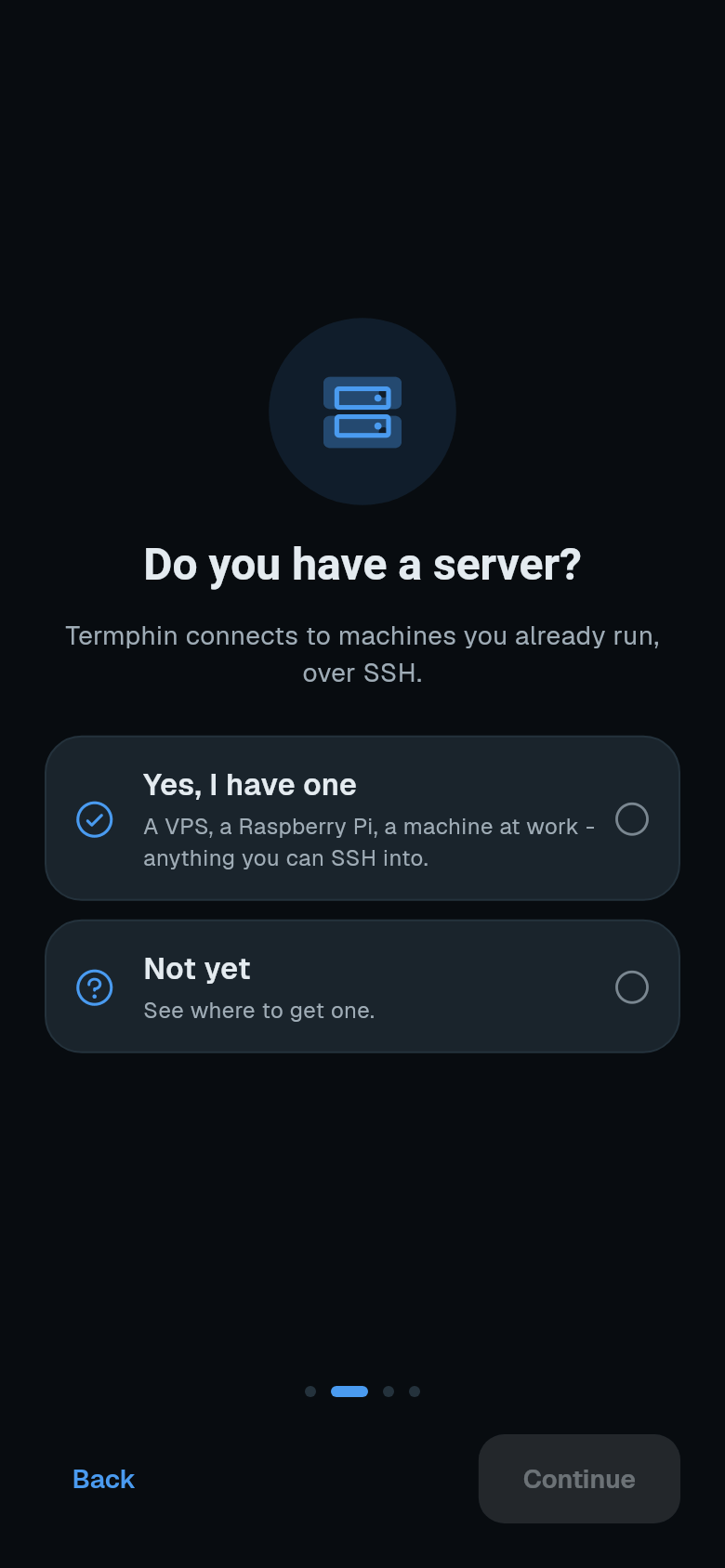
The first run now asks one question: do you have a server? “Yes” goes straight to adding a machine. “Not yet” shows a short guide to where you can get one.
Adding a machine is more forgiving. On the empty machine list you can type user@host, or paste a whole command such as ssh -p 2222 user@host, or an ssh:// link. The form opens filled in. A name is now optional - until you give one, the machine is called by its address.
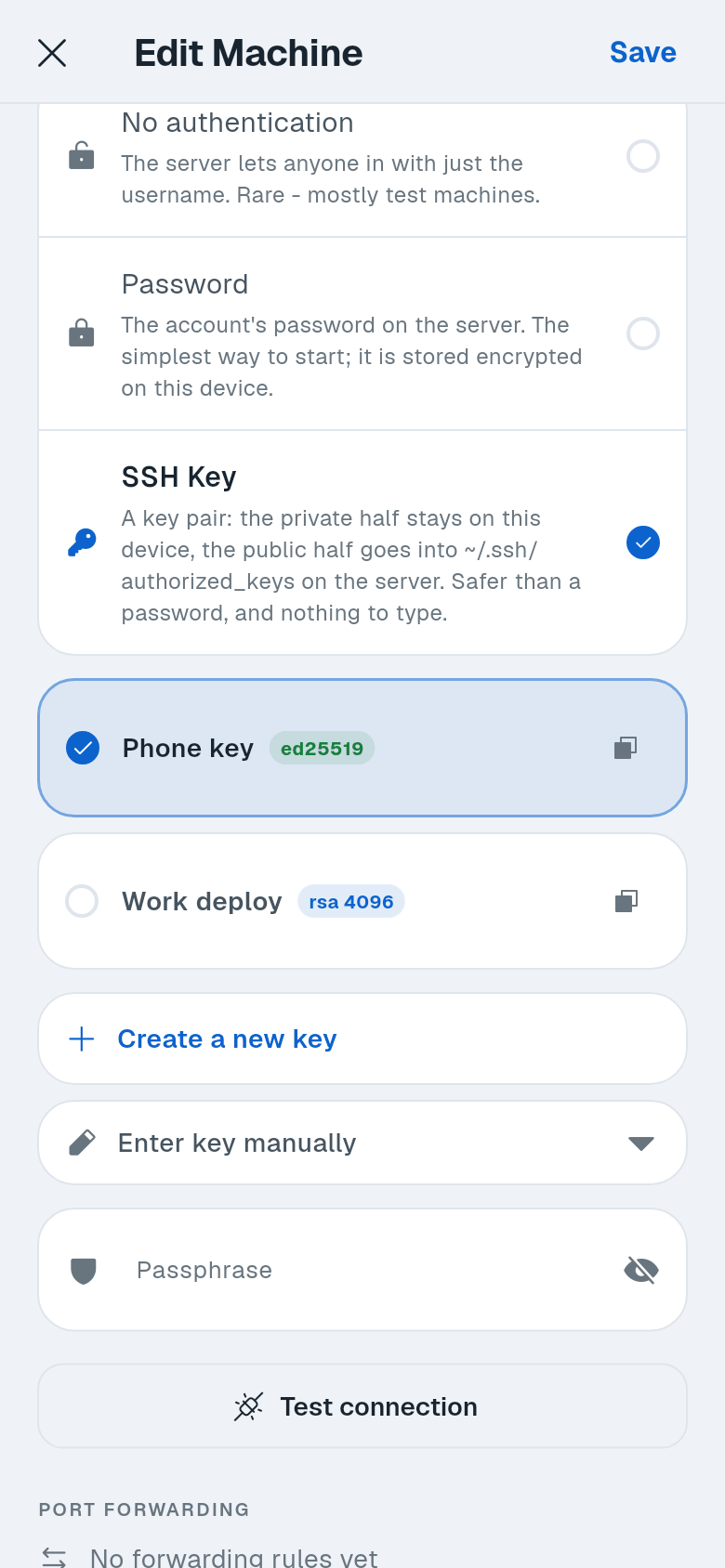
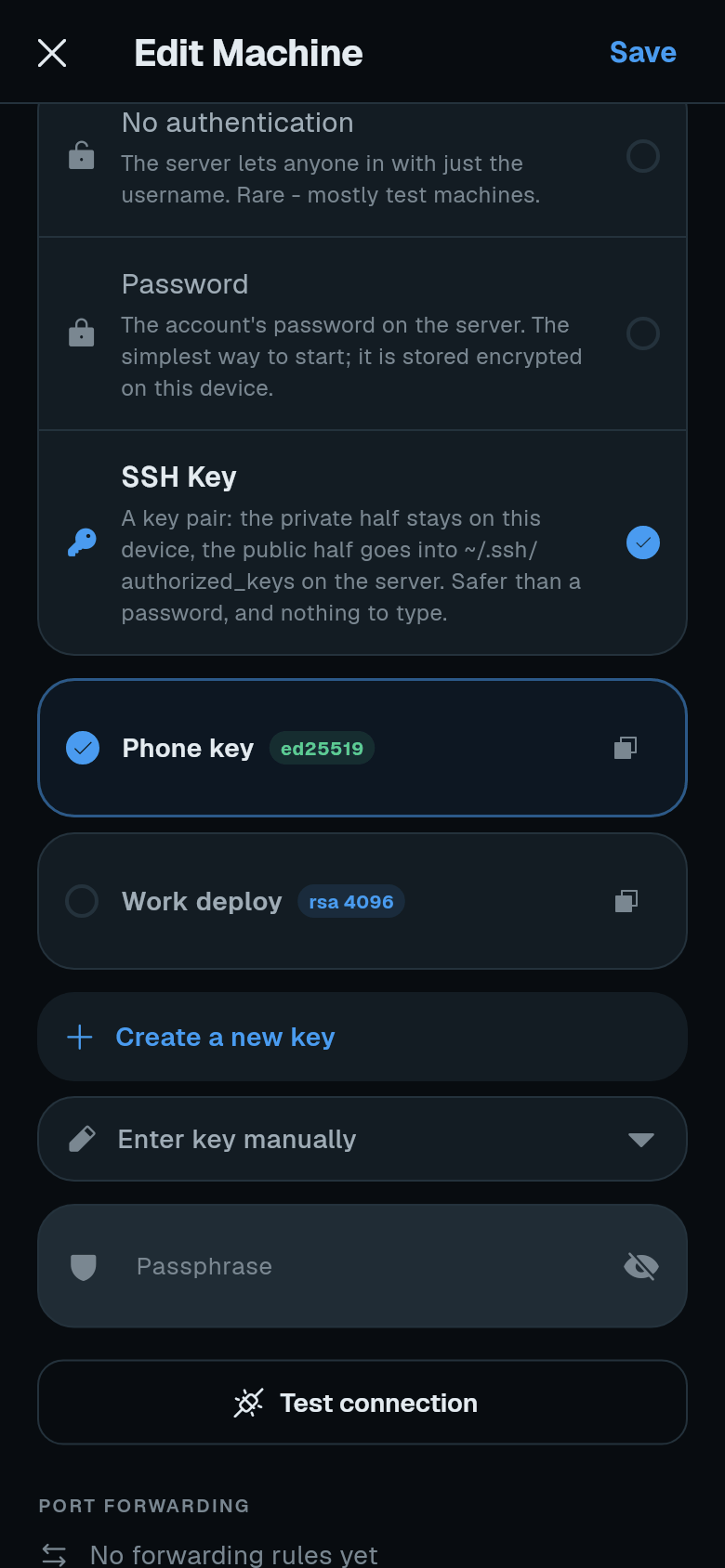
A new machine has no sign-in method until you pick one. Before, it quietly defaulted to a password. Now you choose between a password, an SSH key or none.
You can test a connection before saving it. Test connection in the machine form connects with what you have filled in, without saving. It shows the same errors and host key question a real session would, then disconnects.
A new SSH key can be made from the machine form. Create a new key opens the full key screen - any key type, or import an existing key - and the new key is picked for the machine. Its public half is shown right away, because it has to go into the server’s authorized_keys before it is any use.
Text editor
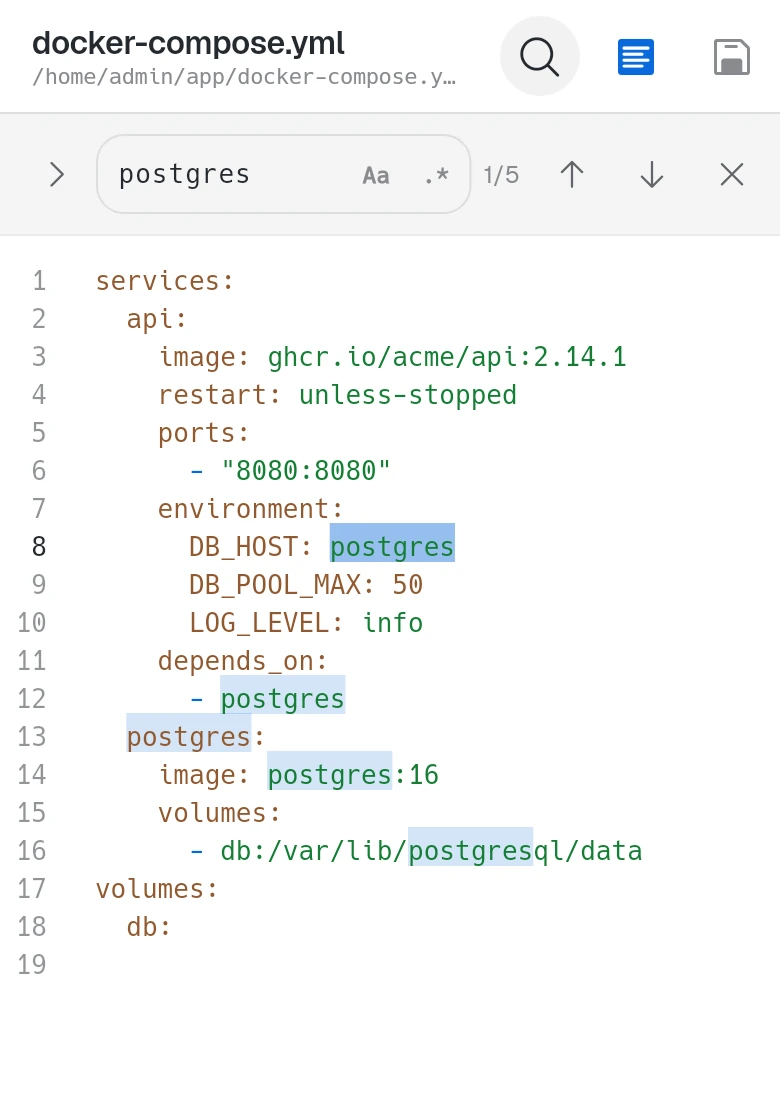
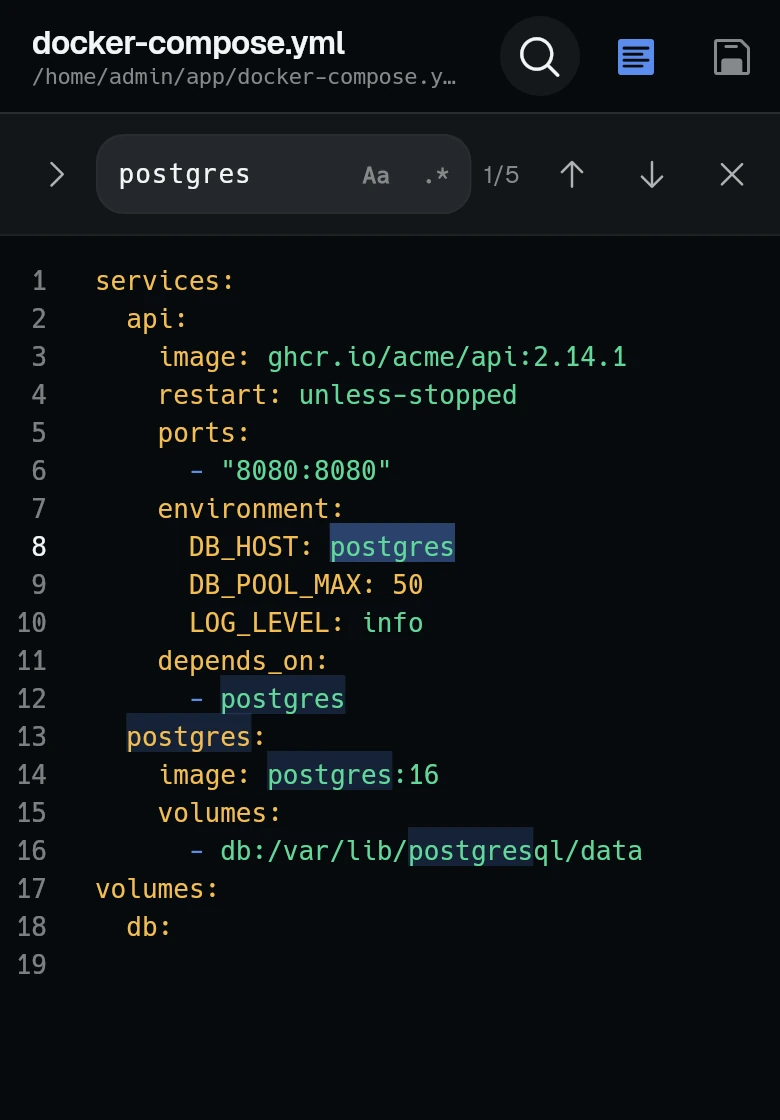
The text editor now has find and replace. Match case and regular expressions are supported, and every match is highlighted.
The editor has its own settings. A new SFTP section in Settings holds font, font size, line height, tab width, line numbers and word wrap, with a live preview that shows each change as you make it.
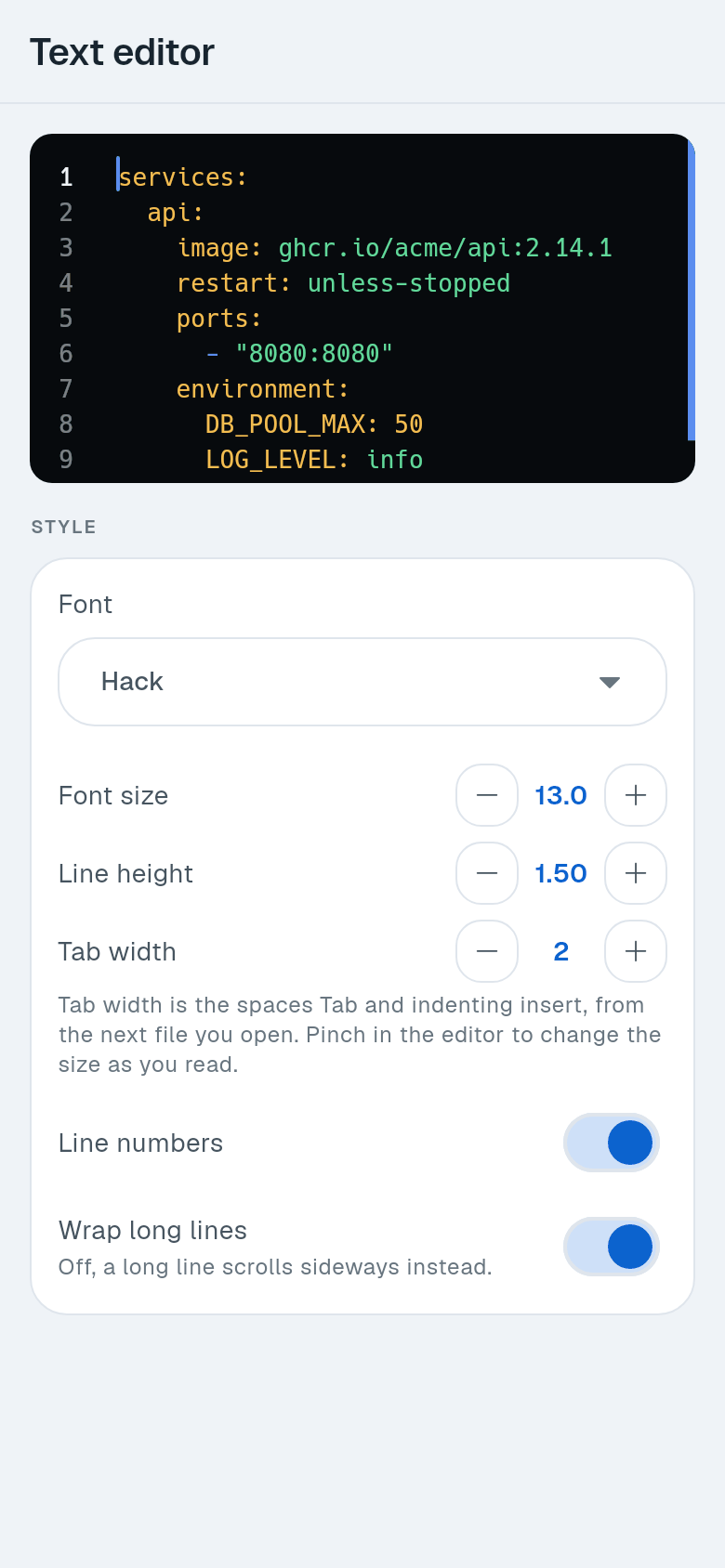
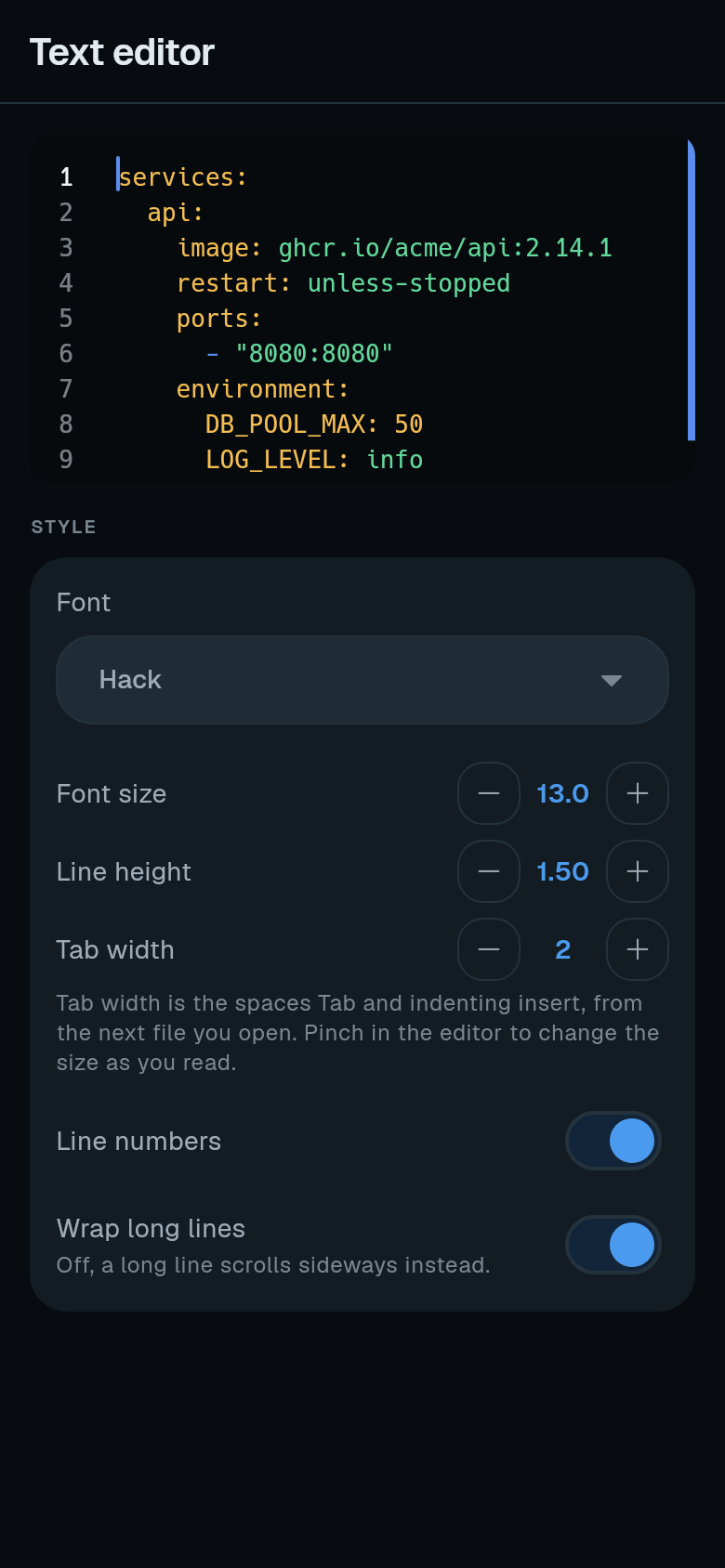
Syntax colours now follow your terminal colour scheme, so the editor matches the terminal. Pinch to zoom changes the font size.
Lock screen
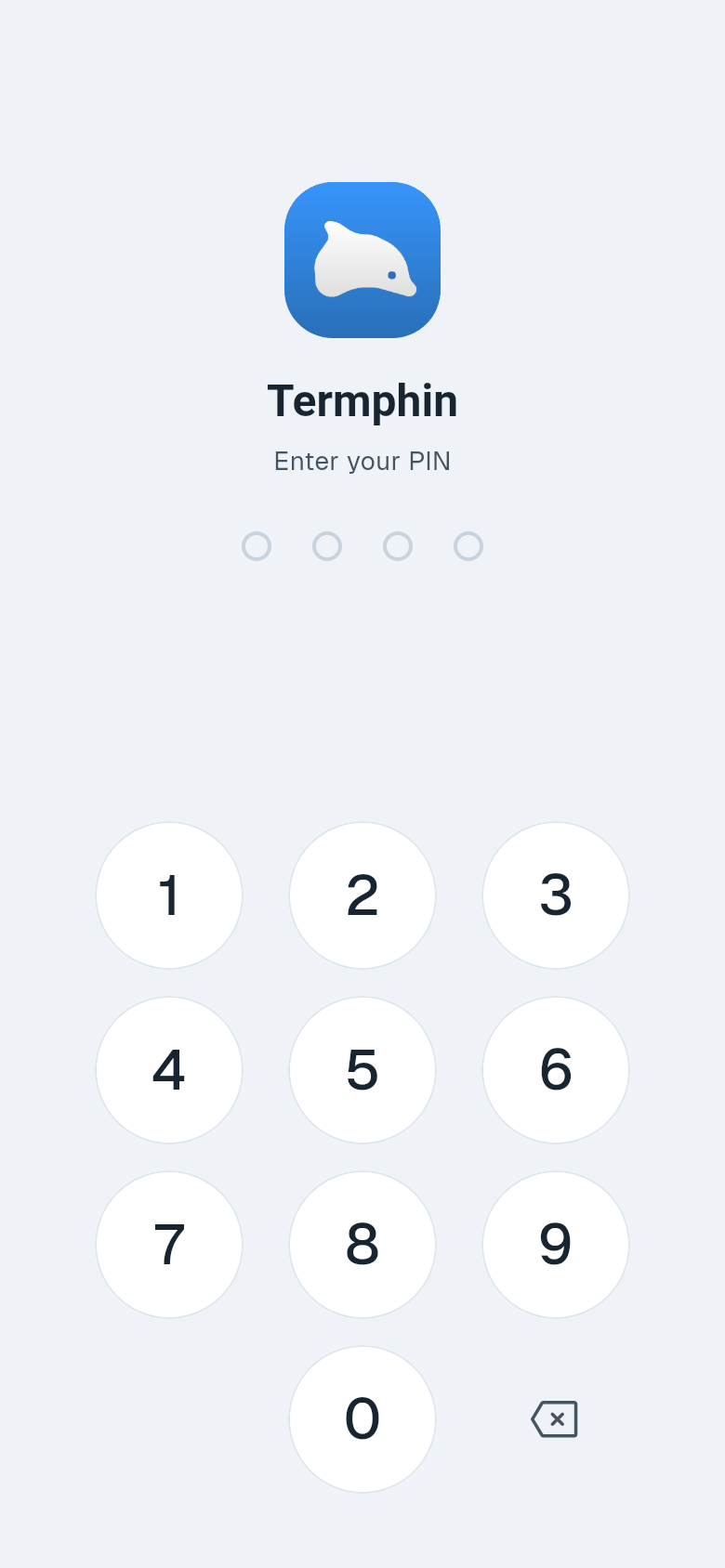
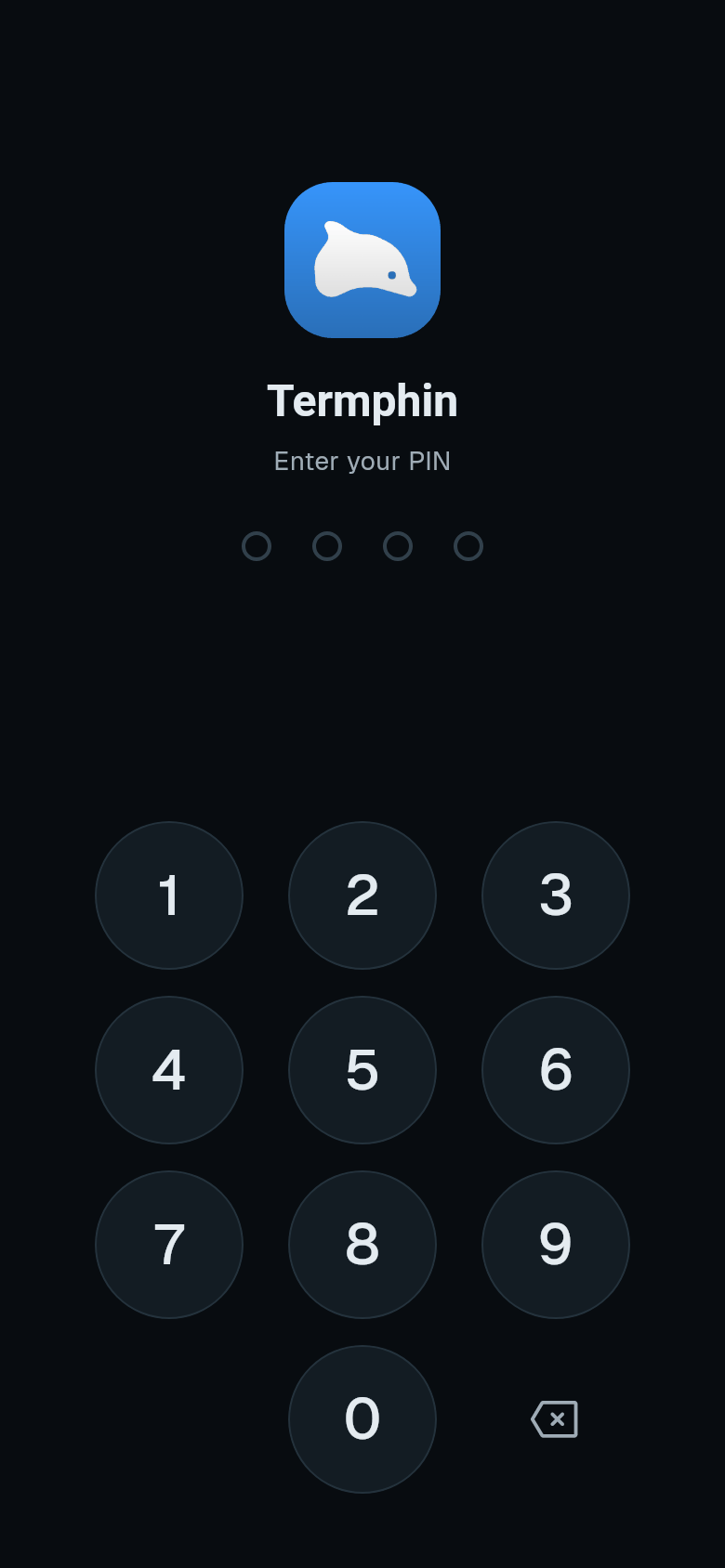
The lock screen is redesigned and more secure. A PIN can now be 4, 5 or 6 digits. The screen shows as many dots as your PIN has and unlocks on the last digit, with no extra tap.
After three wrong PINs, the lock screen makes you wait. The wait starts at 30 seconds and doubles with each miss, up to 15 minutes. Closing the app does not reset the wait. The right PIN unlocks quickly now, and the screen shows it is checking instead of freezing.
Smaller changes
Custom keys on the key toolbar are labelled Ctrl, Alt and Shift instead of symbols.
Also fixed: a snippet with arguments on the key toolbar now asks for them and runs, and the screen no longer goes blank when an import shows more than one message.